UPDF
UPDF
 UPDF için Windows
 UPDF Mac için
 iPhone/iPad için UPDF
 UPDF için Android
 UPDF AI Online
 UPDF Sign
 PDF Düzenle
 PDF Not Ekle
 PDF Oluştur
 PDF Formu
 Linkleri Düzenle
 PDF Dönüştür
 OCR
OCR PDF → Word
 PDF → Görsel
 PDF → Excel
 PDF Düzenle
 PDF Birleştir
 PDF Böl
 PDF Kırp
 PDF Döndür
 PDF Koru
 PDF İmzala
 PDF Düzenle
 PDF Temizle
 Güvenliği Kaldır
 PDF Oku
 UPDF Bulut
 PDF Sıkıştır
 PDF Yazdır
 Toplu İşlem
 UPDF AI Hakkında
 UPDF AI Çözümleri
 Yapay Zeka Kullanım Kılavuzu
 UPDF AI Hakkında Sıkça Sorulan Sorular
 PDF'yi Özetle
 PDF'yi Çevir
 PDF'yi açıkla
 PDF ile sohbet edin
 Yapay Zeka ile Sohbet
 Görüntü ile sohbet
 PDF'den Zihin Haritasına
 Akademik Araştırma
 Makale Arama
 Yapay Zeka Düzeltici
 Yapay Zeka Yazarı
 Yapay Zeka Ödev Yardımcısı
 Yapay Zeka Test Oluşturucu
 Yapay Zeka Matematik Çözücü
 PDF to Word
 PDF to Excel
 PDF to PowerPoint
 Kurumsal Çözüm
 Kurumsal Plan
 Kurumsal Kullanıcı Kılavuzu
 Kurumsal Webinar
 Bankacılık
 Sağlık Hizmetleri
 Sigorta
 Hukuk
Hukuk İmalat
 Hükümet
 Eğitim Çözümü
 Müşteri Hikayeleri
 Kullanıcı Kılavuzu
 UPDF Püf Noktaları
 Sıkça Sorulan Sorular
 UPDF Yorumları
 İndirme Merkezi
 Blog
Blog Haber Merkezi
 Teknik Özellikler
 Güncellemeler
 UPDF vs. Adobe Acrobat
 UPDF vs. Foxit
 UPDF vs. PDF Expert


Batch Combine Files on Windows
If you want to merge multiple PDF documents or images into a single file, UPDF's Batch Combine feature makes it simple and efficient.
Note: UPDF also allows you to split a multi-page PDF into separate files or divide a single PDF page into multiple sections as individual pages. If you need step-by-step guidance for these tasks, click the links below:
1. Select the Batch Combine Option
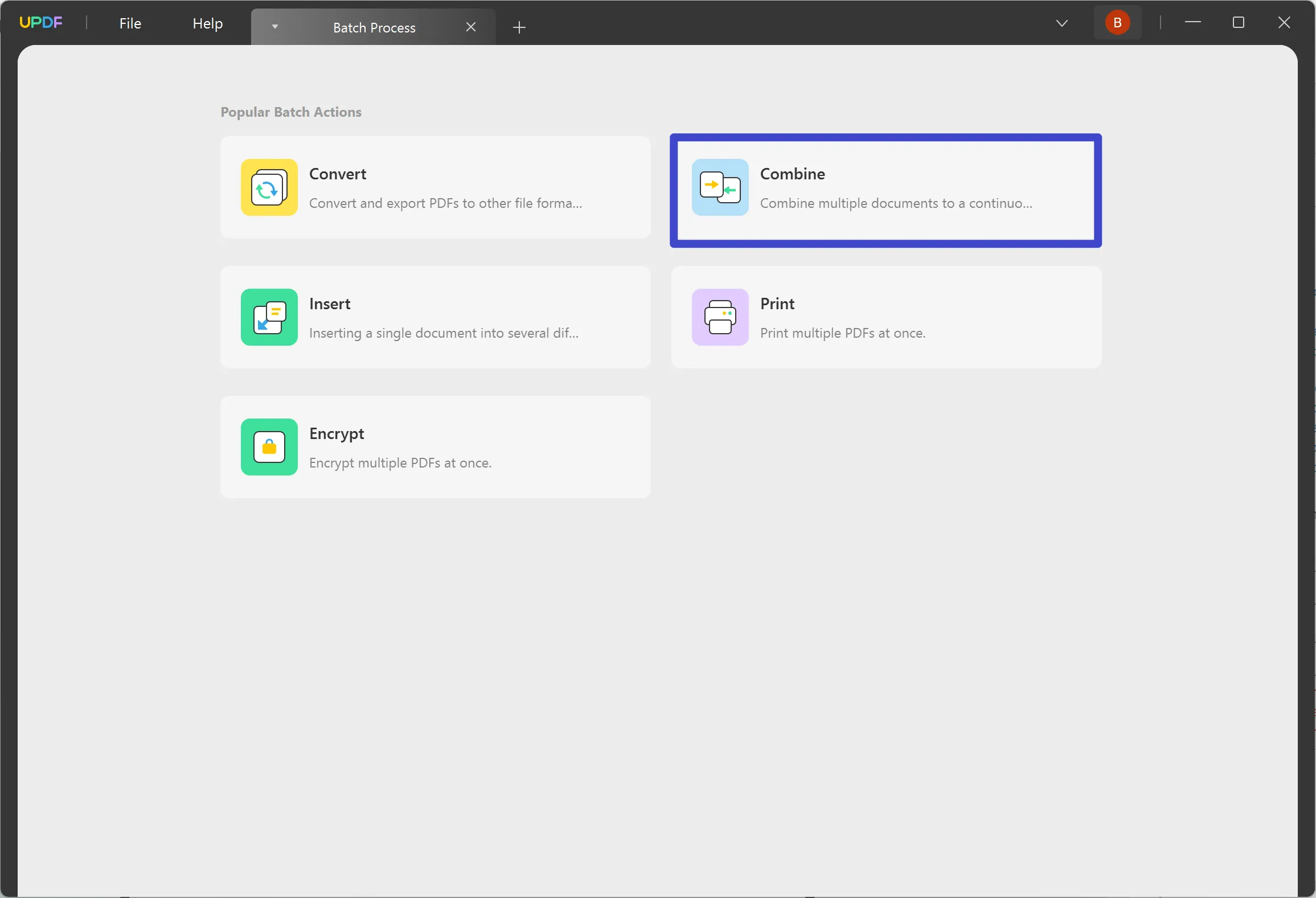
As you launch UPDF on your Windows computer, continue to the "Batch PDFs" feature on the home screen to lead to a new window.

In the new window, select the "Combine" option.
This feature provides the ability to combine PDF documents along with a variety of image formats such as JPG, JPEG, PNG, TIFF, BMP, and GIF into a single PDF.
2. Add Files
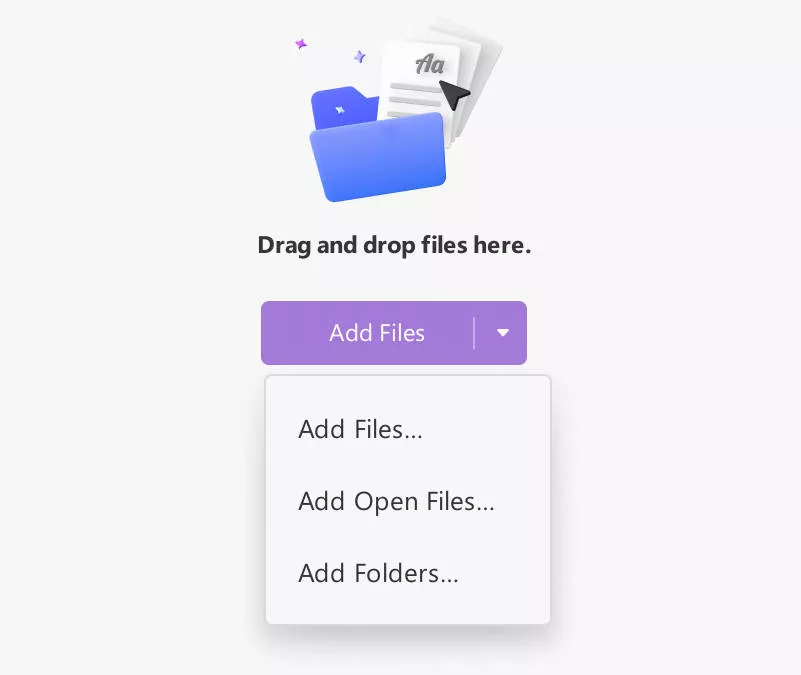
On leading to a new window, you will have to add files to combine, which can be done in a variety of ways:
- Dragging and Dropping
For starters, you can simply drag and drop your potential files into the opened window of UPDF.
- Navigate Files From Folders
As you select the "Add Files" button, you will be led to a drop-down option where you must select the "Add Files…" option. Continue to browse the file from the file explorer and add it into UPDF successfully.
- Adding Pre-Opened Files
You can also find the option of "Add Open Files…" in the drop-down that opens after selecting the "Add Files" button. This will add all files automatically into the section that is currently open on UPDF.
- Add Complete Folders
For adding a collection of PDF documents, you can add a complete folder with the help of the "Add Folders…" option in the drop-down menu.
3. Rearranging Added Documents
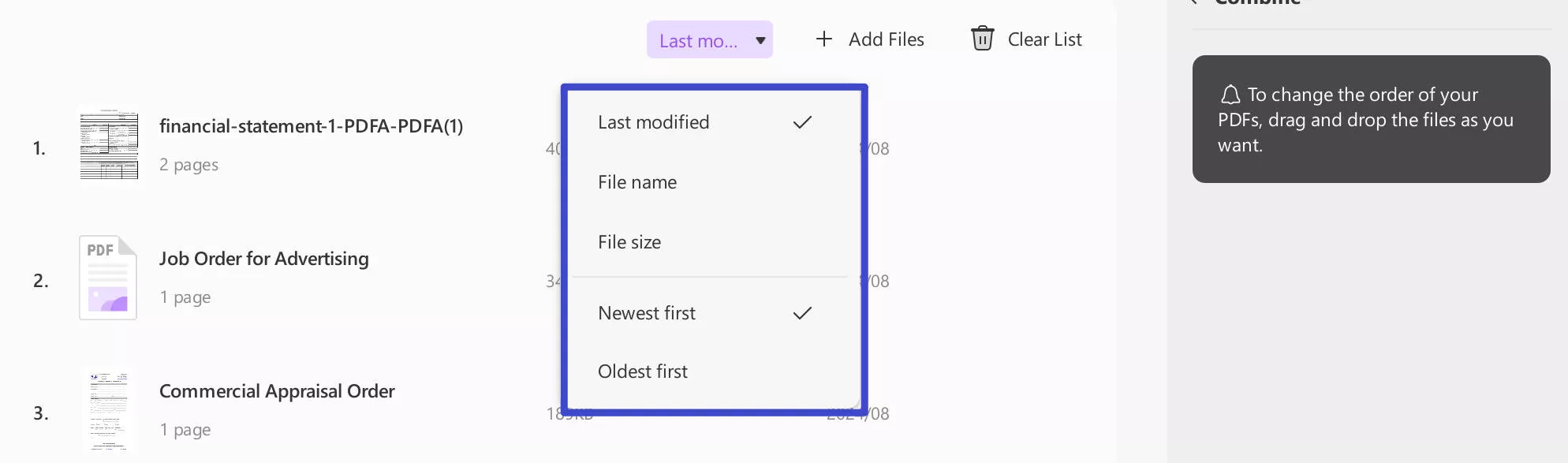
After adding documents to the Batch Combine panel, you can easily rearrange them by dragging them into the desired order.
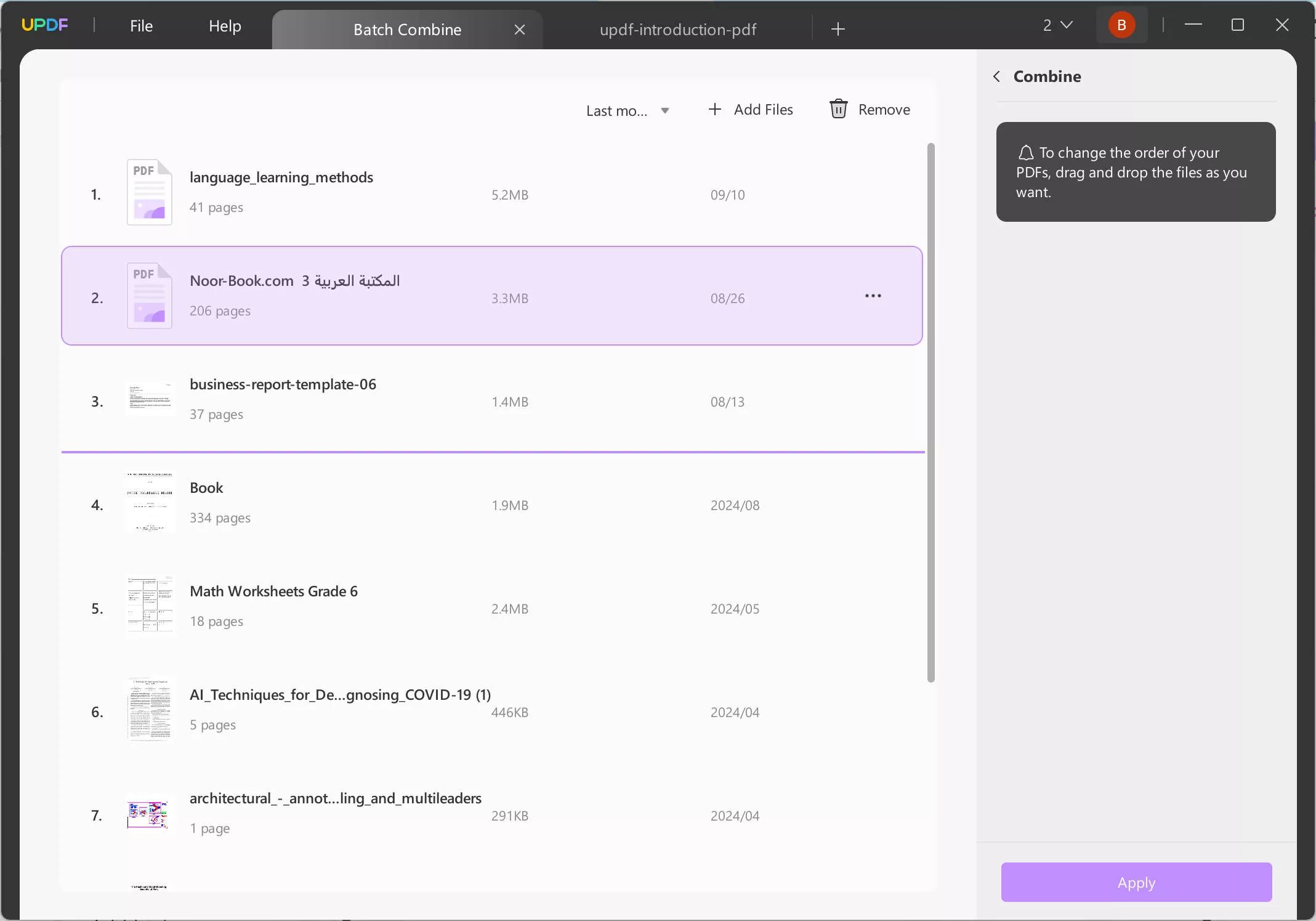
Additionally, UPDF allows you to sort the added files by last modified time, file name, file size, newest first, or oldest first.
4. Combine Files
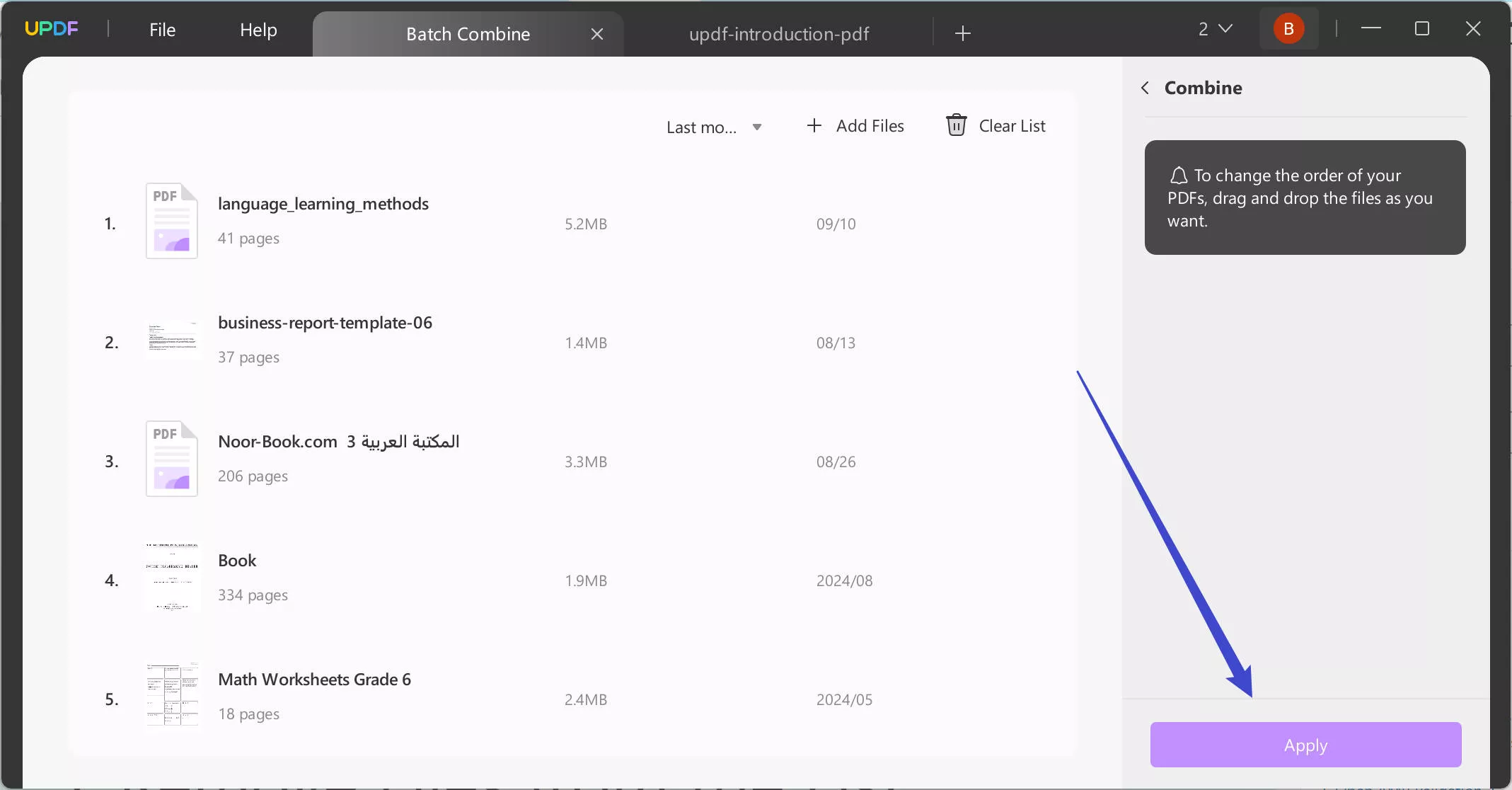
As you are done with adding all the files and rearranging them, continue to the "Apply" button to save the new document in any particular position you want to.
5. Remove Files from the List
If you intend to remove a specific file, find the "three-dots" icon adjacent to the added document and select the option of "Remove File."
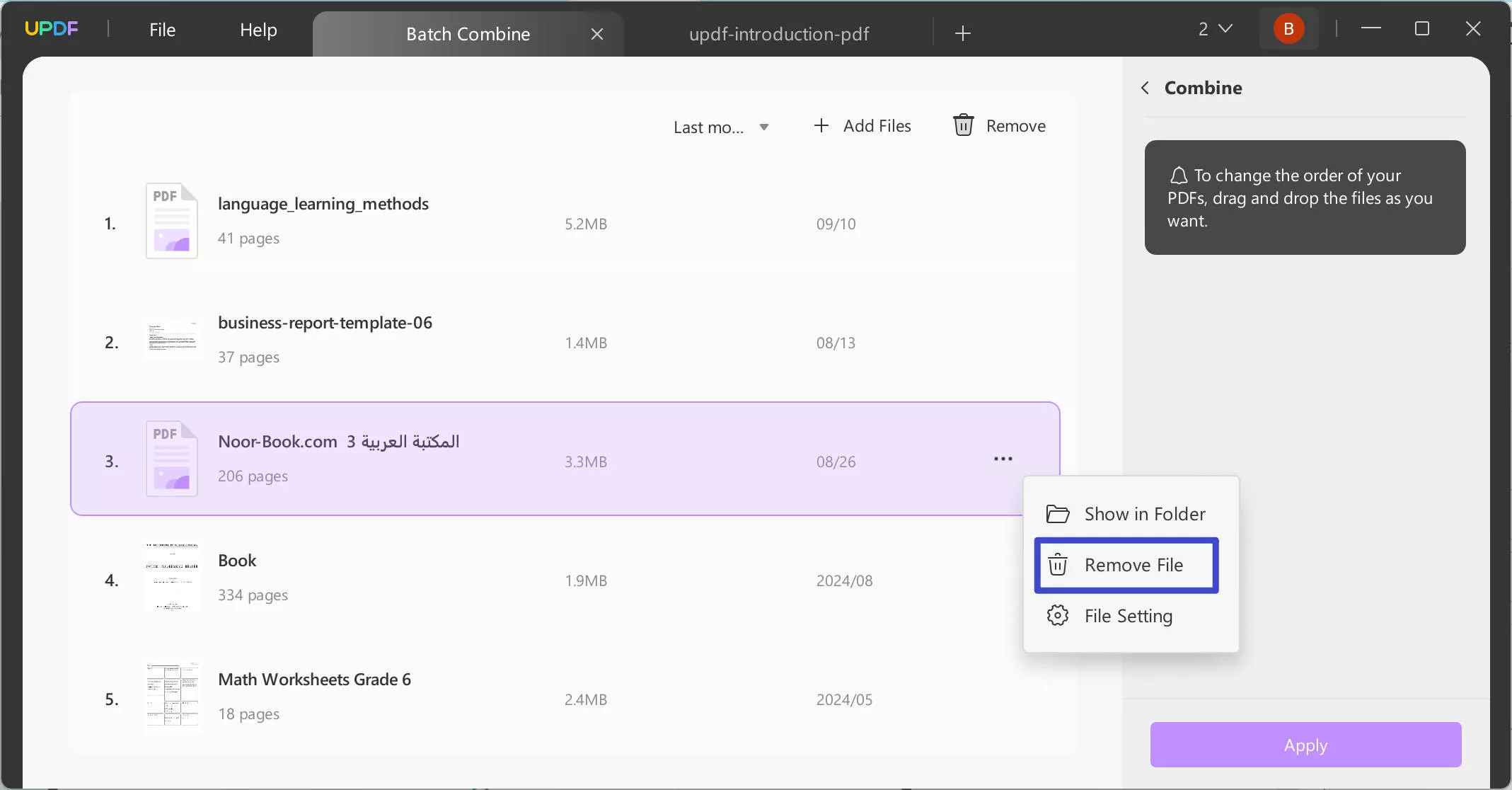
Under the same drop-down, you can also select the option of "Show in Folder" to access the location of the document. To view its properties, use the option of "File Setting."
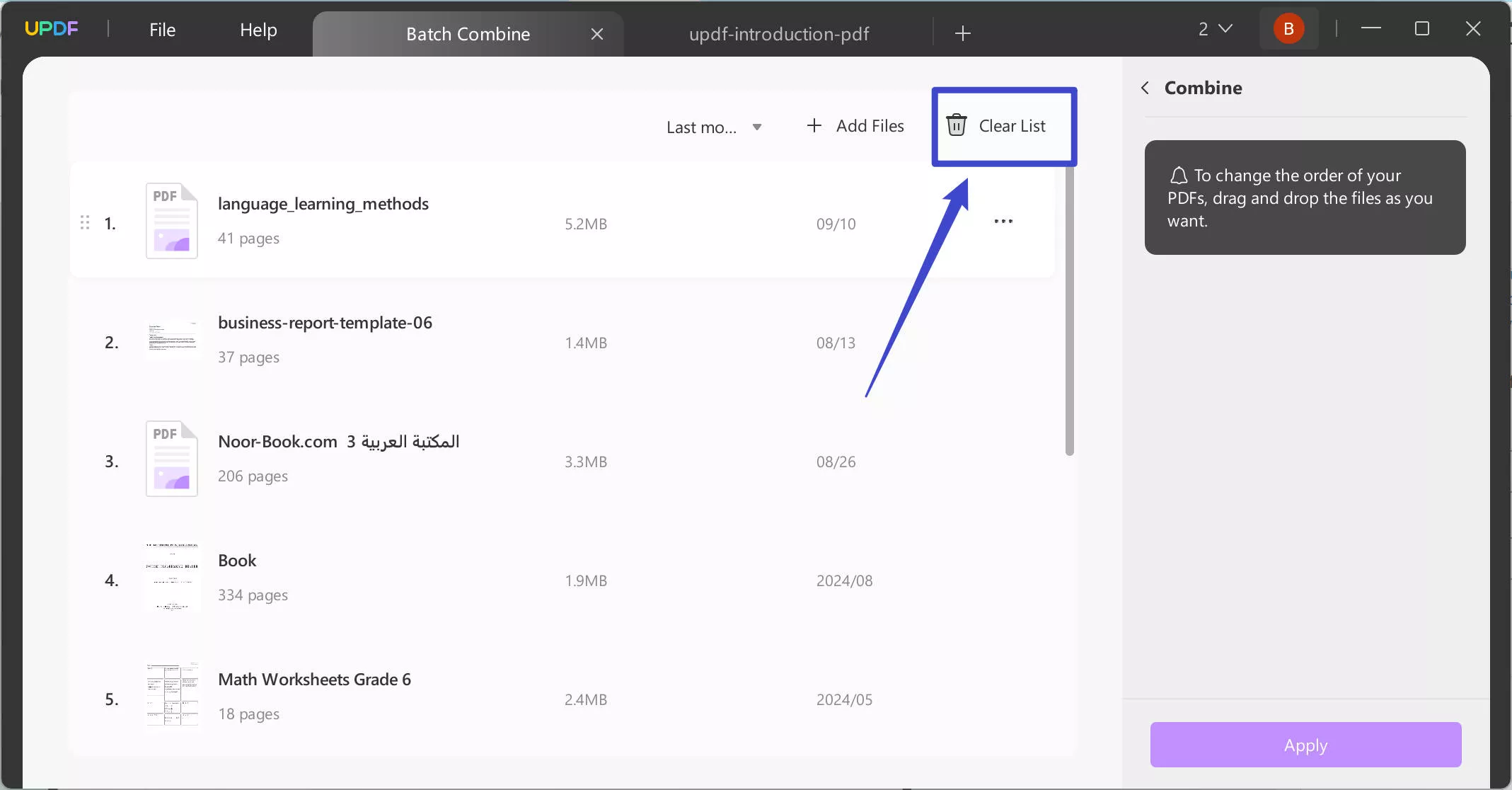
If you intend to clear the complete list of added documents, use the "Clear List" button.