UPDF
UPDF
 UPDF untuk Windows
 UPDF untuk Mac
 UPDF untuk iPhone/iPad
 UPDF untuk Android
 UPDF AI Online
 UPDF Sign
 Edit PDF
 Anotasi PDF
 Buat PDF
 Formulir PDF
 Edit Tautan
 Konversi PDF
 OCR
OCR PDF ke Word
 PDF ke Gambar
 PDF ke Excel
 Atur PDF
 Gabung PDF
 Pisah PDF
 Potong PDF
 Putar PDF
 Lindungi PDF
 Tanda Tangan PDF
 Redaksi PDF
 Sanitasi PDF
 Hapus Keamanan
 Baca PDF
 UPDF Cloud
 Kompres PDF
 Cetak PDF
 Proses Massal
 Tentang UPDF AI
 Solusi AI UPDF
 Panduan Pengguna AI
 Tanya Jawab tentang UPDF AI
 Ringkasan PDF
 Terjemahkan PDF
 Ngobrol dengan PDF
 Ngobrol dengan AI
 Ngobrol dengan gambar
 PDF ke Peta Pikiran
 Penjelasan PDF
 Riset Akademik
 Pencarian Makalah
 Penyunting AI
 Penulis AI
 Asisten Pekerjaan Rumah AI
 Pembuat Kuis AI
 Penyelesai Matematika AI
 PDF ke Word
 PDF ke Excel
 PDF ke PowerPoint
 Solusi Perusahaan
 Rencana Perusahaan
 Panduan Pengguna Perusahaan
 Webinar Perusahaan
 Perbankan
 Kesehatan
 Asuransi
 Hukum
Hukum Manufaktur
 Pemerintah
 Solusi Pendidikan
 Kisah Pelanggan
 Panduan Pengguna
 Trik UPDF
 Tanya Jawab
 Ulasan UPDF
 Pusat Unduhan
 Blog
Blog Ruang Berita
 Spesifikasi Teknis
 Pembaruan
 UPDF vs. Adobe Acrobat
 UPDF vs. Foxit
 UPDF vs. PDF Expert


Batch Combine Files on Windows
If you want to merge multiple PDF documents or images into a single file, UPDF's Batch Combine feature makes it simple and efficient.
Note: UPDF also allows you to split a multi-page PDF into separate files or divide a single PDF page into multiple sections as individual pages. If you need step-by-step guidance for these tasks, click the links below:
1. Select the Batch Combine Option
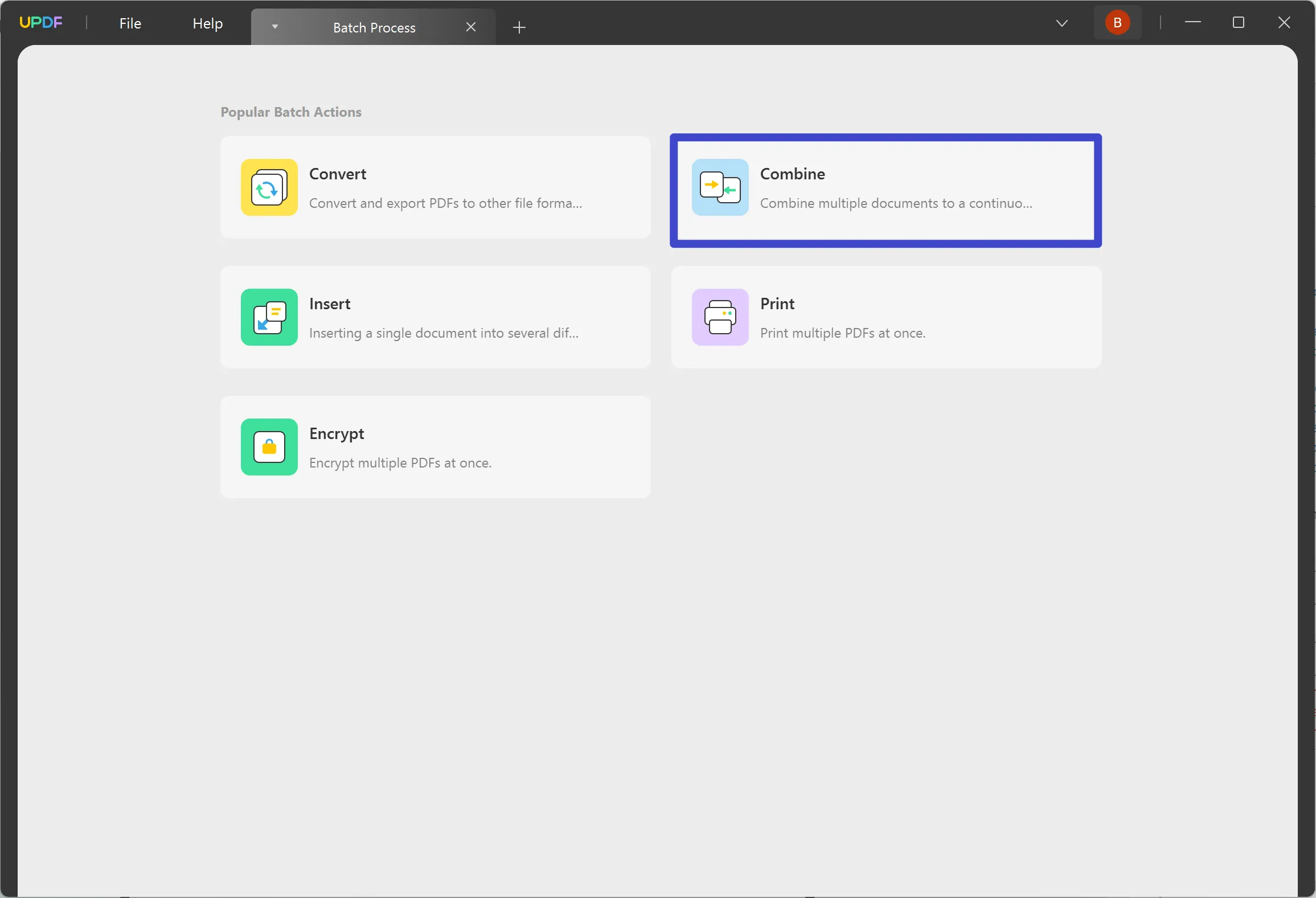
As you launch UPDF on your Windows computer, continue to the "Batch PDFs" feature on the home screen to lead to a new window.

In the new window, select the "Combine" option.
This feature provides the ability to combine PDF documents along with a variety of image formats such as JPG, JPEG, PNG, TIFF, BMP, and GIF into a single PDF.
2. Add Files
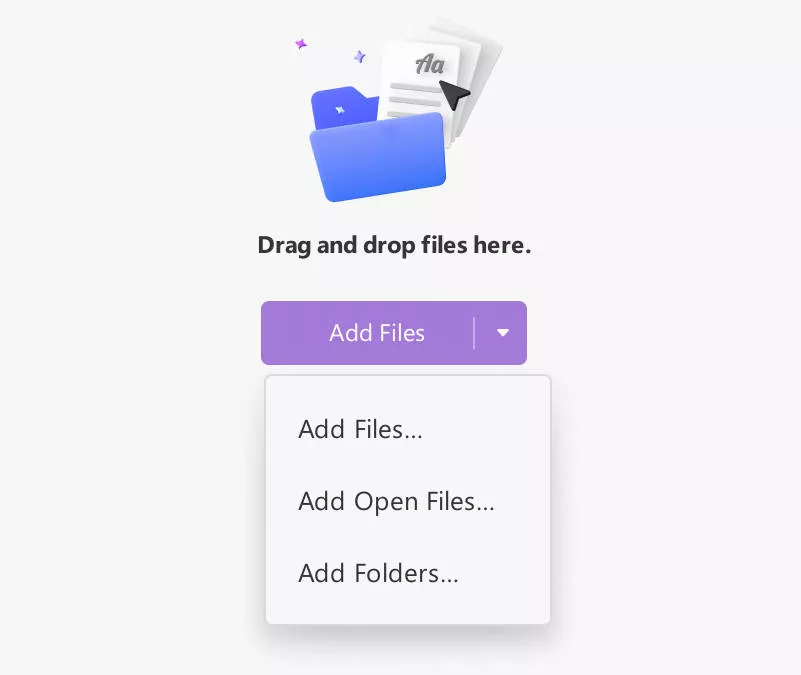
On leading to a new window, you will have to add files to combine, which can be done in a variety of ways:
- Dragging and Dropping
For starters, you can simply drag and drop your potential files into the opened window of UPDF.
- Navigate Files From Folders
As you select the "Add Files" button, you will be led to a drop-down option where you must select the "Add Files…" option. Continue to browse the file from the file explorer and add it into UPDF successfully.
- Adding Pre-Opened Files
You can also find the option of "Add Open Files…" in the drop-down that opens after selecting the "Add Files" button. This will add all files automatically into the section that is currently open on UPDF.
- Add Complete Folders
For adding a collection of PDF documents, you can add a complete folder with the help of the "Add Folders…" option in the drop-down menu.
3. Rearranging Added Documents
After adding documents to the Batch Combine panel, you can easily rearrange them by dragging them into the desired order.
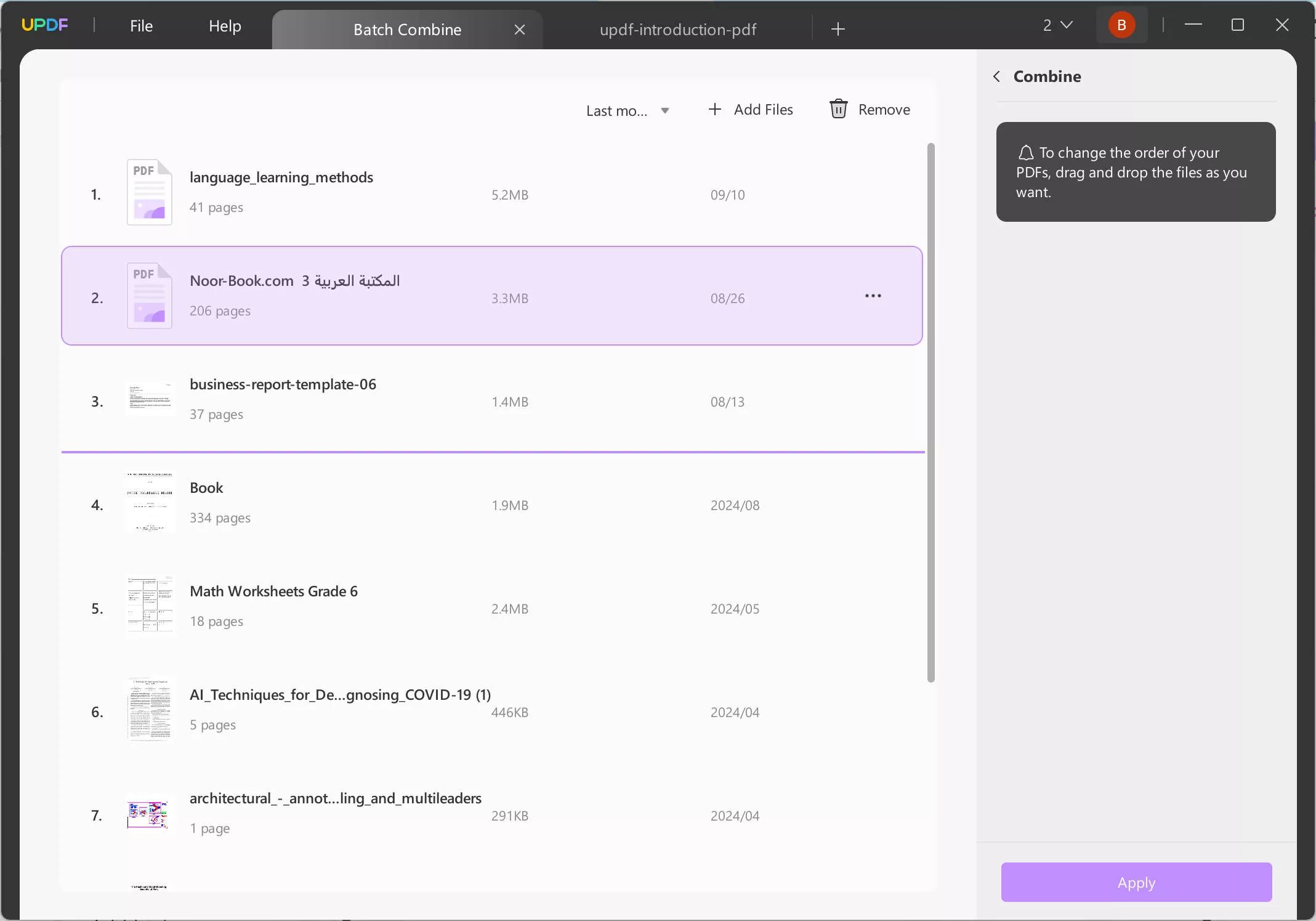
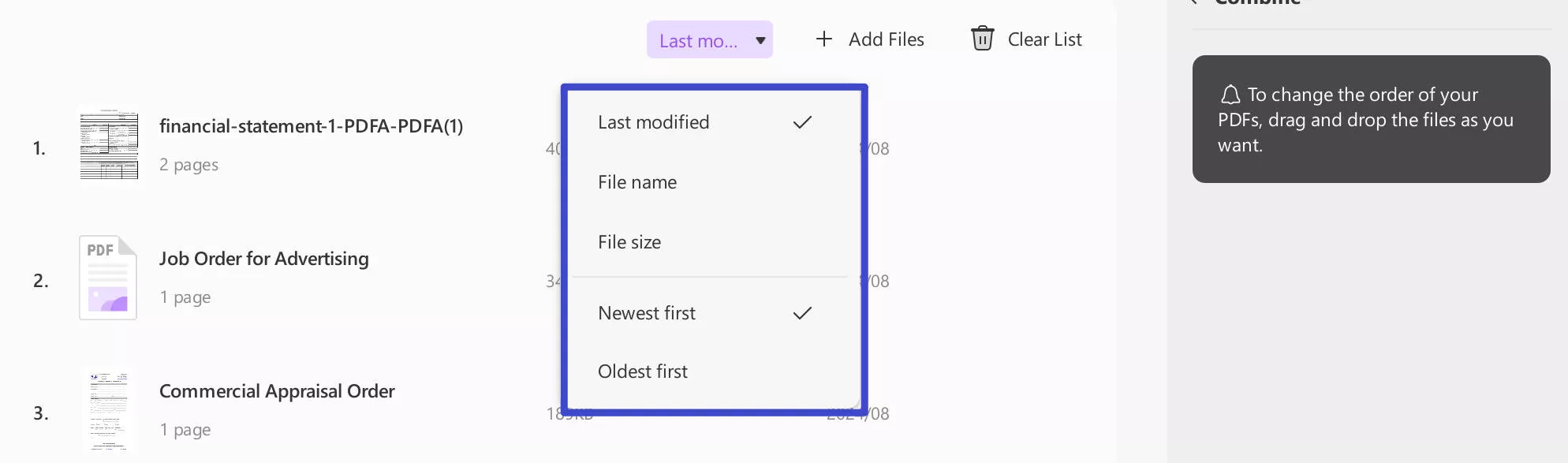
Additionally, UPDF allows you to sort the added files by last modified time, file name, file size, newest first, or oldest first.
4. Combine Files
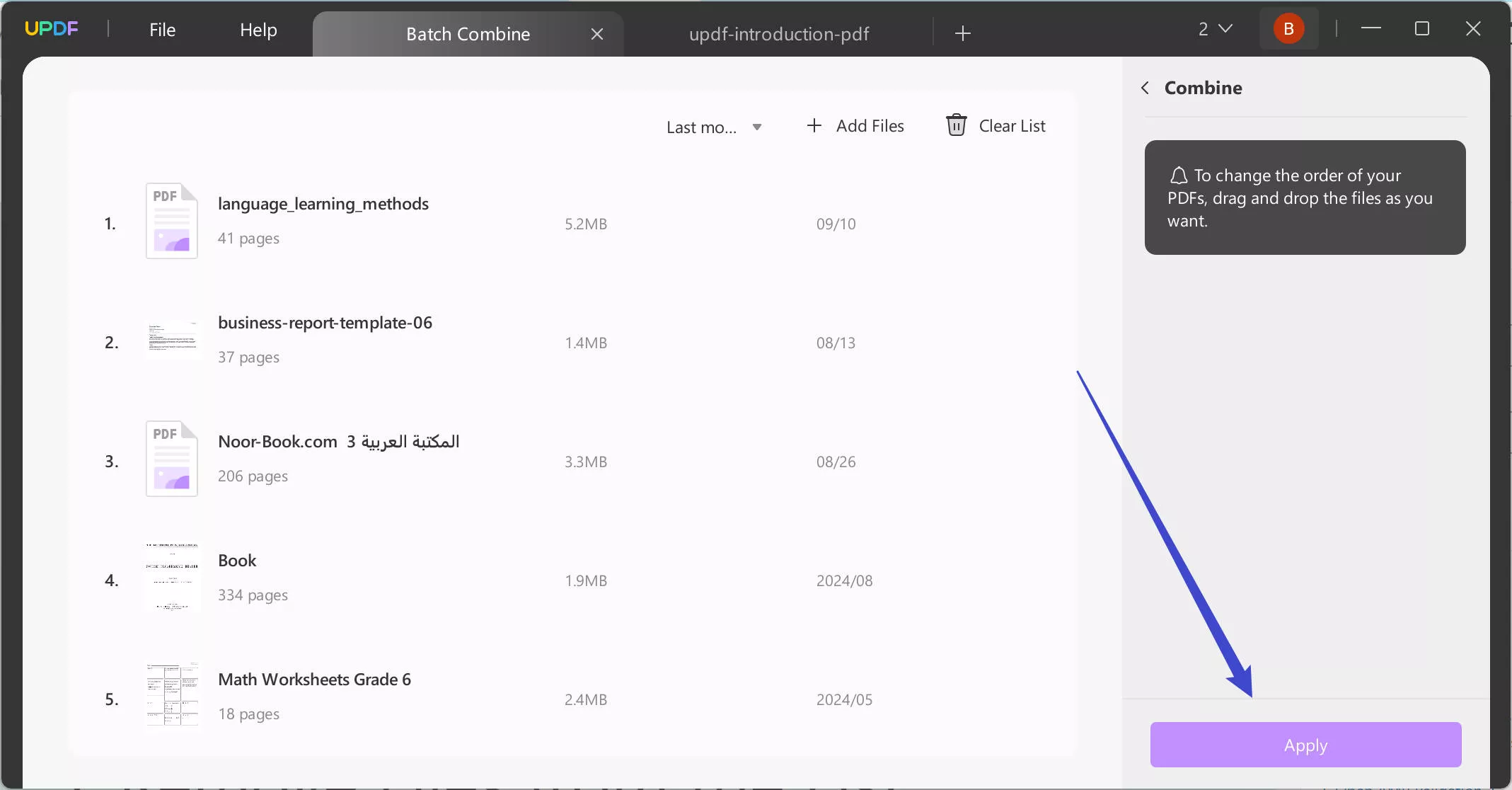
As you are done with adding all the files and rearranging them, continue to the "Apply" button to save the new document in any particular position you want to.
5. Remove Files from the List
If you intend to remove a specific file, find the "three-dots" icon adjacent to the added document and select the option of "Remove File."
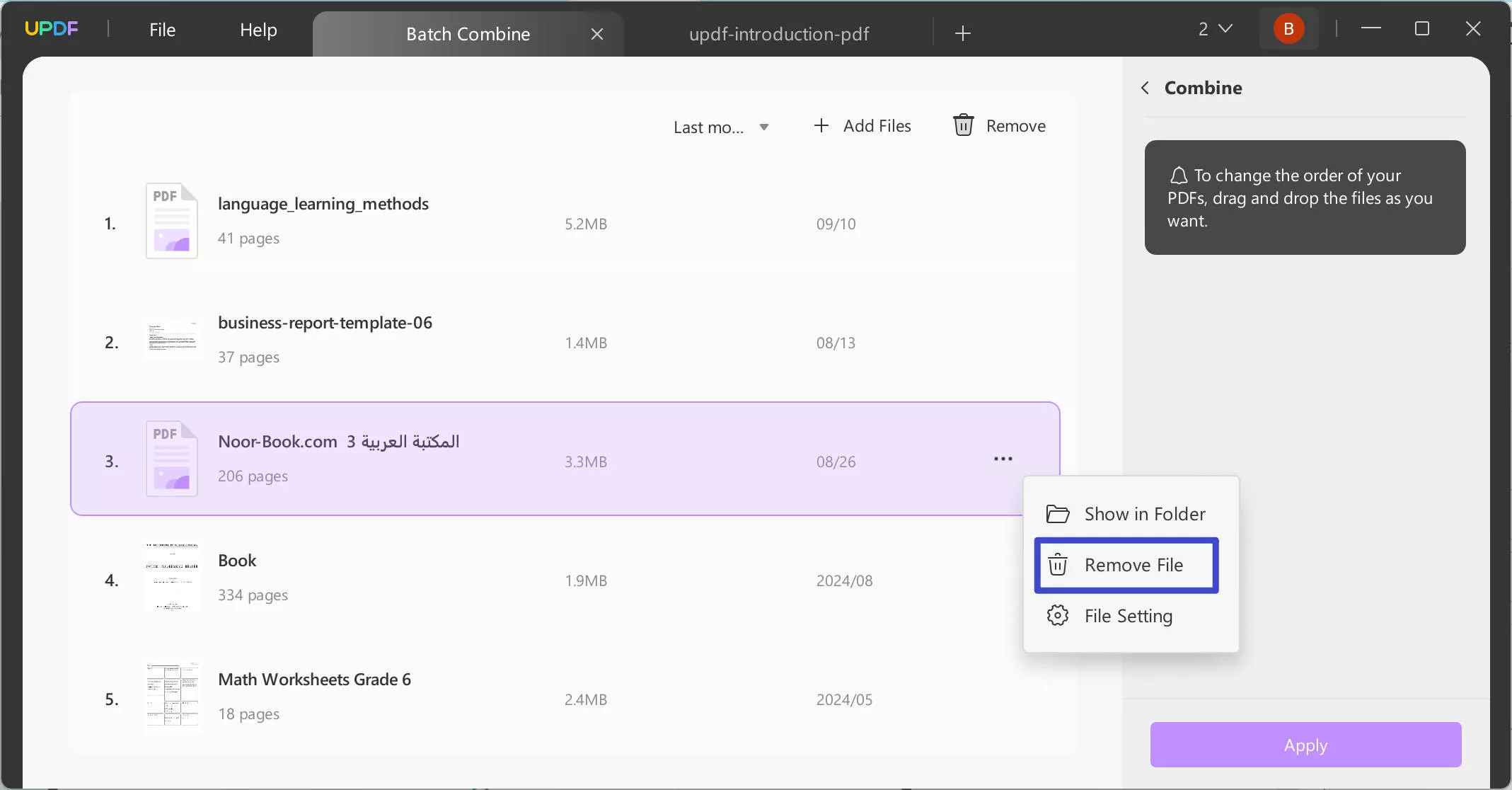
Under the same drop-down, you can also select the option of "Show in Folder" to access the location of the document. To view its properties, use the option of "File Setting."
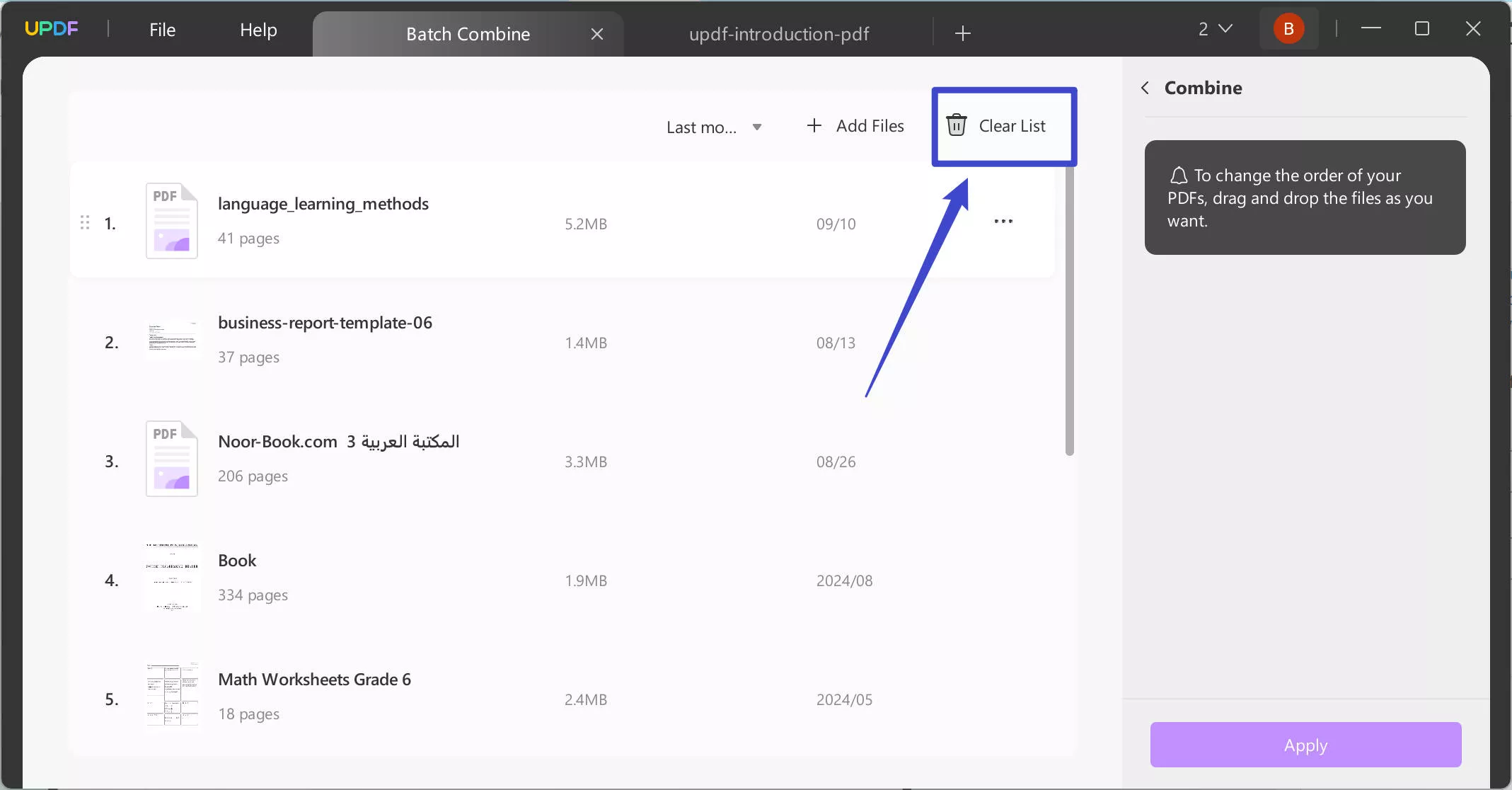
If you intend to clear the complete list of added documents, use the "Clear List" button.