 UPDF
UPDF
 UPDF for Windows
 UPDF for Mac
 UPDF for iPhone/iPad
 UPDF for Android
 UPDF AI Online
 UPDF Sign
 Edit PDF
 Annotate PDF
 Create PDF
 PDF Form
 Edit links
 Convert PDF
 OCR
OCR PDF to Word
 PDF to Image
 PDF to Excel
 Organize PDF
 Merge PDF
 Split PDF
 Crop PDF
 Rotate PDF
 Protect PDF
 Sign PDF
 Redact PDF
 Sanitize PDF
 Remove Security
 Read PDF
 UPDF Cloud
 Compress PDF
 Print PDF
 Batch Process
 About UPDF AI
 UPDF AI Solutions
 AI User Guide
 FAQ about UPDF AI
 Summarize PDF
 Translate PDF
 Chat with PDF
 Chat with AI
 Chat with image
 PDF to Mind Map
 Explain PDF
 Scholar Research
 Paper Search
 AI Proofreader
 AI Writer
 AI Homework Helper
 AI Quiz Generator
 AI Math Solver
 PDF to Word
 PDF to Excel
 PDF to PowerPoint
 Enterprise Solution
 Enterprise Sign
 Enterprise AI
 Enterprise Plan
 Enterprise User Guide
 Enterprise Webinar
 Banking
 Healthcare
 Insurance
 Legal
Legal Manufacturing
 Government
 Education Solution
 Customer Stories
 User Guide
 UPDF Tricks
 FAQs
FAQs UPDF Reviews
 Download Center
 Blog
Blog Newsroom
 Tech Spec
 Updates
 UPDF vs. Adobe Acrobat
 UPDF vs. Foxit
 UPDF vs. PDF Expert


The .docx format is one of the most widely used document types today, but many people still ask which program is used to open .docx files. I often work across Windows, Mac, and mobile, so having the right tools matters. Therefore, I have created this guide to walk you through all the reliable programs to open and handle .docx files.
Plus, I will show how UPDF has been a game-changer tool for me to convert .docx files into PDF for easy viewing and sharing. Keep reading to the end for full instructions.
Part 1. What Is a .docx File?
A .docx file is Microsoft Word's standard document format. It uses the Office Open XML format, which is a zipped collection of XML files. It is an upgrade from the binary .doc format and creates smaller/lighter files for easier storage and sharing. It generally contains text, images, tables, charts, hyperlinks, and other structured elements.
.docx has diverse use cases. I rely on it for many everyday and professional tasks. Its key use cases include:
- Writing reports, proposals, contracts, and business documents
- Preparing school assignments or academic papers
- Creating resumes, cover letters, and templates
- Collaborating on shared documents through cloud services
- Drafting manuals, guides, and technical documents
- Storing meeting notes, ideas, and project outlines
Simply put, the .docx document format is usable whenever there is a need to create, edit, or share structured written content.
- Lightweight format
- Supports complex layouts, styles, images, and multimedia
- Less corruption risk than DOC
- Enables real-time co-editing with multiple users
- Broad compatibility
- Formatting may change when opened in non-Microsoft editors
- Requires specific software to edit fully
- Not ideal for final distribution since it stays editable
- Larger risk of unwanted changes during collaboration
- May need conversion to PDF for consistent viewing across all devices
Part 2. Which program is used to open .docx files?
We can open the .docx file using various tools. Below are the programs that work well and what you can expect from each.
1. UPDF (/App)
UPDF is my favorite tool to open .docx files, especially when I want to preserve the formatting and get smooth sharing.
UPDF is an AI PDF editor that opens the .docx file as a PDF with 100% preserved layout and structure. Since PDF is a universally readable format, it becomes easier to view, share, and print the document across any device.
UPDF also lets me edit and annotate content, reorganize pages, or protect the document with a password. In addition, after editing, I can still convert it to Word format again. Since UPDF works on Windows, macOS, iOS, and Android, I can open and convert .docx files anywhere without worrying about compatibility issues. It's also helpful when I receive a .docx file but only need it in a non-editable format for final distribution.
Hit the download button below to try UPDF and open the .docx file as a universally compatible PDF format.
Windows • macOS • iOS • Android 100% secure
2. Microsoft Word (/App/Online)
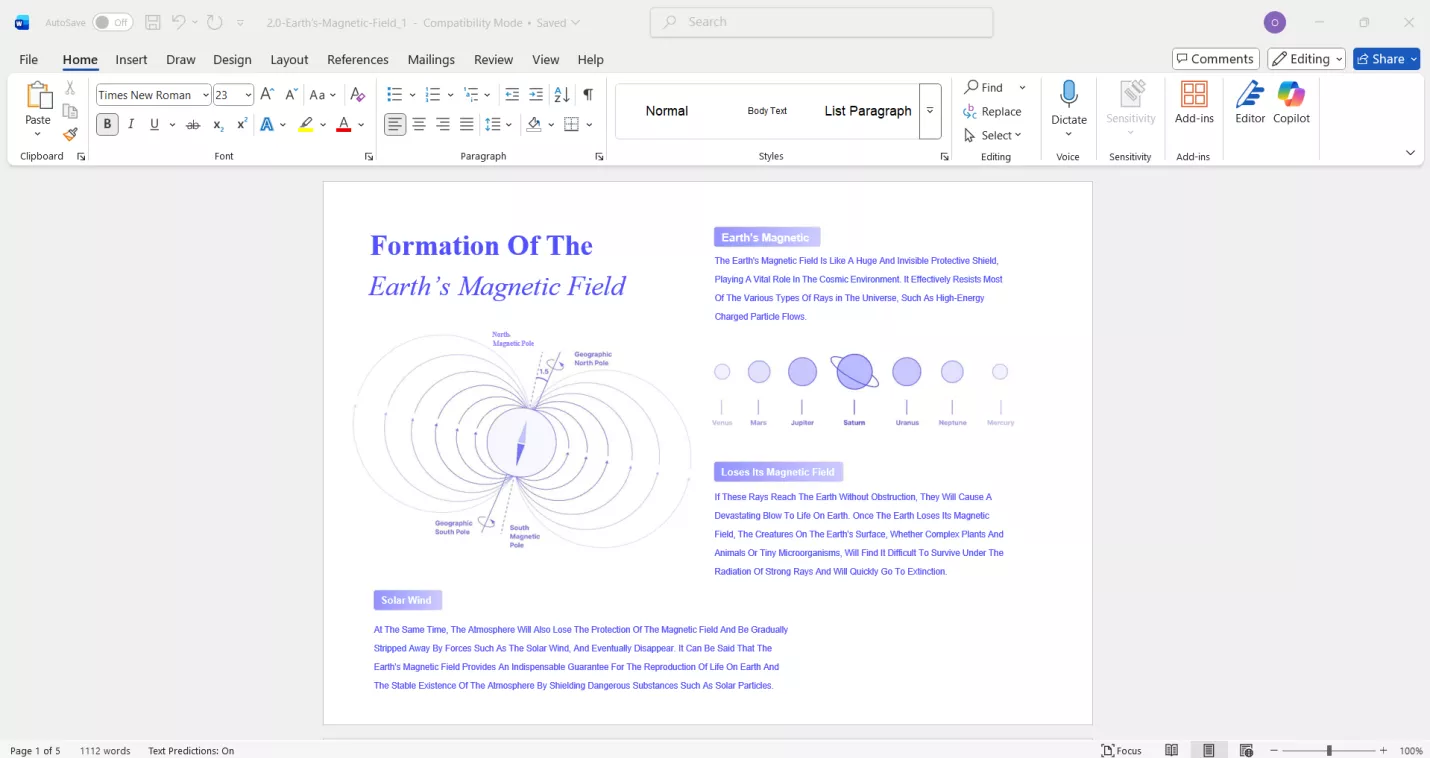
Microsoft Word is the default and straightforward way to open .docx files. Both the desktop app and the online version can open .docx automatically. After opening, you can easily edit, format, review, and collaborate with the document. I prefer Word when I need full control over styling, comments, and collaboration features, since it preserves .docx formatting more accurately than most alternatives.
3. Google Docs (/App/Online)
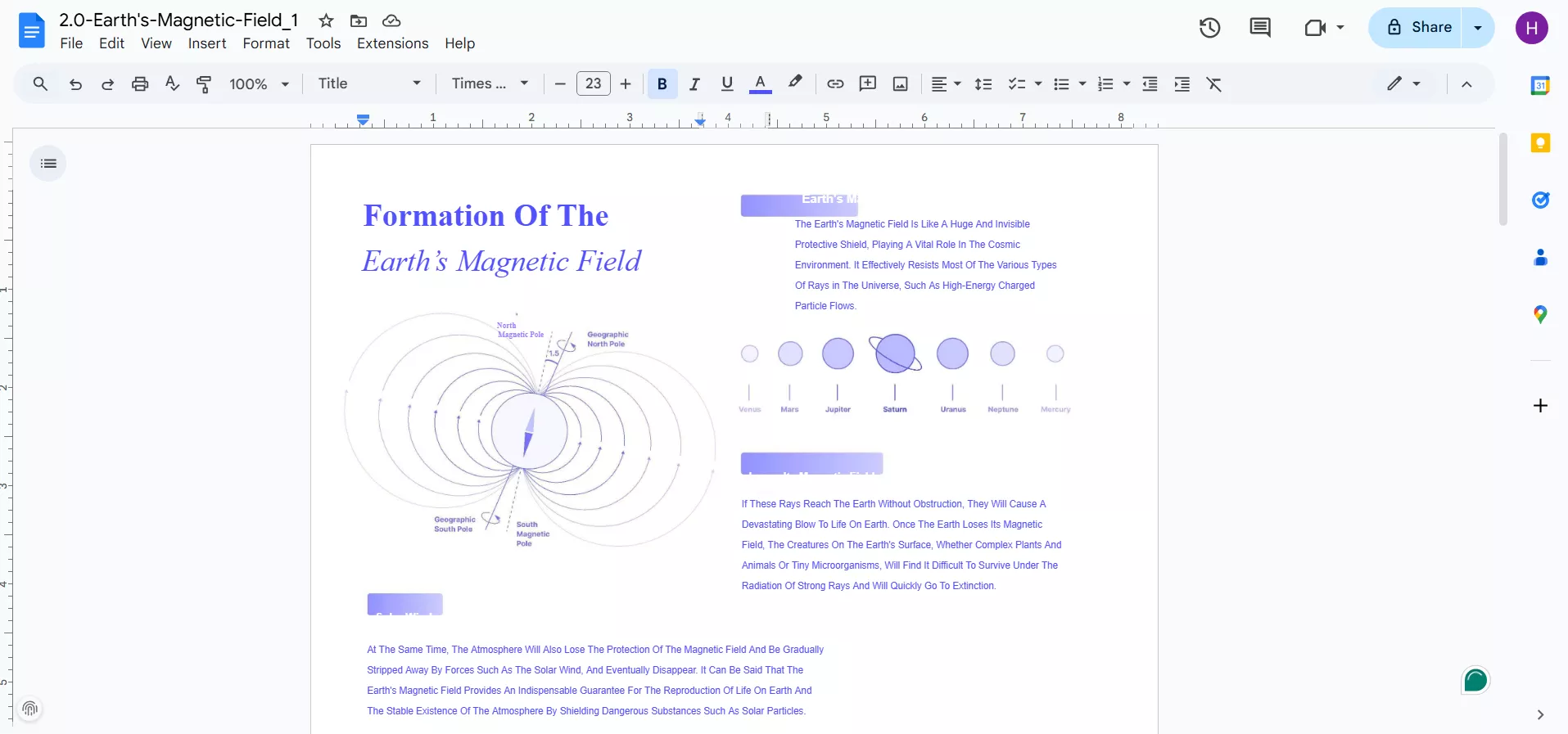
Google Docs is another friendly tool for .docx files. I simply upload the document to Google Drive, and it converts it into an editable Google Docs format right away. This is especially convenient when I am working on a different computer or don't have Word installed.
Google Docs also allows real-time collaboration, comments, and version history, which makes team projects easier. After doing edits in the file, it lets me save the file back in .docx format.
4. WPS (/App)
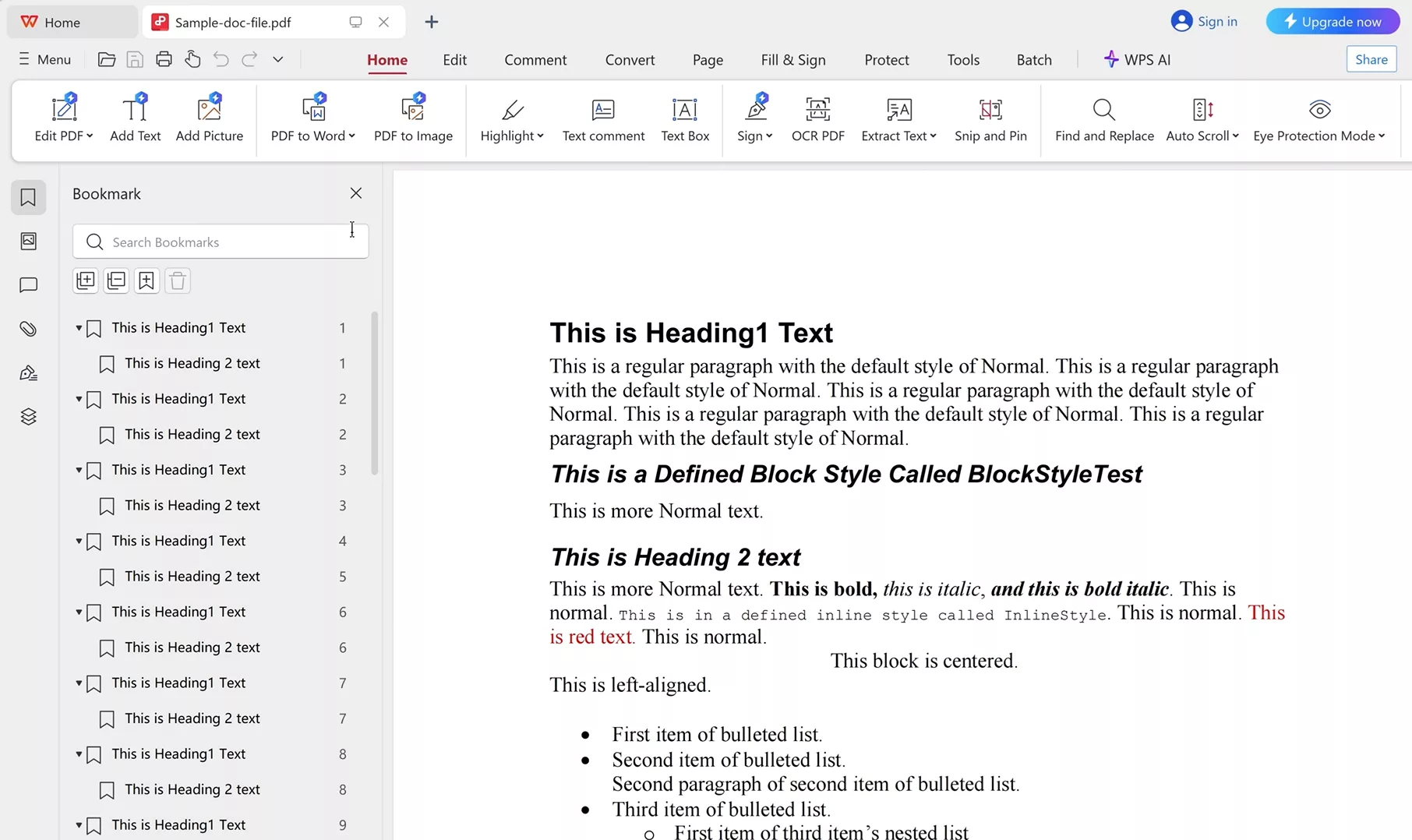
WPS Office is a lightweight app to handle .docx files. Its interface is similar to Words and it opens .docx files without requiring additional plugins. After opening, it lets you edit, annotate, comment, and export the .docx file with ease. It is useful if you are looking for an alternative to MS Word that offers faster performance and a familiar layout.
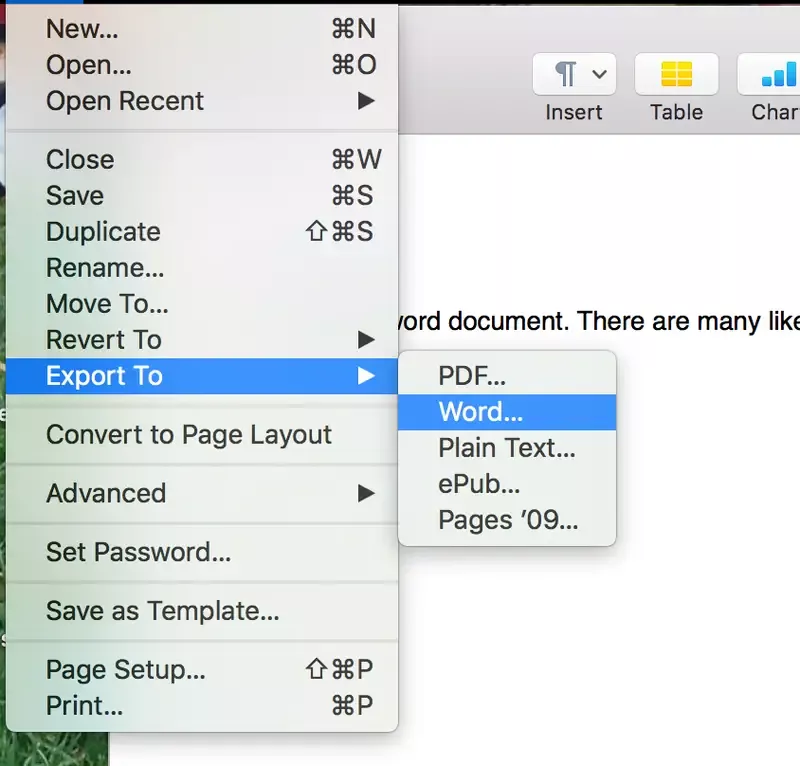
5. Apple Pages (/App): For Mac and iOS
Apple Pages is the default word processor on Mac and iOS. It opens most .docx files and lets you view and edit documents easily. However, it converts the .docx file into the native Pages format. Plus, some of the advanced Word elements might not transfer properly. After working on the file, you can export it back to .docx.
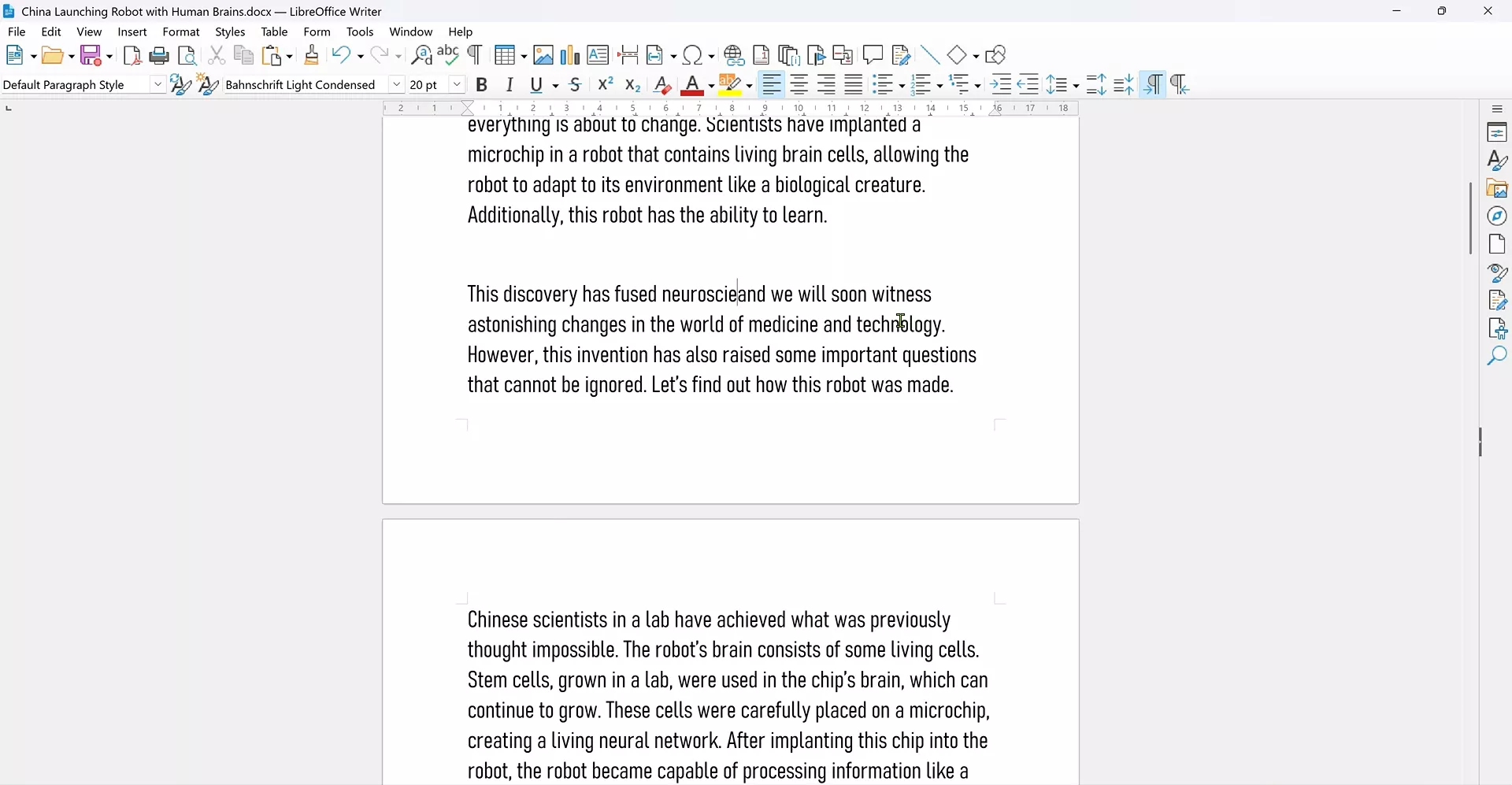
6. LibreOffice Writer
LibreOffice Writer is an open-source tool that is compatible with Microsoft Office files, including .docx. I recommend it when someone needs a free way to open and edit documents without subscribing to Microsoft 365.
LibreOffice Writer handles text, images, tables, and basic formatting well. However, keep in mind that very complex Word layouts may not transfer perfectly.
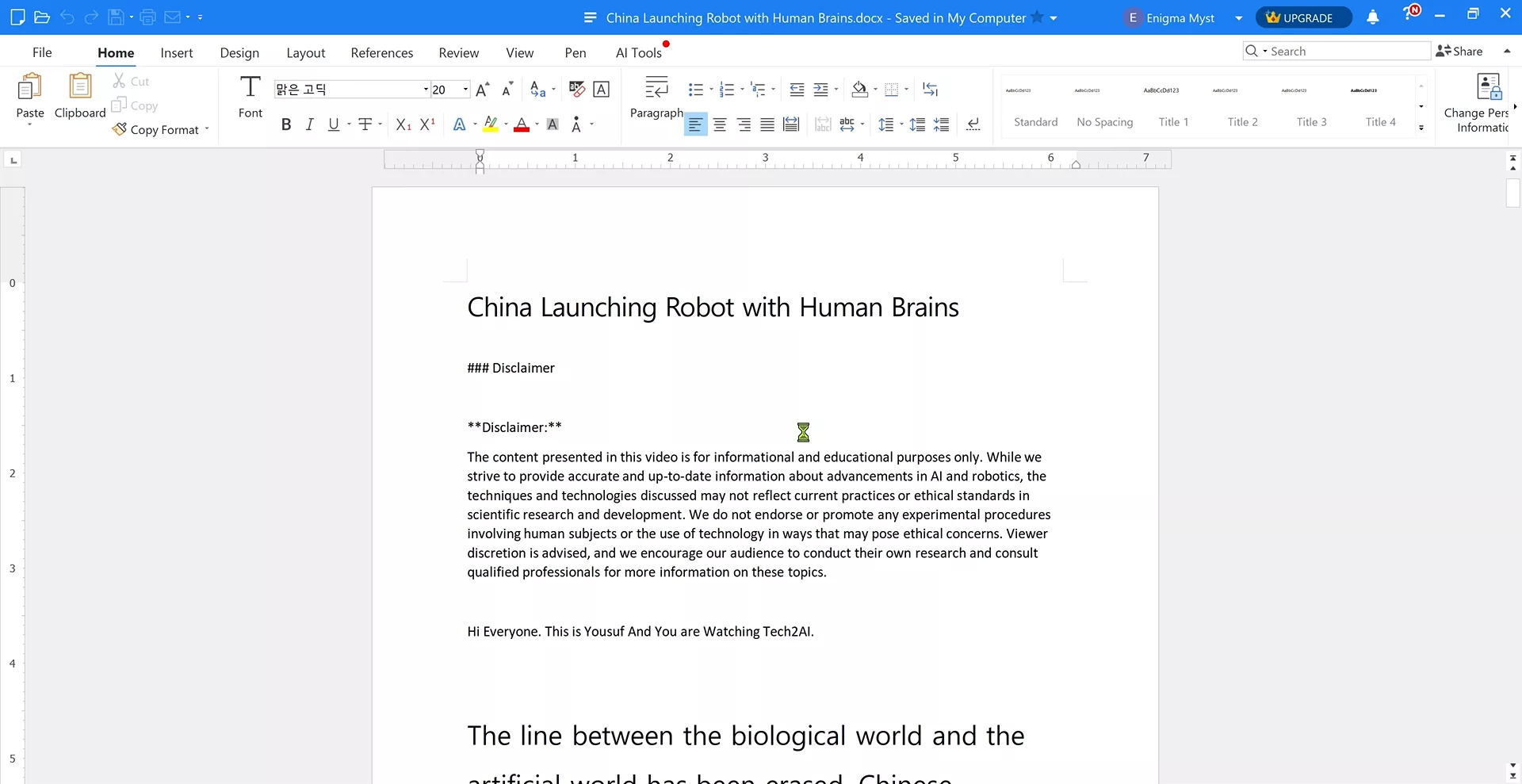
7. Polaris Office (/App)
Polaris Office is popular on mobile devices. It is useful if you don't have the MS Word app and want to open .docx files on the go. Its cloud sync also makes it easy to access documents between different devices.
Part 3. Can I convert a .docx file to a PDF?
If you don't want to deal with formatting and other issues with a .docx file, the best strategy is to convert it to a PDF. This conversion provides universal compatibility and strong formatting consistency across devices.
UPDF is my go-to tool to convert .docx to PDF, as it supports both single and batch conversions with simple clicks. It works on Windows, macOS, iOS, and Android. Plus, I get to use its other PDF editing and design tools after conversion, which further enhances my workflow. I can quickly edit, annotate, compress, or redesign the converted PDF without switching apps. After I finish editing, I can also convert the PDF back into a Word document, and the formatting will be perfectly preserved.
This all-in-one experience is what makes UPDF the most convenient way for me to handle .docx files. Install UPDF and give it a try yourself.
Windows • macOS • iOS • Android 100% secure
Steps to Convert .docx to PDF Using UPDF PC
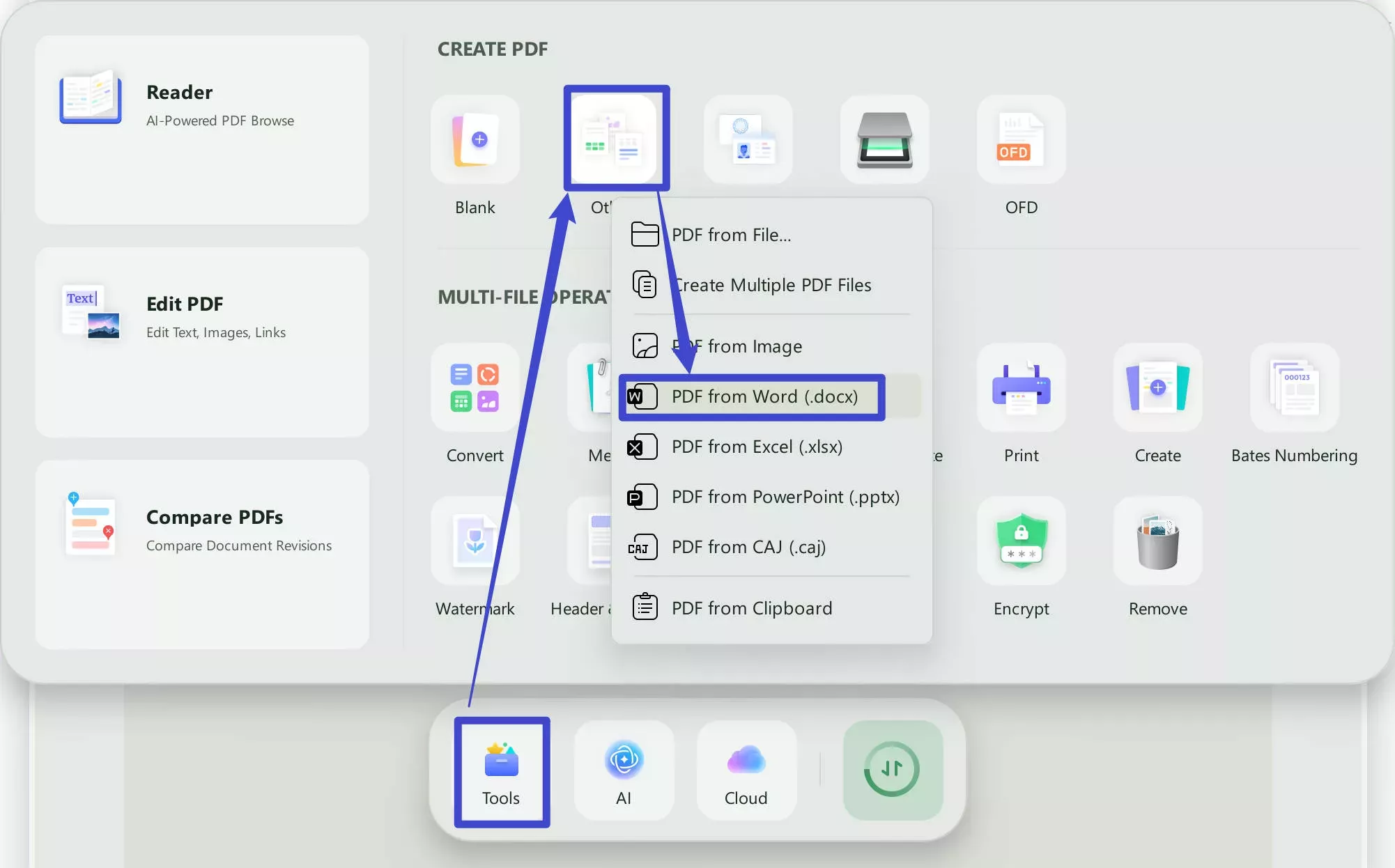
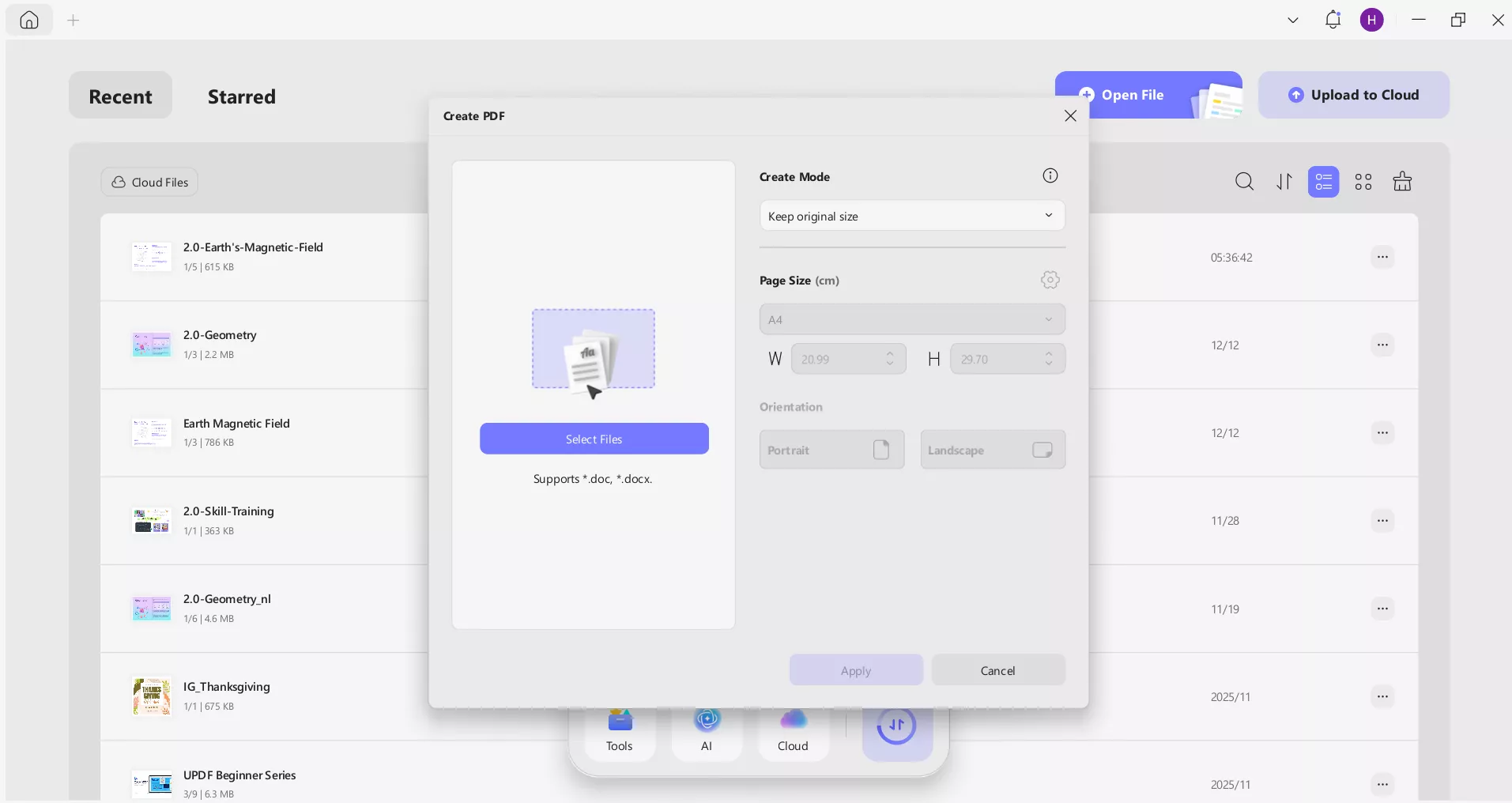
Step 1. Install and launch UPDF on your Windows/Mac computer. Opening a Word file in UPDF is very simple. I just need to drag the Word file from my device into the UPDF homepage, and the file will automatically open as a PDF, without any additional manual steps. Of course, if you're a beginner and unaware of this hidden feature, you can simply go to the main dashboard, click "Tools" and tap "Other > PDF from Word (.docx)".
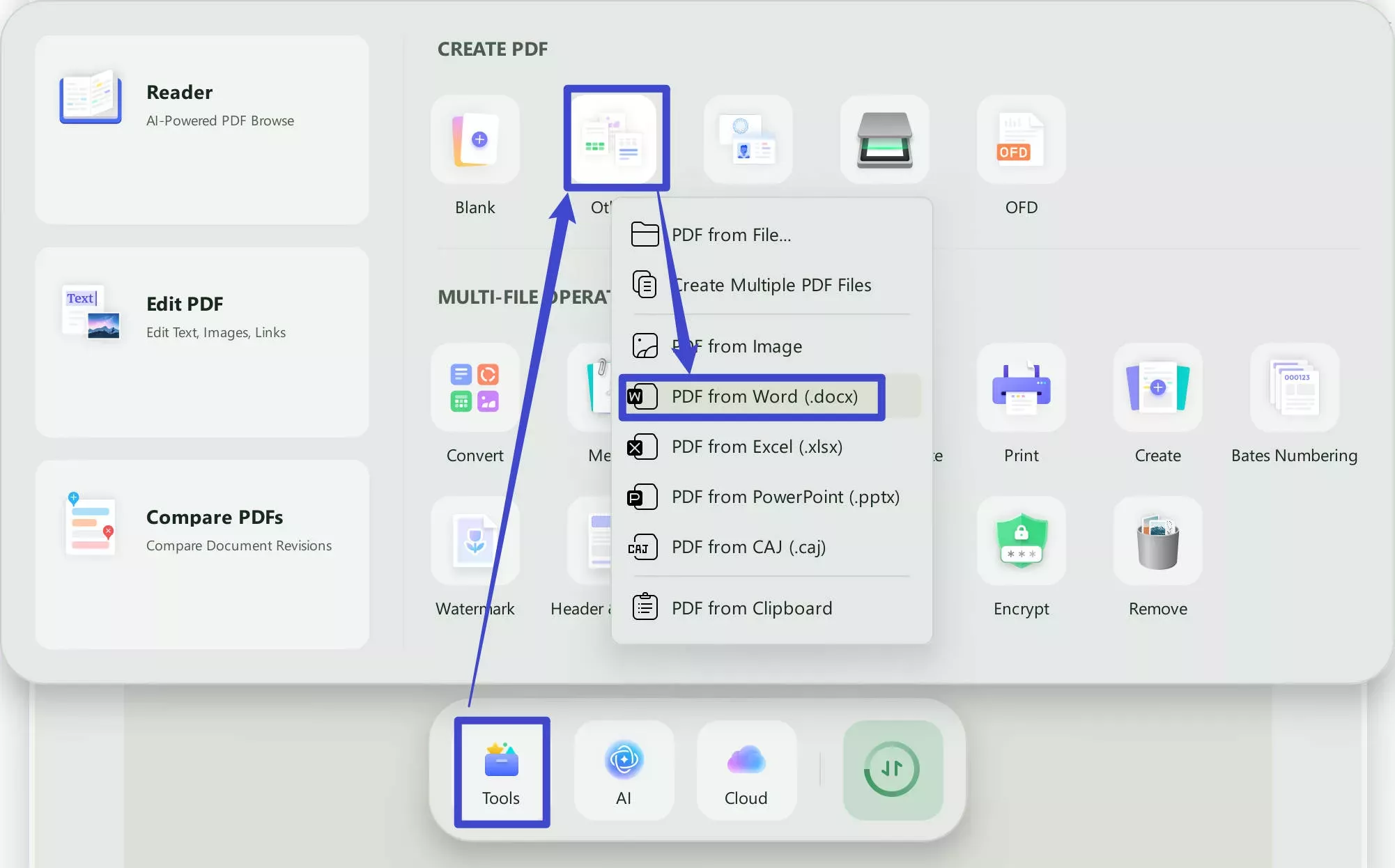
Step 2. Click "Select Files" and select the .docx file you want to convert. Adjust the rest of the settings and click "Apply". In seconds, you will get the converted PDF.
Steps to Batch Convert Multiple .docx Files to PDF(s)
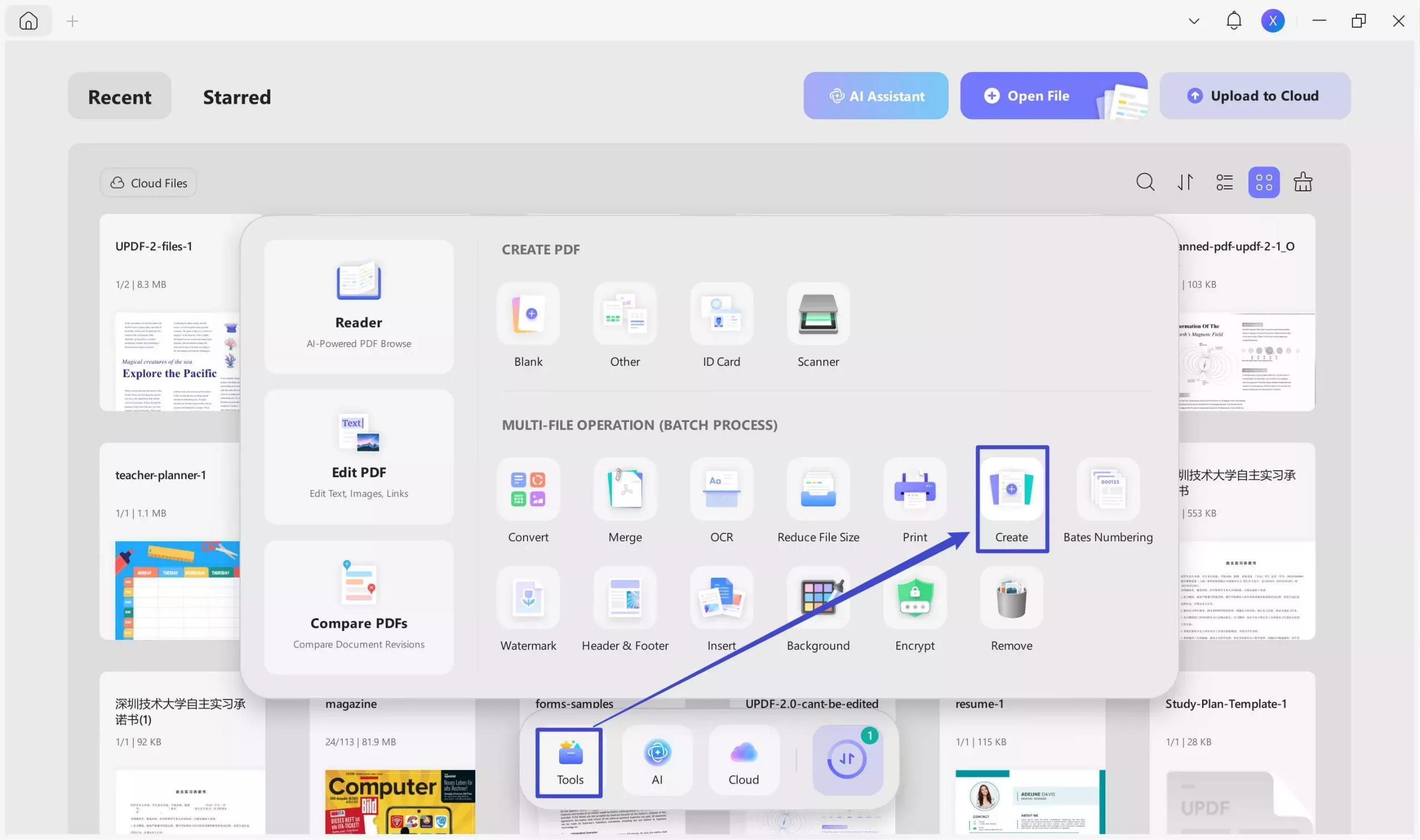
Step 1. From the UPDF home screen, click Tools > Create.
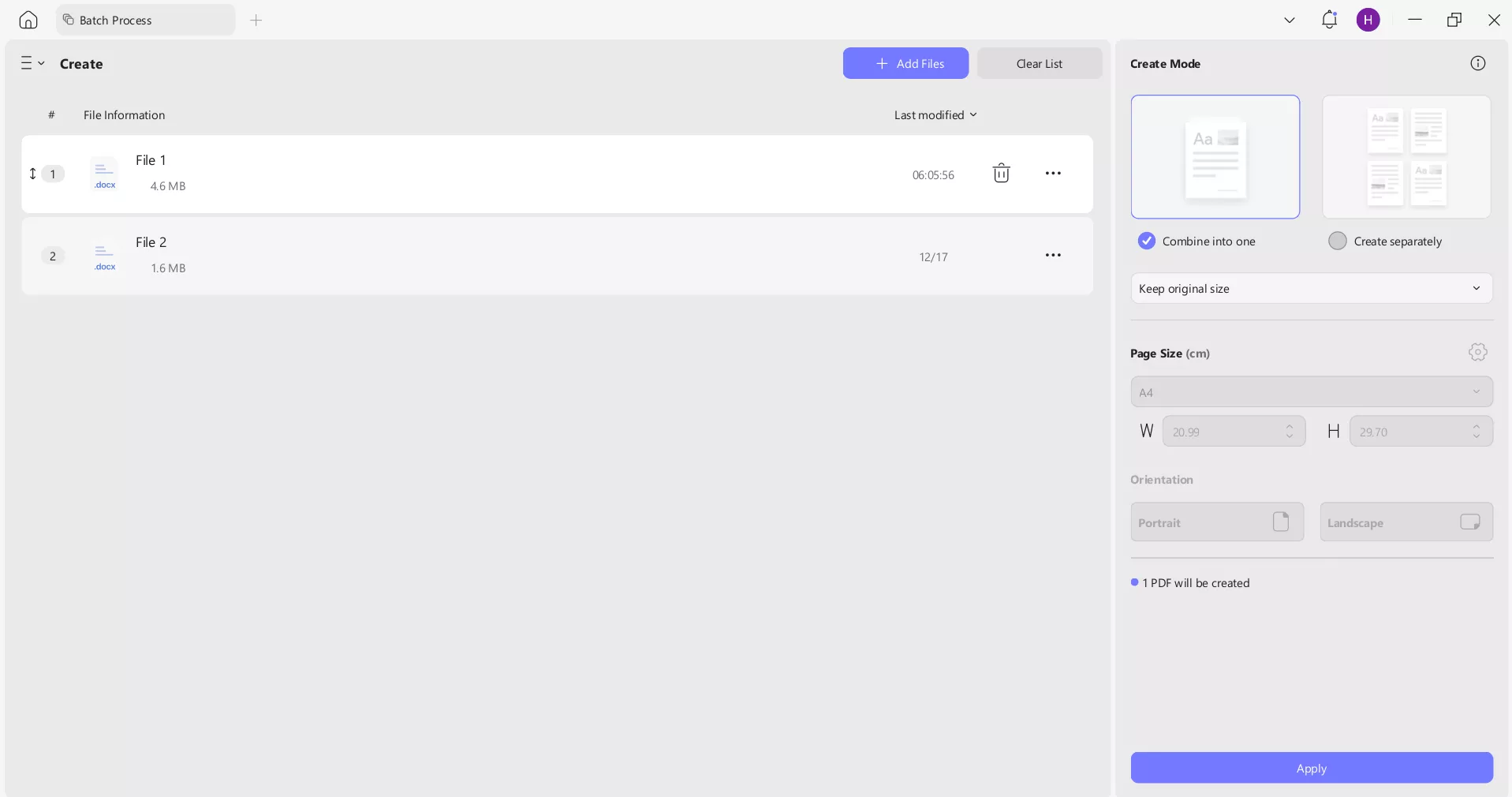
Step 2. Click "Add Files" and select all the .docx files you want to convert.
Step 3. Choose whether you want to combine them into one or create separate PDFs, and then click "Apply".
Steps to Convert .docx to PDF using UPDF Mobile App
Step 1. Install and launch the UPDF app from the App Store or Google Play.
Step 2. Click the "+" icon and select "Files". Choose the .docx file.
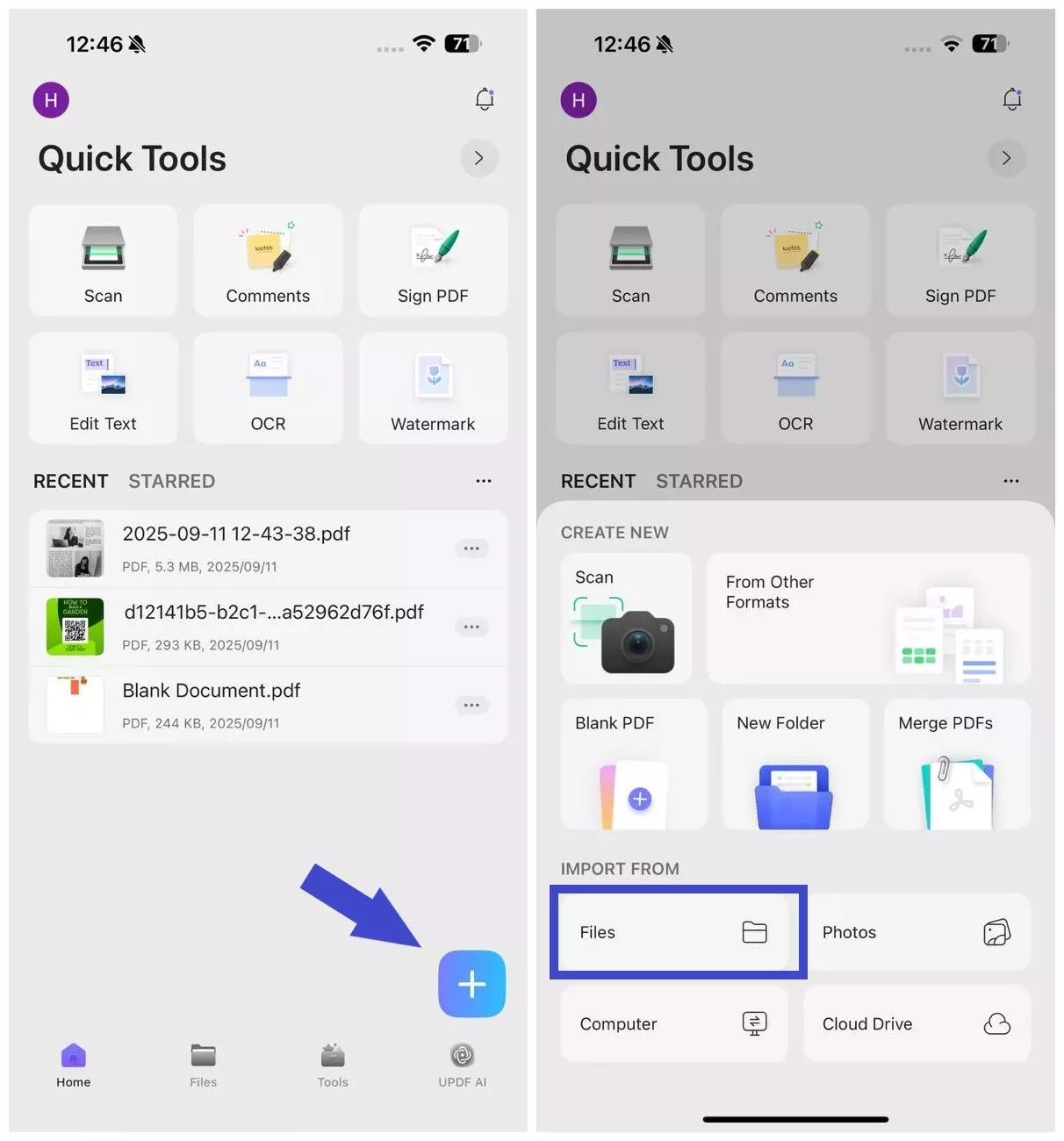
Step 3. Click again the "+" icon and select "From Other Formats".
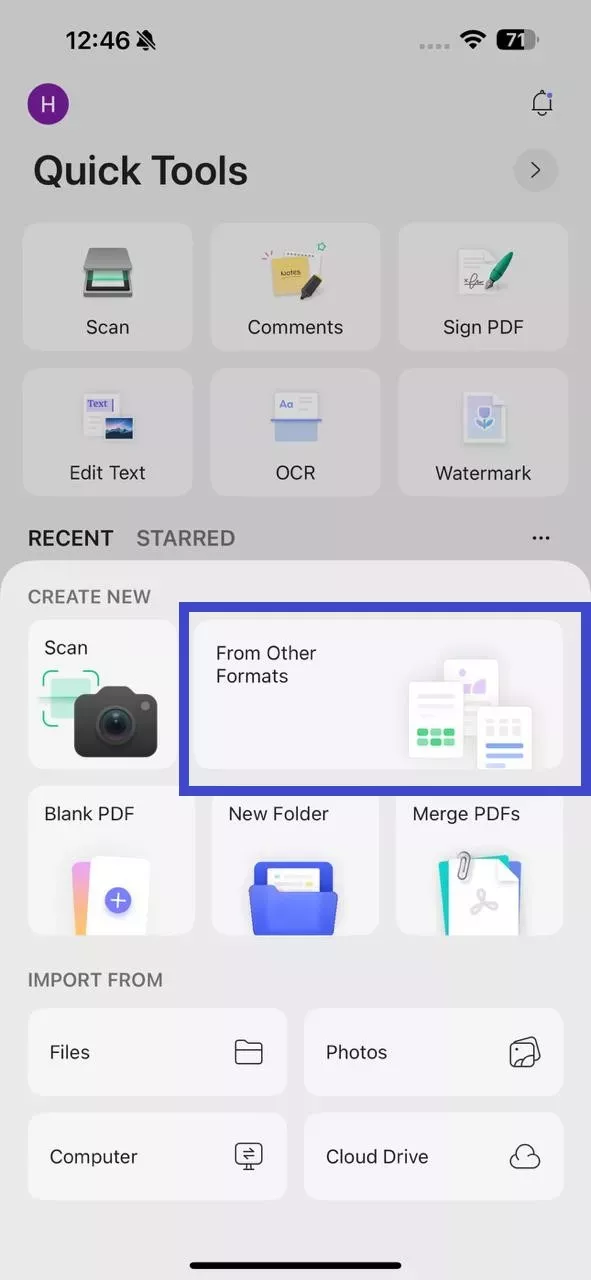
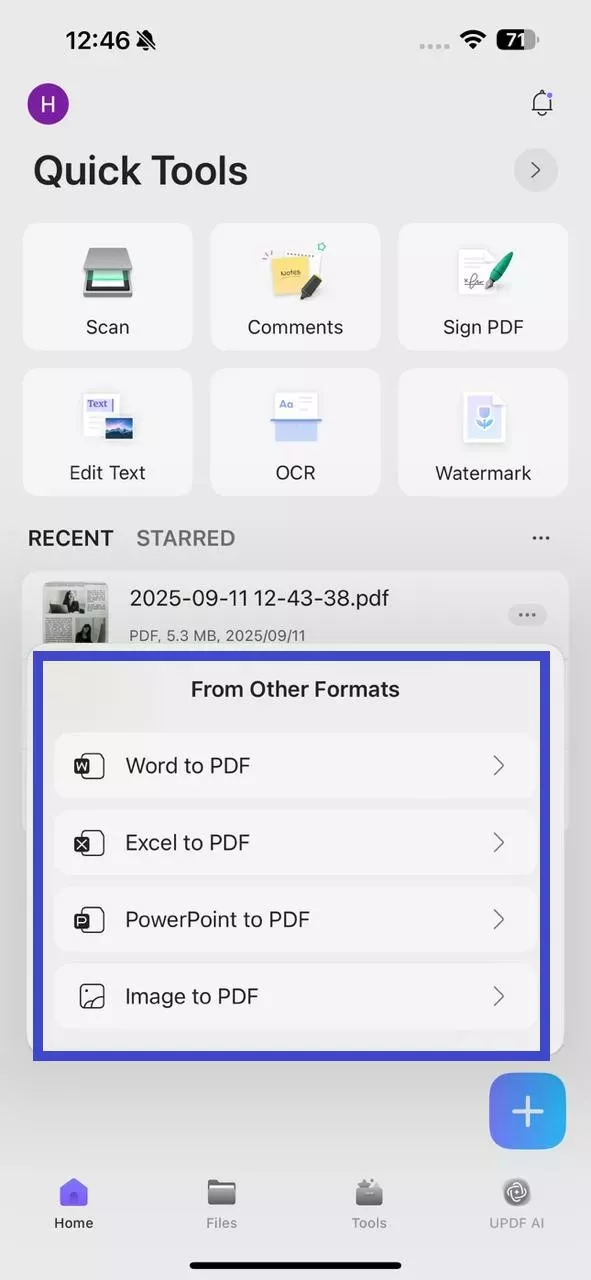
Step 4. Select "Word to PDF".
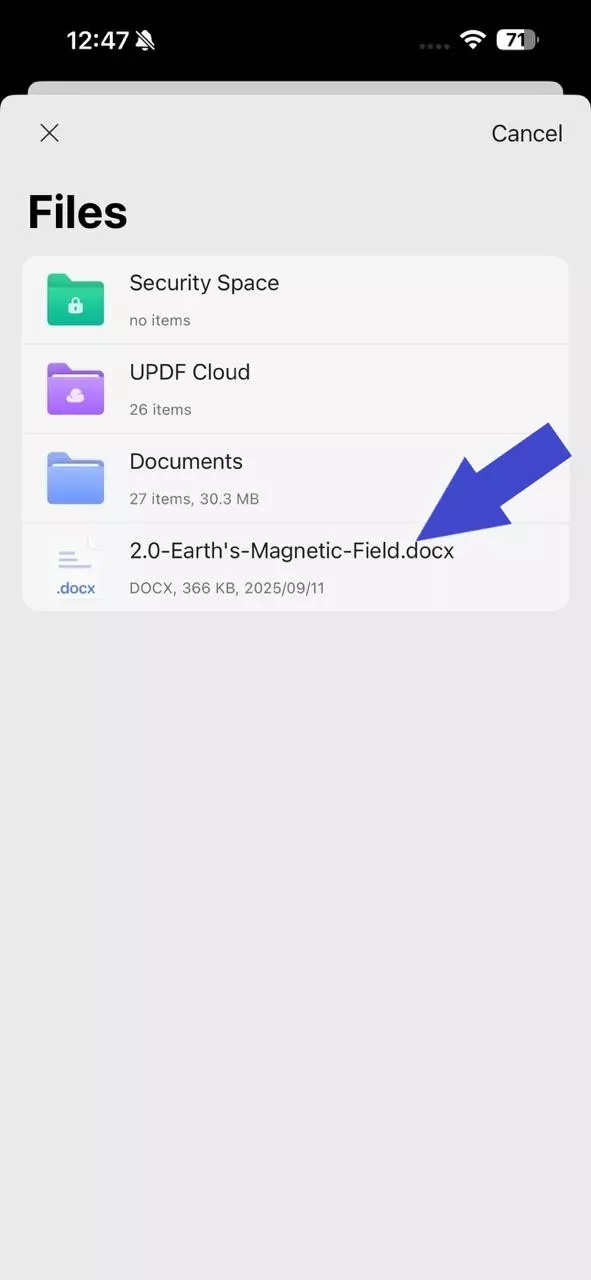
Step 5. Select the .docx file you uploaded.
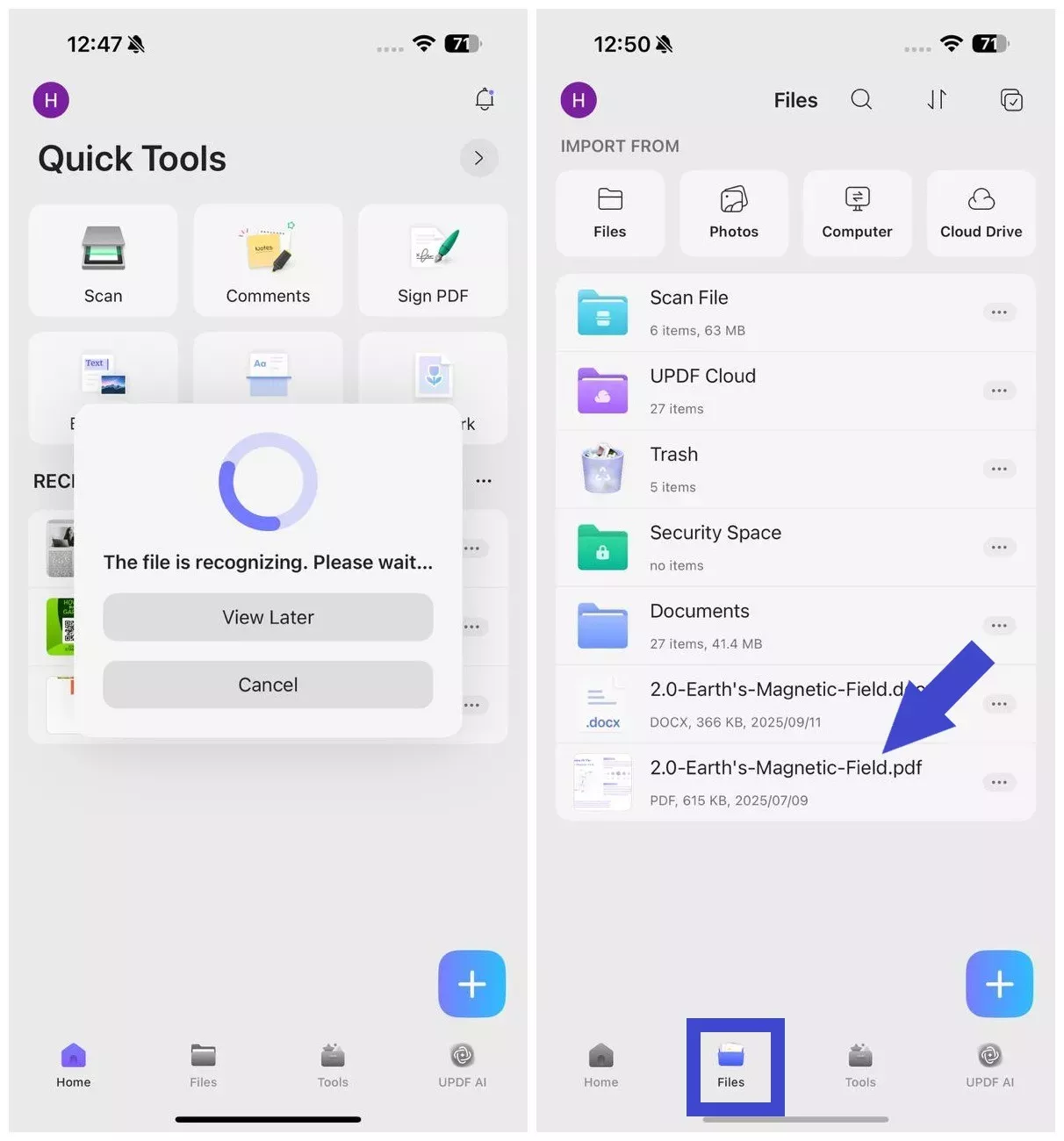
Step 6. After the conversion, click the "Files" tab and access the newly created PDF.
Bonus Tip: Do More with UPDF After Converting
UPDF is more than just a PDF converter. After conversion, users can use UPDF to further edit and annotate the converted files or use UPDF AI to chat with PDF. Here's a quick look at what additional features we get with UPDF:
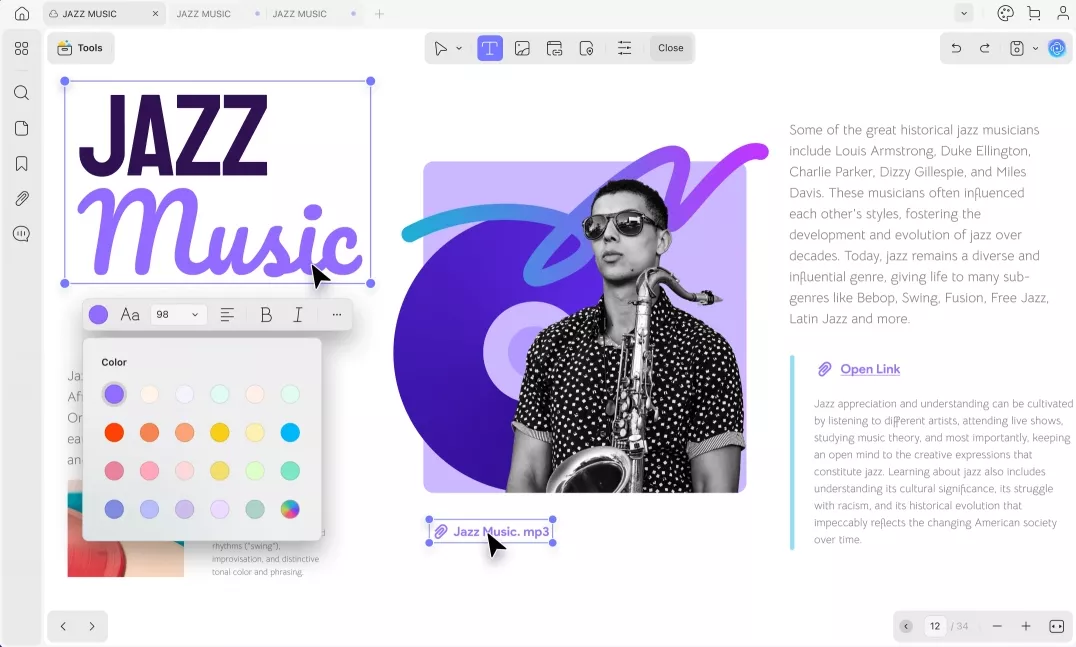
UPDF lets users edit the text, images, links, backgrounds, header/footers, and other elements. You can customize text font styling, crop/rotate/extract/replace images, add web or internal links, and more.
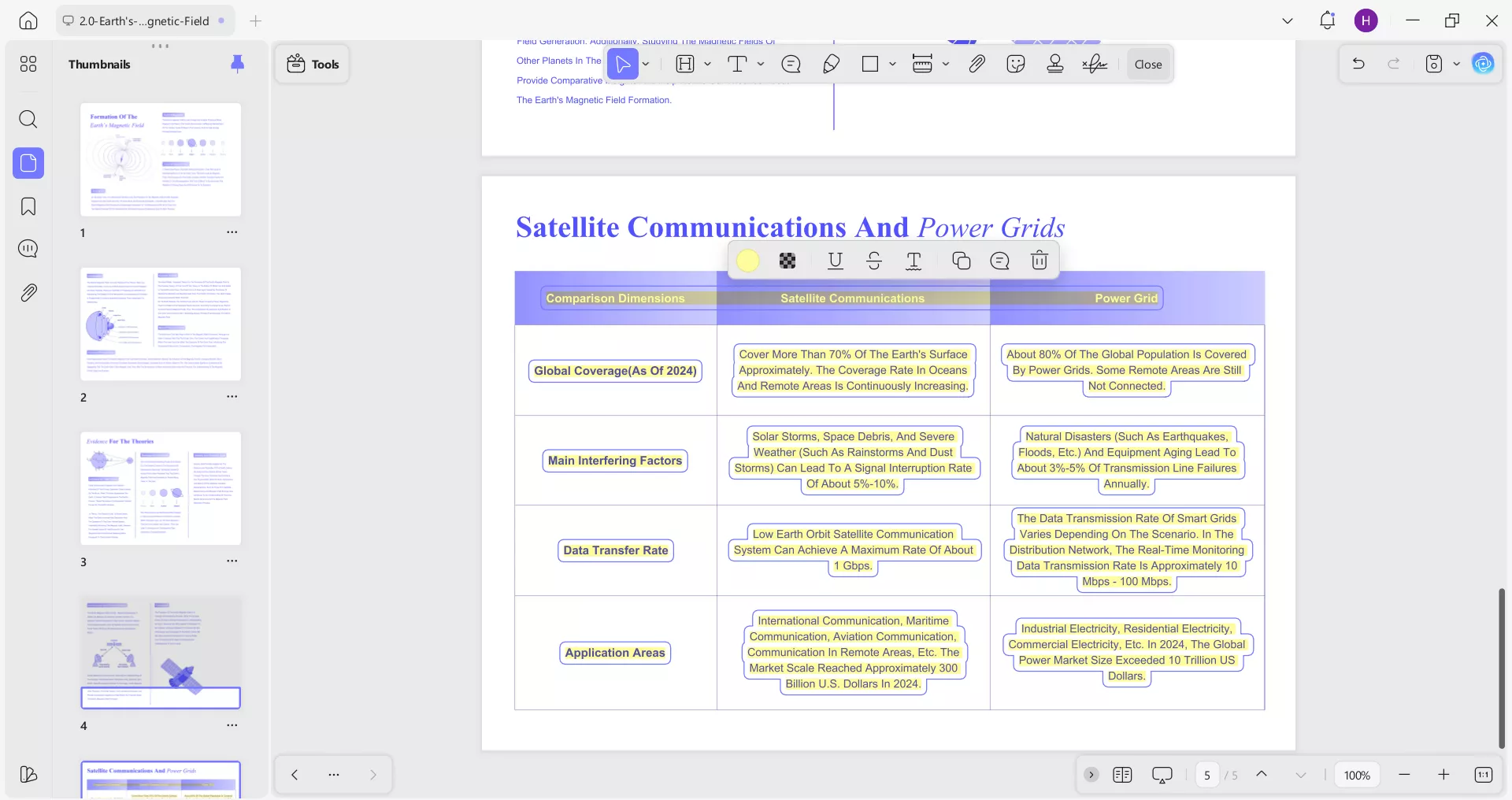
UPDF offers over 13 PDF annotation functions to mark up your documents. You can highlight, underline, strikethrough, add text comments, sticky notes, stickers, and much more.
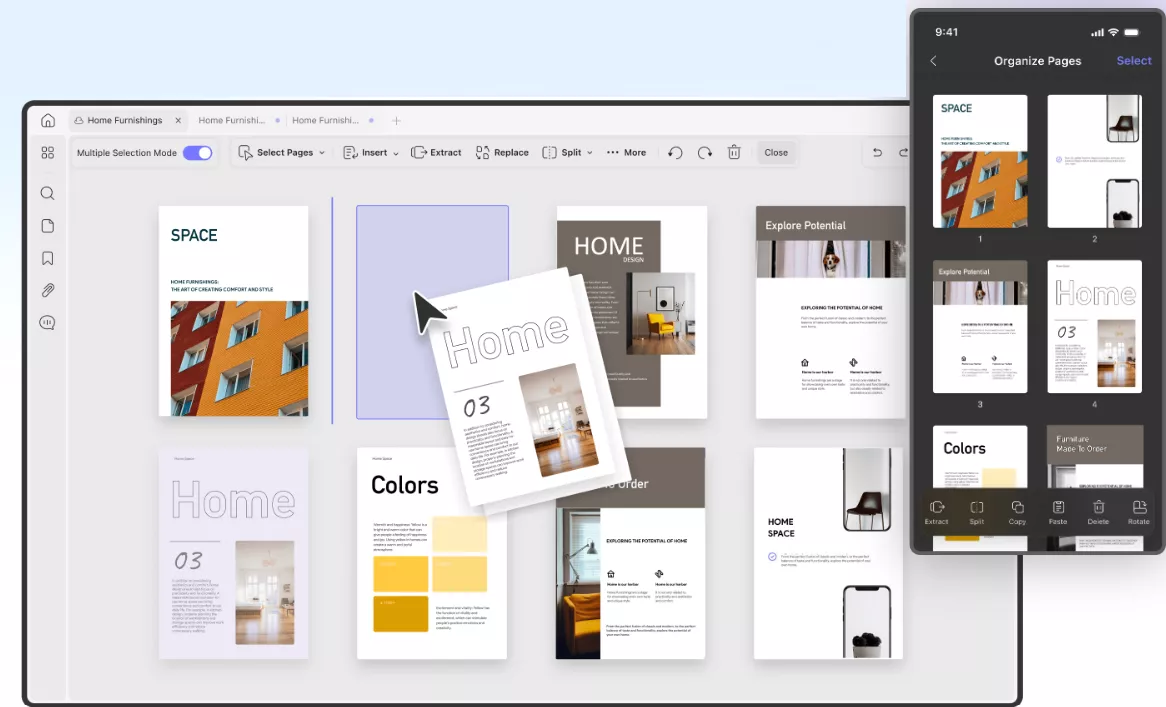
UPDF makes it easy to reorganize the pages of your converted PDF. You can add, delete, rotate, split, extract, crop, and replace pages with simple clicks.
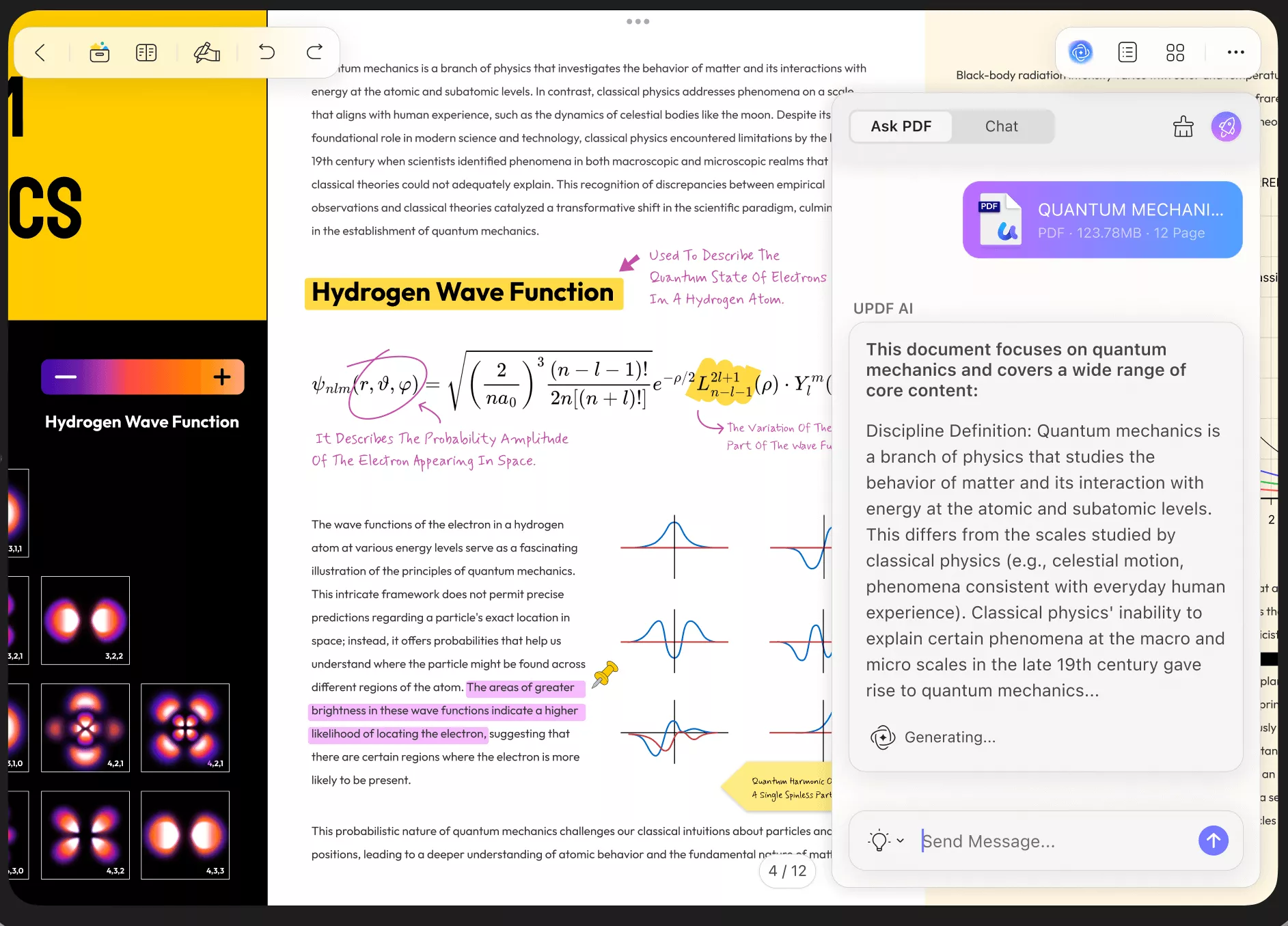
UPDF AI is a powerful built-in assistant that helps understand long or complex documents without reading every line. It can summarize, explain, answer questions, and generate mind maps. You can also translate the entire document or specific pages into other languages with high accuracy.
Download UPDF now and get the most efficient way to view and manage documents.
Windows • macOS • iOS • Android 100% secure
Conclusion
Which program is used to open .docx files depends on what you want to do, such as simple viewing, full editing, quick collaboration, or cross-platform access. UPDF, Word, Google Docs, WPS, and similar other tools work well for opening .docx files. However, I personally recommend UPDF because it is most reliable for perfect formatting and easy sharing, with access to other top-notch PDF features. So, try UPDF now and experience a cleaner way to handle all your documents.
Windows • macOS • iOS • Android 100% secure



 Engelbert White
 Delia Meyer