UPDF
UPDF
 UPDF for Windows
 UPDF for Mac
 UPDF for iPhone/iPad
 UPDF for Android
 UPDF AI Online
 UPDF Sign
 Edit PDF
 Annotate PDF
 Create PDF
 PDF Form
 Edit links
 Convert PDF
 OCR
OCR PDF to Word
 PDF to Image
 PDF to Excel
 Organize PDF
 Merge PDF
 Split PDF
 Crop PDF
 Rotate PDF
 Protect PDF
 Sign PDF
 Redact PDF
 Sanitize PDF
 Remove Security
 Read PDF
 UPDF Cloud
 Compress PDF
 Print PDF
 Batch Process
 About UPDF AI
 UPDF AI Solutions
 AI User Guide
 FAQ about UPDF AI
 Summarize PDF
 Translate PDF
 Chat with PDF
 Chat with AI
 Chat with image
 PDF to Mind Map
 Explain PDF
 Scholar Research
 Paper Search
 AI Proofreader
 AI Writer
 AI Homework Helper
 AI Quiz Generator
 AI Math Solver
 PDF to Word
 PDF to Excel
 PDF to PowerPoint
 Enterprise Solution
 Enterprise Sign
 Enterprise AI
 Enterprise Plan
 Enterprise User Guide
 Enterprise Webinar
 Banking
 Healthcare
 Insurance
 Legal
Legal Manufacturing
 Government
 Education Solution
 Customer Stories
 User Guide
 UPDF Tricks
 FAQs
FAQs UPDF Reviews
 Download Center
 Blog
Blog Newsroom
 Tech Spec
 Updates
 UPDF vs. Adobe Acrobat
 UPDF vs. Foxit
 UPDF vs. PDF Expert


Working on text files such as Notepad is easy. One can get their work done on it comfortably because of the app's simplicity.
However, when it comes to sharing files online and through email, a PDF is the ideal format for that.
Exporting a .txt to a PDF file is pretty simple as well. This blog will show you how to convert TXT to PDF or Notepad to PDF one file at a time and in bulk.
Keep reading until the end and learn about a tool that can significantly transform your productivity levels.
Part 1. TXT to PDF: How to Convert in Bulk
There will be instances where you need to convert multiple TXT files to PDFs to save time and be more efficient. If you are searching for a method like that, this option is for you.
Use UPDF for Windows/Mac to Convert TXT Files in Bulk
UPDF supports converting TXT files to PDF on desktop, making it a simple and reliable solution for users who work with plain text documents. Instead of relying on online tools, you can drag and drop TXT files directly into UPDF and turn them into PDF files in seconds.
Whether you want to convert a single TXT file or process multiple TXT files at once, UPDF offers flexible options with full control over page size and orientation.
Download UPDF to get started!
Windows • macOS • iOS • Android 100% secure
In the following steps, you'll learn how to use UPDF to convert multiple TXT files to PDFs.
Steps 1. Open UPDF and choose the Tools on the bottom.
Steps 2. Click on the "Other" under the CREATE PDF option. Then, choose "PDF from File" to upload multiple TXT files.
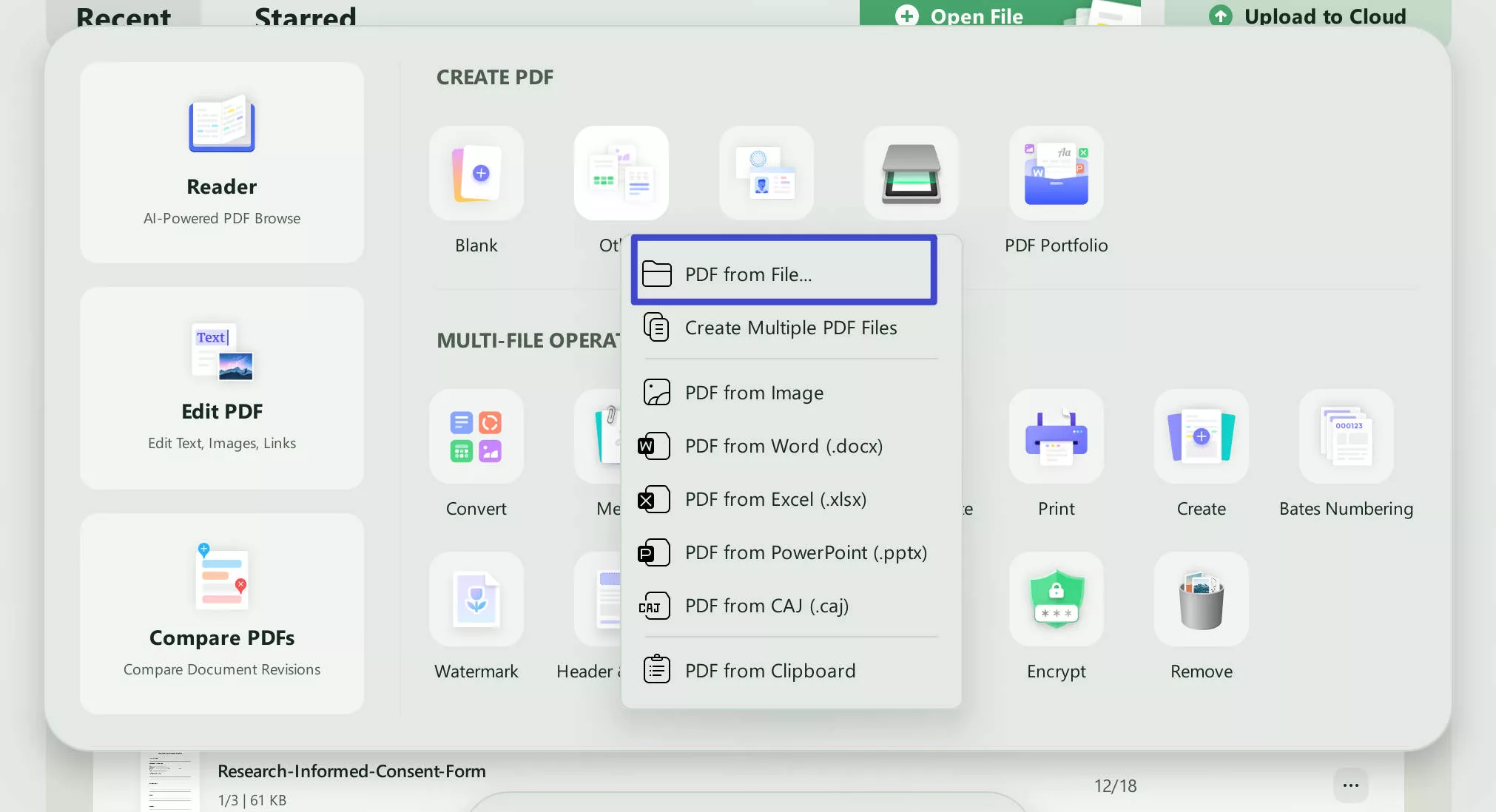
Steps 3. Choose how you want to convert them:
- Combine multiple TXT files into one PDF, or
- Convert multiple TXT files into separate PDF documents
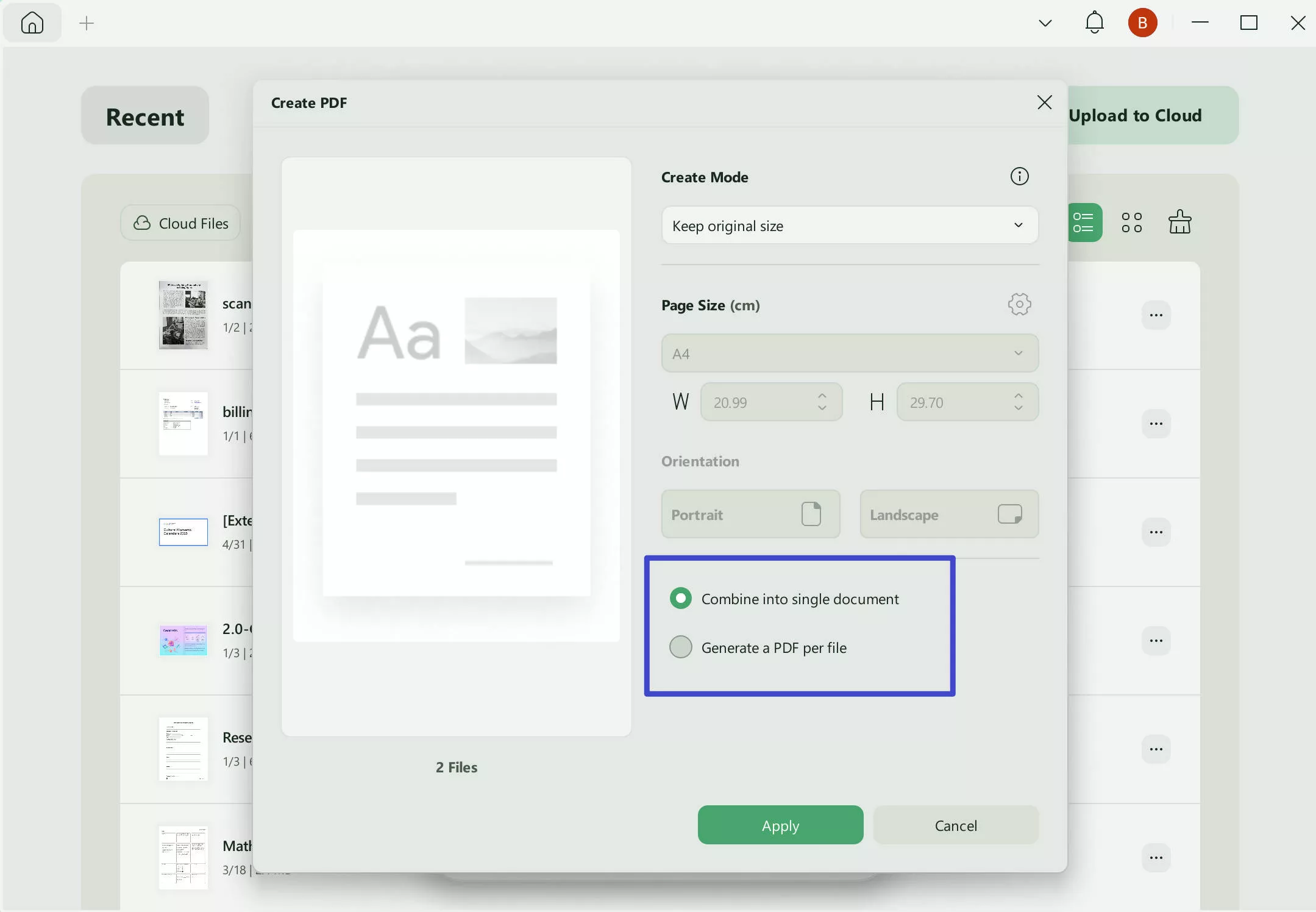
Step 4. Select page size: A4, A3, A2, A1, A0, and more. Choose orientation: Portrait or Landscape.
Step 5. Click Apply and save the converted PDF file(s).
Advantages of bulk conversion in UPDF:
- Convert multiple TXT files at once
- Flexible output options for different document needs
- Precise control over page size and orientation
Bonus: In addition to TXT to PDF conversion, UPDF is an all-in-one PDF editor. If you want to explore more advanced PDF editing and management features, you can continue reading Part 3.
Part 2. TXT to PDF: How to Convert a Single File
If you are in a situation where you only need to convert a single TXT file to a PDF, then you can make use of 3 options.
Option #1: Using UPDF
As we've mentioned earlier, UPDF also supports converting a single TXT file to a PDF, so next you'll learn how to do it:
Step 1. Download and launch UPDF on your desktop.
Windows • macOS • iOS • Android 100% secure
Step 2. Drag and drop a TXT file into the UPDF interface.
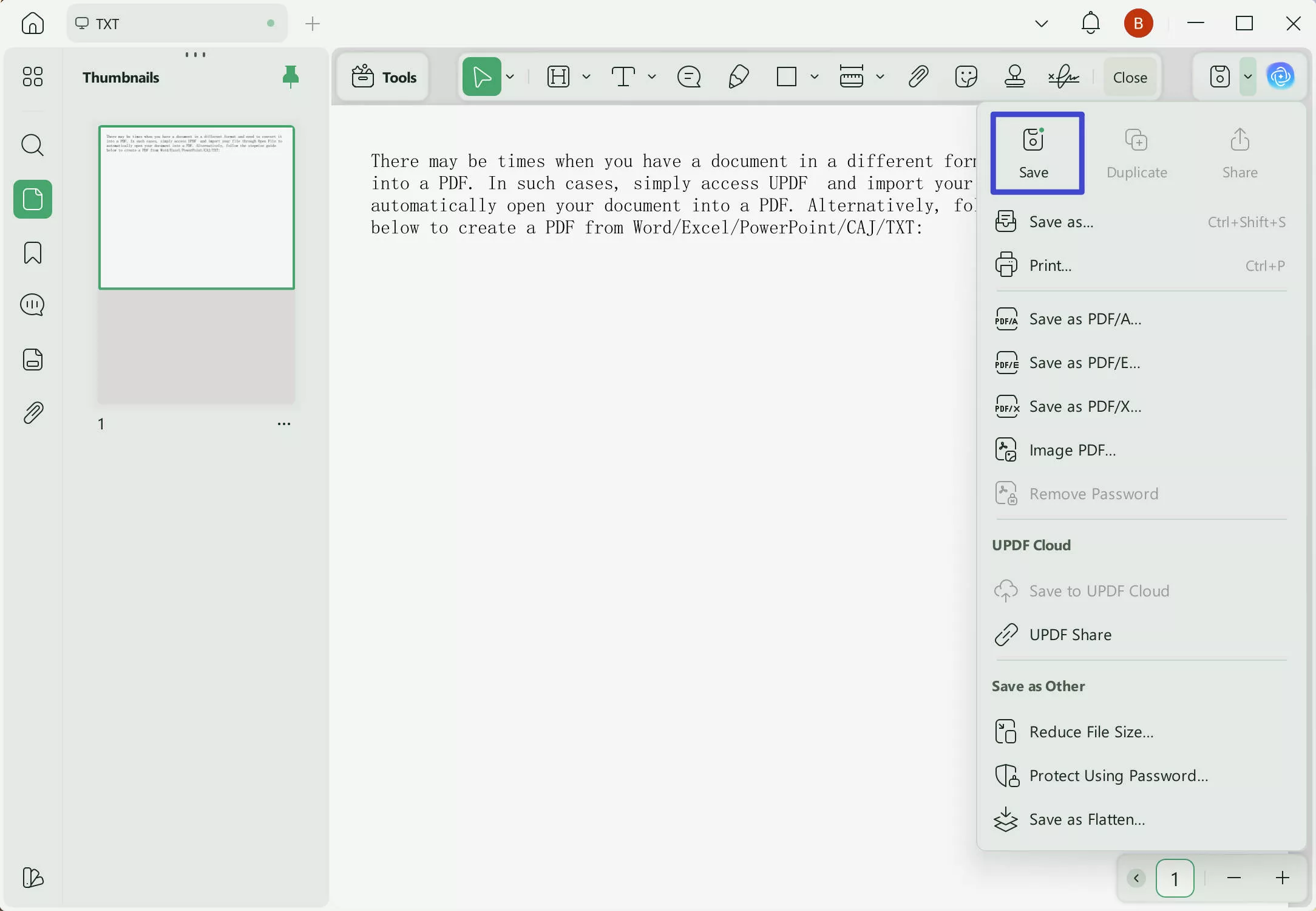
Step 3. UPDF automatically converts the TXT file into a PDF.
Step 4. Click Save to store the PDF on your device.
Except for creating PDFs from other files, UPDF also supports converting PDFs to other formats. Watch the video below to learn more:
Option #2: Save the TXT file as PDF
The second option you can choose involves no use of software. Follow these steps to learn how.
Step 1. Open the TXT or Notepad file that you want to convert. Click File, then Print.
Step 2. A Print pop-up window will appear. From the Select Printer options, choose Microsoft Print to PDF.
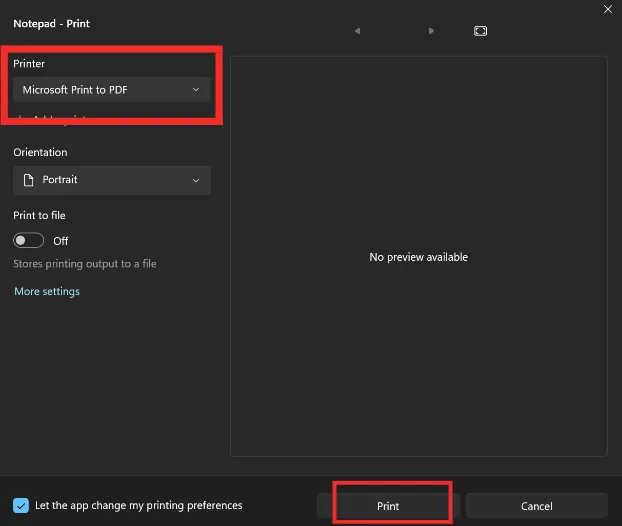
Step 3. Check if all the pages are included and then hit the Print button. The file is converted into a PDF and can be saved anywhere on your device.
This method is effortless and you can convert a TXT file to a PDF instantly. However, let us go through other options as well.
Option #3: Convert a TXT file with Adobe Acrobat online
Adobe Acrobat has a free online PDF converter tool that anyone can use. Head over to the website and follow these steps.
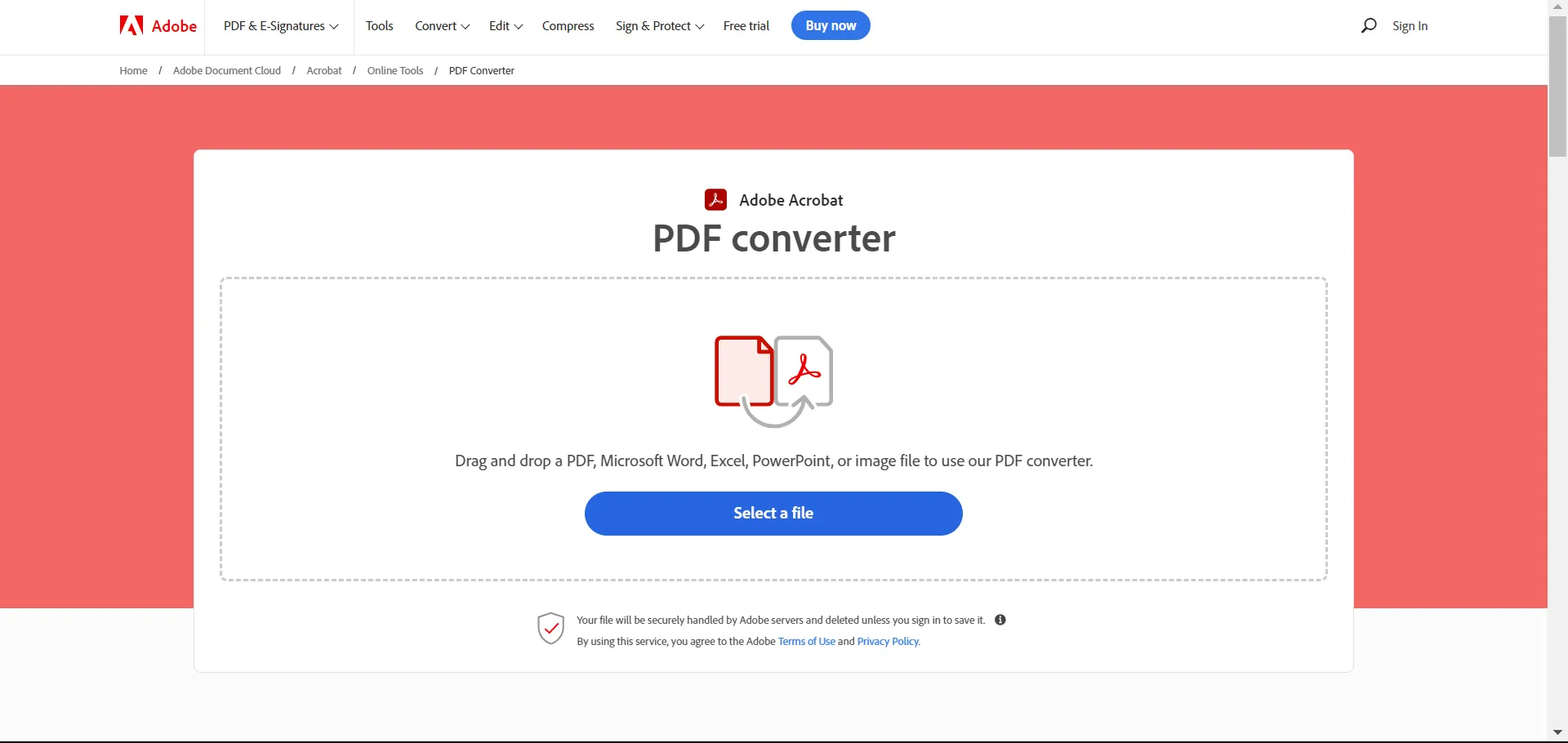
Step 1. Click the Select a file button or drag and drop the TXT file into the drop zone.
Step 2. After you select the file, the TXT file will be quickly converted into a PDF file.
Step 3. Then, you have to Sign in to download your PDF file.
Despite being an easy method, the only disadvantage is that you will need to have an Adobe account to sign in and then only get access to your converted file.
Let's take a look at another option then.
Option #4: Convert a TXT file with PDFCandy online
PDFCandy is another free online PDF converter tool that anyone can use.
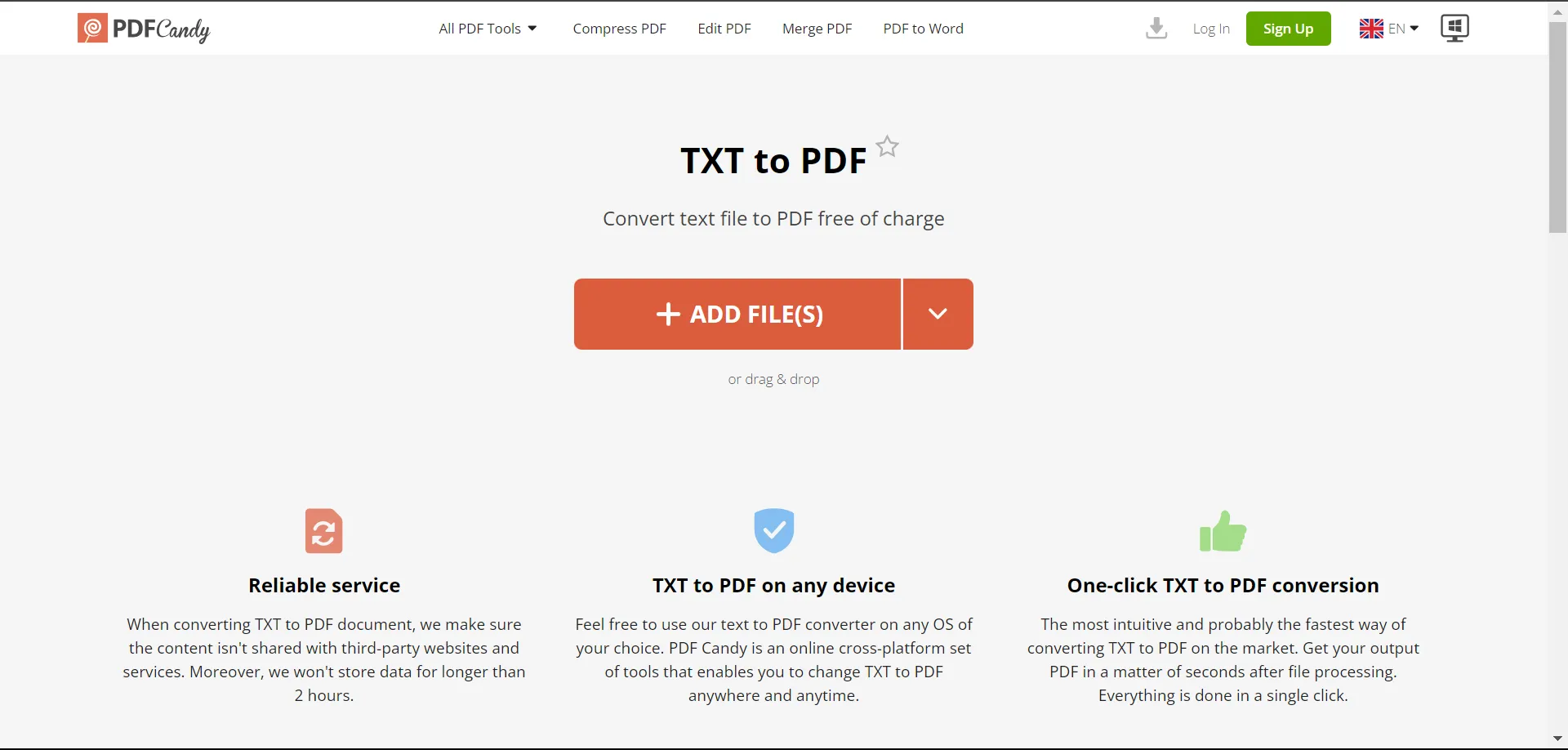
Head over to the website and follow these steps.
Step 1. Click the ADD FILE(S) button or drag and drop the TXT file into the field. You can also upload from Dropbox and Google Drive.
Step 2. Then, your TXT file gets automatically converted into a PDF file.
Step 3. Simply download your converted PDF file and you can access it immediately.
All these methods are pretty useful. However, after converting your TXT files to PDFs, you will need a safe place to open and manage all your converted PDFs. This is where UPDF comes in again as the perfect PDF viewing, editing, and management tool.
The next section will discuss more about UPDF but you can get started for free by downloading the app on your device.
Part 3. Bonus: Edit, Annotate, and Convert PDFs Effortlessly with UPDF
If you are looking for a tool that can manage your PDFs and you can edit effortlessly on one, then you are looking at the perfect tool.
UPDF is an effective PDF editing and management tool that can take your productivity to another level and maximize your work efficiency.
How so? Because UPDF provides the following amazing capabilities:
- You can view PDFs conveniently and adjust the reading mode for a pleasurable viewing experience.
- You can edit PDFs easily and keep optimizing your file.
- You can organize your PDF by rearranging, inserting, and deleting pages.
- You can annotate PDFs using markers, highlighters, stickers, stamps, etc.
- You can share your PDF with anyone using a URL or email, with permissions enabled.
- You can fill, sign, and make forms effortlessly with UPDF's Form Mode.
- You can store numerous PDFs securely on UPDF Cloud.
- You can convert your PDF into different file formats including TXT, .xlsx, .docx, .pptx, html, and so on.
- You can use its AI assistant to summarize, translate, rewrite, or explain PDFs within seconds.
Watch the video below to learn more about UPDF intuitively.
You can experience all these amazing features and the best part is you can get started for free.
Download UPDF and start elevating your productivity levels now.
Windows • macOS • iOS • Android 100% secure
Part 4. FAQs About TXT to PDF
Q1. Is a TXT File a PDF?
TXT (Text file) is the basic file type where you can write and edit simple text using WordPad, NotePad, and TextEdit. Whereas, PDF (Portable Document File), is a format where you can store text, images, hyperlinks, charts, etc., and share online with ease.
Q2. How can I convert PDF back to TXT after the TXT-to-PDF conversion?
You can use UPDF for that. You can follow these steps:
- Download and launch UPDF and open the PDF file that you want to convert.
- Select the Tools button on the right panel.
- From the options, select More (PDF Converter).
- In the pop-up window, specify the output format and page range.
- Finally, select the Apply button.
Q3. What is the shortcut for converting to PDF on Mac?
On Mac, open the file you want to convert to PDF and press the keyboard shortcut Command + P. This will help you activate a shortcut to Save as PDF.
Conclusion
With its newly added TXT to PDF support, UPDF offers a simple yet powerful way to turn text files into well-formatted PDF documents. From quick drag-and-drop conversion to flexible bulk creation options, it covers both basic and advanced needs.
If you are looking for an easy-to-use solution that goes beyond simple conversion, UPDF is a practical choice for converting TXT files and managing PDFs in one place.
Windows • macOS • iOS • Android 100% secure


 Enola Miller
 Enya Moore
 Enid Brown