 UPDF
UPDF
 UPDF for Windows
 UPDF for Mac
 UPDF for iPhone/iPad
 UPDF for Android
 UPDF AI Online
 UPDF Sign
 Edit PDF
 Annotate PDF
 Create PDF
 PDF Form
 Edit links
 Convert PDF
 OCR
OCR PDF to Word
 PDF to Image
 PDF to Excel
 Organize PDF
 Merge PDF
 Split PDF
 Crop PDF
 Rotate PDF
 Protect PDF
 Sign PDF
 Redact PDF
 Sanitize PDF
 Remove Security
 Read PDF
 UPDF Cloud
 Compress PDF
 Print PDF
 Batch Process
 About UPDF AI
 UPDF AI Solutions
 AI User Guide
 FAQ about UPDF AI
 Summarize PDF
 Translate PDF
 Chat with PDF
 Chat with AI
 Chat with image
 PDF to Mind Map
 Explain PDF
 Scholar Research
 Paper Search
 AI Proofreader
 AI Writer
 AI Homework Helper
 AI Quiz Generator
 AI Math Solver
 PDF to Word
 PDF to Excel
 PDF to PowerPoint
 Enterprise Solution
 Enterprise Sign
 Enterprise AI
 Enterprise Plan
 Enterprise User Guide
 Enterprise Webinar
 Banking
 Healthcare
 Insurance
 Legal
Legal Manufacturing
 Government
 Education Solution
 Customer Stories
 User Guide
 UPDF Tricks
 FAQs
FAQs UPDF Reviews
 Download Center
 Blog
Blog Newsroom
 Tech Spec
 Updates
 UPDF vs. Adobe Acrobat
 UPDF vs. Foxit
 UPDF vs. PDF Expert


Opening a critical PDF for work or study, only to see that Adobe Acrobat reports an error opening the document, can instantly derail your plans. Files that were perfectly fine moments ago suddenly refuse to open, leaving you frustrated and searching for a quick solution.
Many users facing this issue turn to UPDF as a fast workaround. This gives you access to their documents in seconds, without losing time.
Windows • macOS • iOS • Android 100% secure
Keep reading this article till the end to discover effective ways to handle this error and get your PDFs open smoothly.
Part 1. What Does "There Was an Error Opening This Document" Mean?
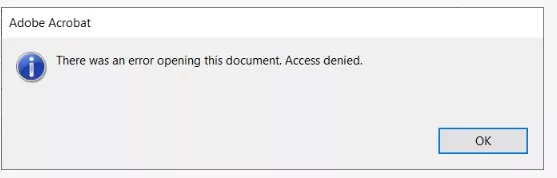
When Adobe Acrobat displays "Adobe Acrobat 8 there was an error opening this document," it indicates that the program cannot access or read the PDF file. This message doesn't always mean the file is lost or permanently damaged; sometimes, it's a temporary glitch preventing Acrobat from loading the document properly.
Essentially, the error signals that Acrobat has encountered a problem processing the PDF's data. Until the issue is resolved, users cannot view, edit, or print the document. Understanding this message is the first step toward finding a reliable way to open the PDF successfully.
Part 2. Common Causes of the Adobe Acrobat Error
One frequent message users encounter is "The path does not exist," which points to issues with how Acrobat accesses the file. Mentioned below are some of the common causes that might lead to this error:
- Corrupted PDF File: Sometimes the PDF itself is damaged during download or transfer. Acrobat cannot read corrupted data, resulting in the error message.
- Incorrect File Path: If the PDF has been moved, renamed, or deleted, Acrobat cannot locate it. The program may display "the path does not exist" when trying to open the file.
- Outdated Acrobat Version: Older versions may struggle with newer PDF formats or encryption. Updating Acrobat often resolves compatibility issues.
- Insufficient Permissions: If you lack read or write access to the file or folder, Acrobat cannot open it. Adjusting file permissions can restore access.
- Conflicting Software or Plugins: Certain background apps or PDF plugins can interfere with Acrobat. Disabling them temporarily can help identify the cause.
Part 3. How to Fix "There Was an Error Opening This Document" in Adobe Acrobat
If you keep encountering Adobe Acrobat "There was an error opening this document," don't worry, there are practical ways to regain access to your PDF. The methods below focus on simple, effective solutions that you can try immediately:
Method 1. Stop Running Program in Light Mode
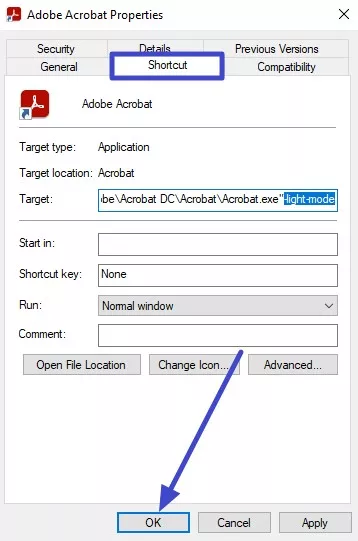
One effective way to address the "Adobe Acrobat: there was an error opening this document" error is to stop running the program in light mode. Sometimes, background processes or certain display modes can interfere with how Acrobat loads PDFs. By temporarily halting the program, users allow the system to reset its resources. Follow the instructions mentioned next to learn how to run the program in normal mode:Instructions. Access the location of the software and right-click on it to choose the "Properties" option. Now, access the "Shortcut" tab and remove the Light mode from the extension. Press the "Apply" button and then "OK" to save changes. Now, launch the tool again to successfully open the document.
Method 2. Disable Protected Mode at Startup
Another method to fix "Adobe Acrobat 8 there was an error opening this document," is to disable Protected Mode at startup. This security feature can sometimes prevent Acrobat from opening certain PDFs, especially those from external sources or downloads. Turning it off temporarily allows the program to bypass strict restrictions. To learn how to use this method, read the steps provided next:
Step 1. Begin by opening the tool and heading to the top-left corner. Now, press the "Three Bars" icon and select the "Preferences" option from the list by clicking on it.
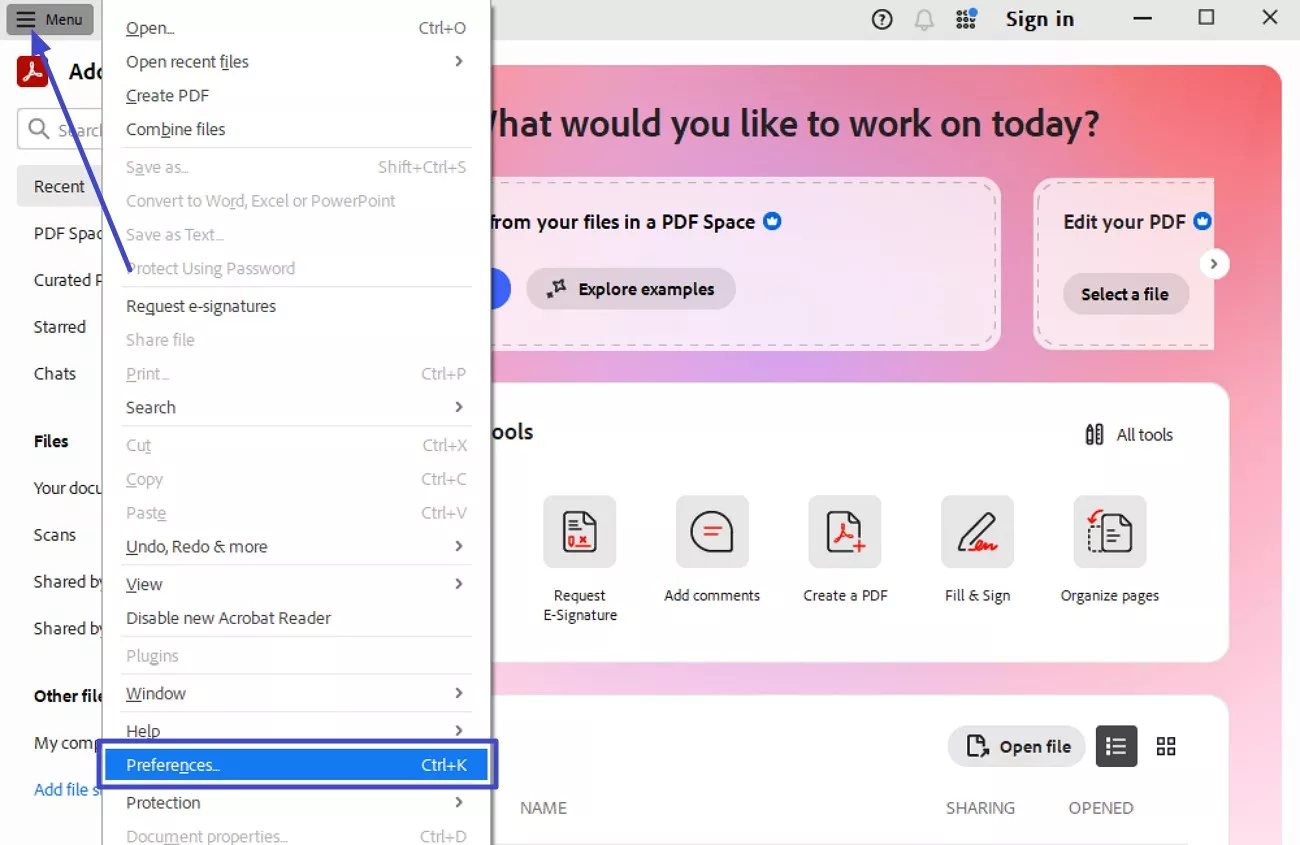
Step 2. Next, open the "Security (Enhanced)" section on the left and locate "Enable Protected Mode at Startup." Now, untick its checkbox and press "OK" for the confirmation message. This will disable the protected mode at the launch of the program.
Method 3. Reinstall Adobe Acrobat
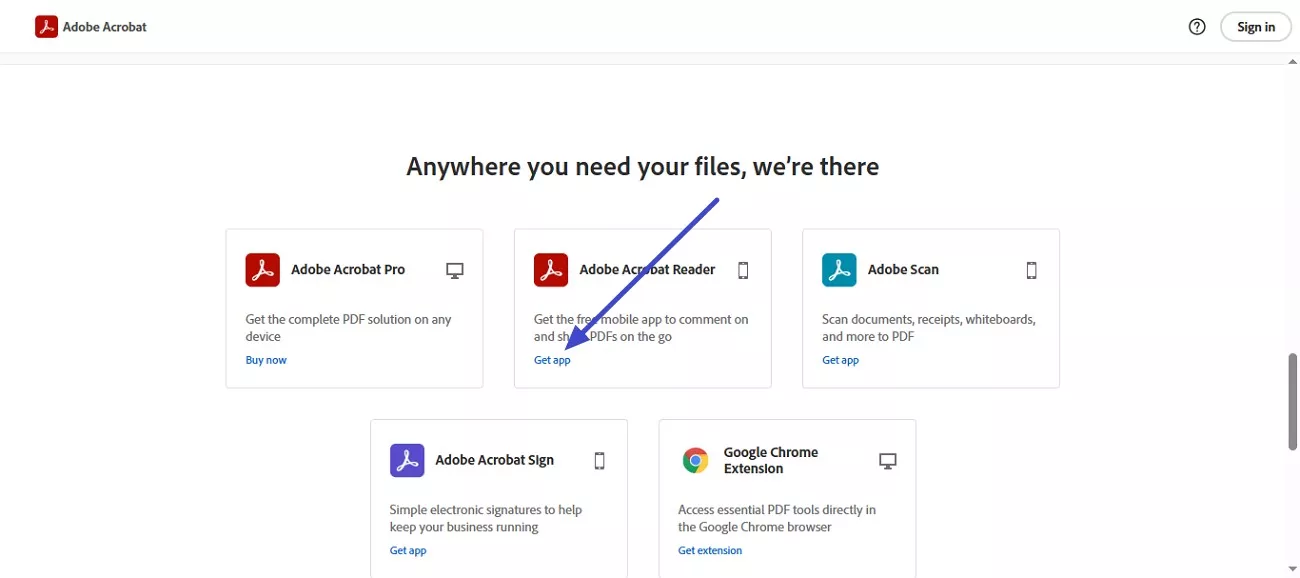
Reinstalling Adobe Acrobat is a reliable way to resolve persistent instances of "the path does not exist" error. Over time, program files can become corrupted or incomplete, causing errors when opening PDFs. A fresh installation ensures all components are properly updated and configured, often restoring full functionality and allowing previously inaccessible documents to open. Follow the instructions to learn how to install a new version of the tool: Instructions. To begin, head to the official website of Adobe Acrobat and locate your program. Press the "Get App" option and follow the instructions on the screen to install the tool on your device.
Part 4. When Adobe Acrobat Fails: A Smarter Way to Open PDFs
When "Adobe Acrobat there was an error opening this document" error prevents you from accessing an important PDF, using an alternative reader like UPDF can be beneficial. UPDF allows you to open and view files instantly, bypassing compatibility or minor corruption issues that Acrobat may struggle with. It's especially useful for urgent access, ensuring you can continue work without delays while troubleshooting the original file.
UPDF doesn't aim to replace Acrobat entirely but serves as a reliable solution when such an error occurs. For users who frequently encounter PDF errors, having UPDF handy ensures minimal disruption. It lets you continue reading, editing, or sharing documents while resolving issues in Acrobat. It's a practical, low-effort workaround that keeps your workflow uninterrupted.
Windows • macOS • iOS • Android 100% secure
- Instant File Access During Errors: When Acrobat refuses to open a PDF, UPDF can often load the same file instantly, helping users meet deadlines without interruption.
- Cross-Device Accessibility: If the error persists on one system, UPDF allows users to open the same PDF on another Windows/Mac/iOS/Android device, ensuring continuity across platforms.
- Annotations While Troubleshooting: Even when Acrobat cannot open the file, UPDF lets users highlight, comment, or review content, allowing work to continue uninterrupted.
- Safe Viewing Without File Alteration: Users can open PDFs in UPDF without risking further damage, which is crucial when the file already triggers an error in Acrobat.
- Stable Performance With Problematic PDFs: Files that trigger errors in Acrobat may still open smoothly in UPDF, reducing the stress of dealing with unreadable documents.

Also Read: Adobe Acrobat VS UPDF >>
Part 5. When the PDF Refuses to Open: Next Steps and Prevention Tips
Even after trying multiple fixes, the "Adobe Acrobat 8 there was an error opening this document" error may still appear for some PDFs. In such cases, taking a few extra steps can help recover access and reduce the chances of facing the same issue again. The suggestions below focus on both immediate actions and long-term prevention:
- Check File Storage Location: Store PDFs in local folders instead of removable drives or unstable cloud paths. This helps avoid access issues caused by broken or unavailable file paths.
- Keep Software Updated: Regularly updating PDF readers ensures better compatibility with newer document formats. Updates also reduce the risk of unexpected opening errors.
- Avoid Interruptions During Downloads: Ensure downloads complete fully before opening PDFs. Interrupted or partial downloads frequently result in unreadable files.
- Use Reliable File Transfer Methods: Share PDFs through trusted platforms or compressed formats. This minimizes the risk of file corruption during transfers.
- Create Regular Backups: Saving backup copies of important PDFs protects against data loss. If one file fails to open, an older version may still be accessible.
Conclusion
To sum it up, this article provided a complete guide to understanding and resolving Adobe Acrobat there was an error opening this document. The article covered clear fixes, practical workarounds, and prevention tips. While Adobe Acrobat remains widely used, persistent PDF errors can disrupt productivity. In such situations, UPDF serves as a reliable, non-intrusive alternative. It helps you access important PDFs quickly and continue working without unnecessary delays.






 Enya Moore
 Enola Miller
 Enola Davis
 Lizzy Lozano