 UPDF
UPDF
 UPDF for Windows
 UPDF for Mac
 UPDF for iPhone/iPad
 UPDF for Android
 UPDF AI Online
 UPDF Sign
 Edit PDF
 Annotate PDF
 Create PDF
 PDF Form
 Edit links
 Convert PDF
 OCR
OCR PDF to Word
 PDF to Image
 PDF to Excel
 Organize PDF
 Merge PDF
 Split PDF
 Crop PDF
 Rotate PDF
 Protect PDF
 Sign PDF
 Redact PDF
 Sanitize PDF
 Remove Security
 Read PDF
 UPDF Cloud
 Compress PDF
 Print PDF
 Batch Process
 About UPDF AI
 UPDF AI Solutions
 AI User Guide
 FAQ about UPDF AI
 Summarize PDF
 Translate PDF
 Chat with PDF
 Chat with AI
 Chat with image
 PDF to Mind Map
 Explain PDF
 Scholar Research
 Paper Search
 AI Proofreader
 AI Writer
 AI Homework Helper
 AI Quiz Generator
 AI Math Solver
 PDF to Word
 PDF to Excel
 PDF to PowerPoint
 Enterprise Solution
 Enterprise Sign
 Enterprise AI
 Enterprise Plan
 Enterprise User Guide
 Enterprise Webinar
 Banking
 Healthcare
 Insurance
 Legal
Legal Manufacturing
 Government
 Education Solution
 Customer Stories
 User Guide
 UPDF Tricks
 FAQs
FAQs UPDF Reviews
 Download Center
 Blog
Blog Newsroom
 Tech Spec
 Updates
 UPDF vs. Adobe Acrobat
 UPDF vs. Foxit
 UPDF vs. PDF Expert

I still remember the moment my screen collapsed under a mountain of open tabs. I just couldn't handle it anymore and decided to give the AI Comet Browser a try.
After using it for a while, I realized the Comet Perplexity browser was quietly handling tasks I used to do manually. The experience of searching the web, finding the right information, summarizing webpages, and asking questions, everything felt like having a virtual assistant working in the background. My workflow finally felt under control.
When I started using the Comet browser to process local documents, I found that it had many limitations (the free version can upload only 3 files, and translating or analyzing documents felt restricted). That's when I knew I needed something more powerful. After combining Comet with UPDF AI, everything clicked.
UPDF AI handled document searching, uploading, summarization, translation, and in-depth analysis exceptionally well, while Comet continued to automate my web tasks. Together, they have given me a powerful AI system that is now saving me hours and boosting my productivity. You can click the button below to have a free try.
In this Comet browser review, I will share everything about this AI browser and my personal experience. Read on to the end to decide if Comet is the browser you need.
Part 1. Discovery and Initial Setup
I never thought that there could be a better browsing experience than Chrome. Deep inside, I felt it more like a cluttered storage room than a productivity tool. The breakdown moment occurred when the number of open tabs spiraled out of control, and I started spending more time managing my browser than actually getting work done.
After hearing people talk about AI-first browsing, I decided to give the Comet browser a try and see whether it could actually simplify my workflow.
How to Download and Customize the Comet Browser?
It is straightforward to download the Comet Perplexity browser. I went to the official site and hit "Download Comet". It automatically detected that I was using Windows and downloaded the setup.
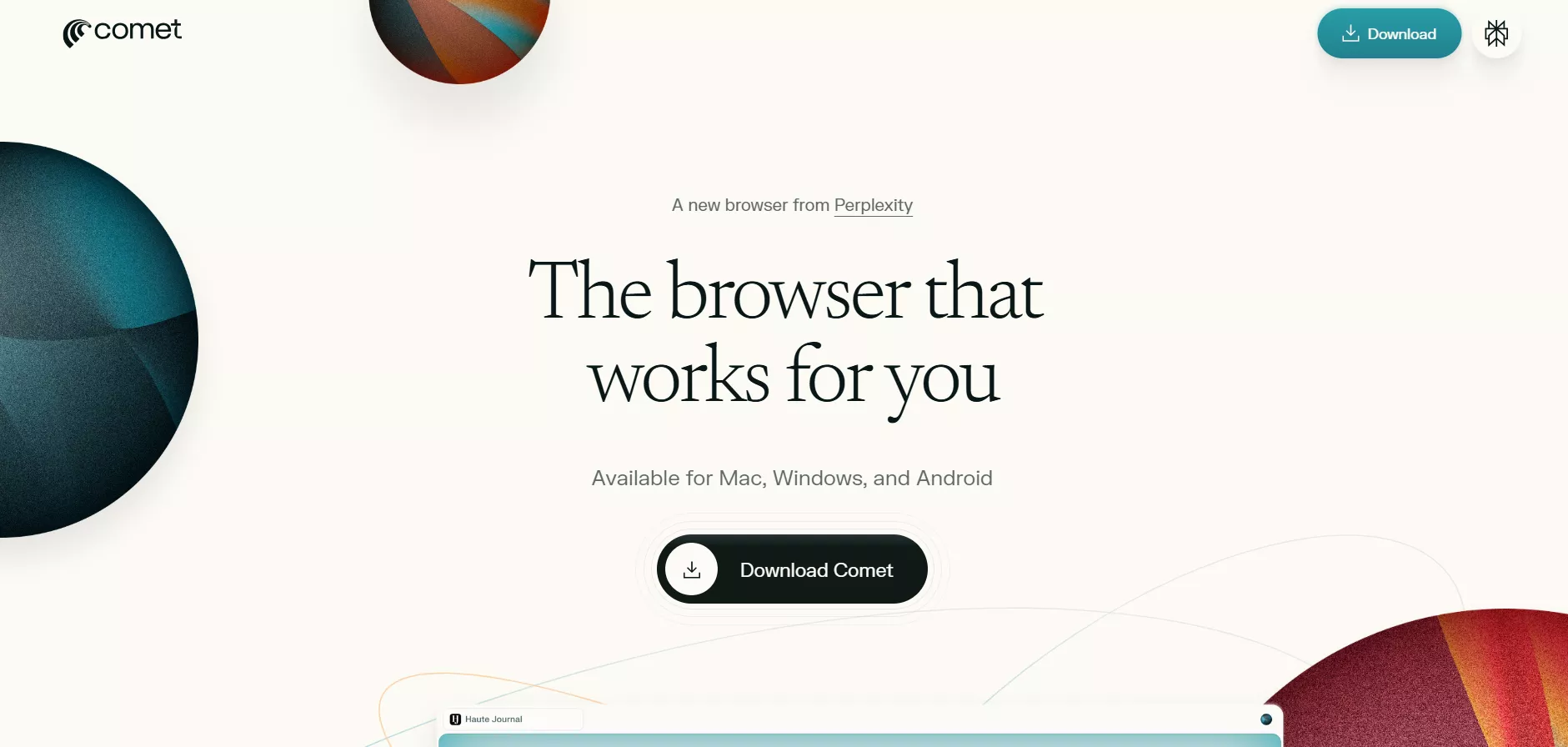
As of today, the Comet browser currently supports Windows 10 or later, macOS 14 or later, and Android, so older systems won't work.
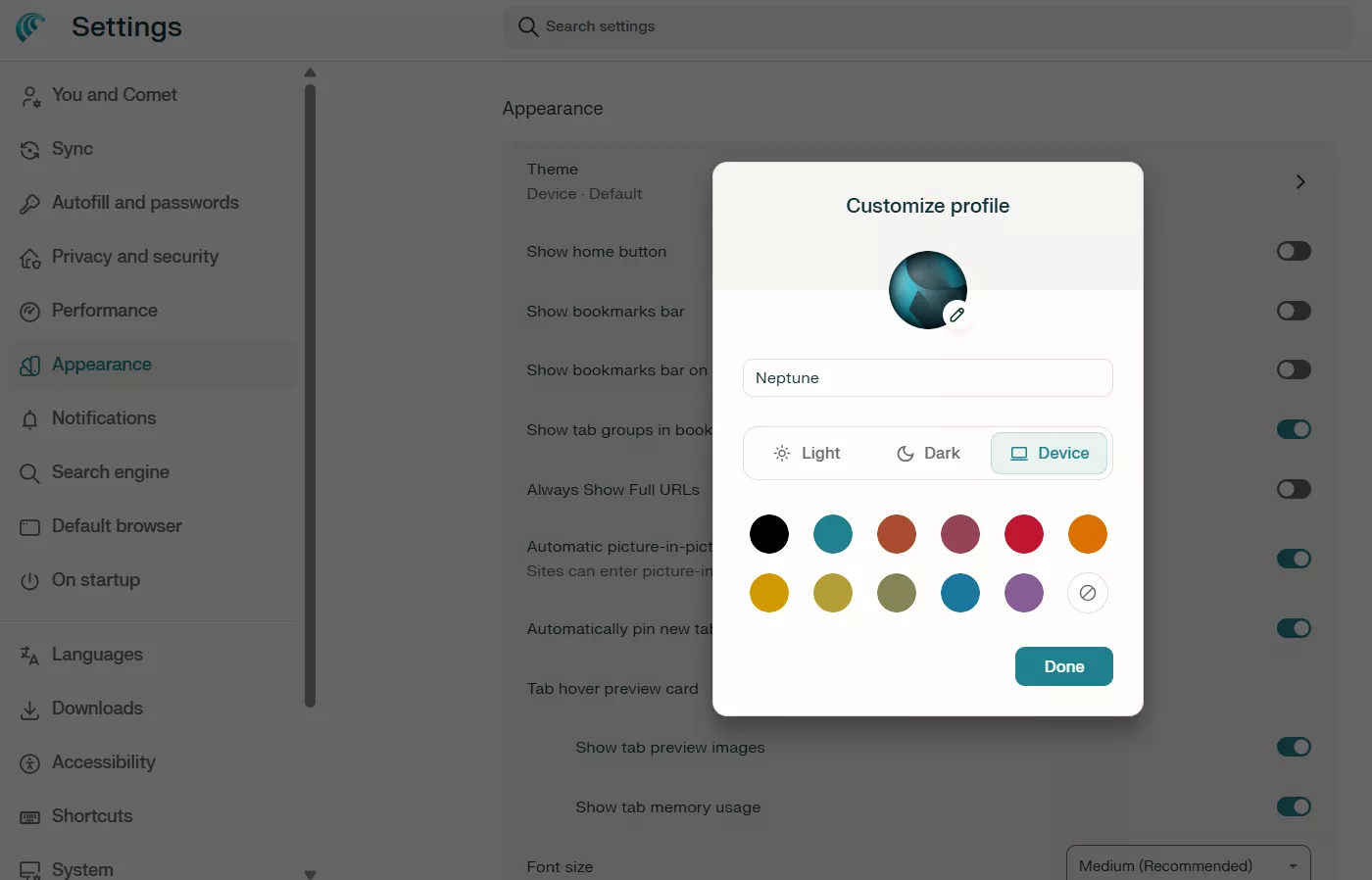
After installation, I spent a few minutes on customization, such as the theme, enabling the AI assistant, and others.
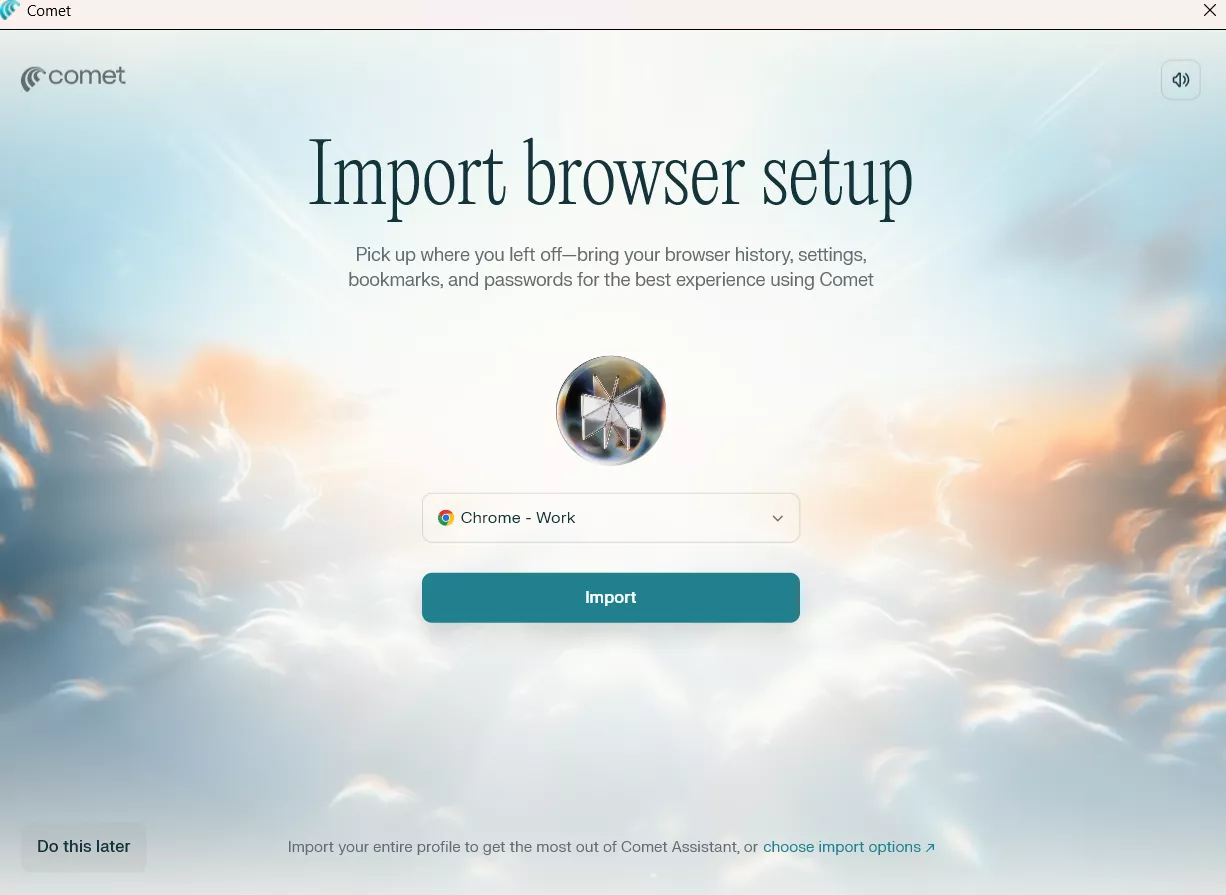
How do I import Chrome data to Comet?
One feature I appreciate about these AI browsers is that they allow importing other browser data. Since I was previously using Chrome, Comet asked me if I wanted to import Chrome data. This was handy because I was able to transfer the history, bookmarks, settings, passwords, and more.
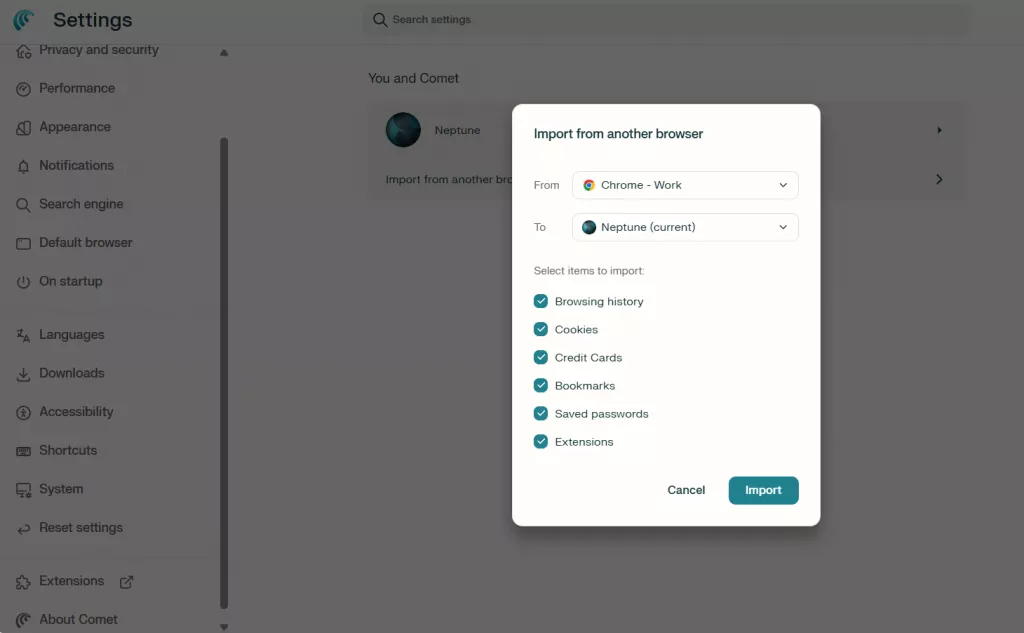
We also get to import Chrome data after the setup. For that, you have to go to "Settings" and use the import option.
My First Impressions
My first impression of Comet was that it felt clean and was designed to ease the search hassle. Initially, I thought it would be another AI browser that just blends the AI layer over the traditional browser. However, as I used it for some time, I realized that it is transforming how I interact with the internet.
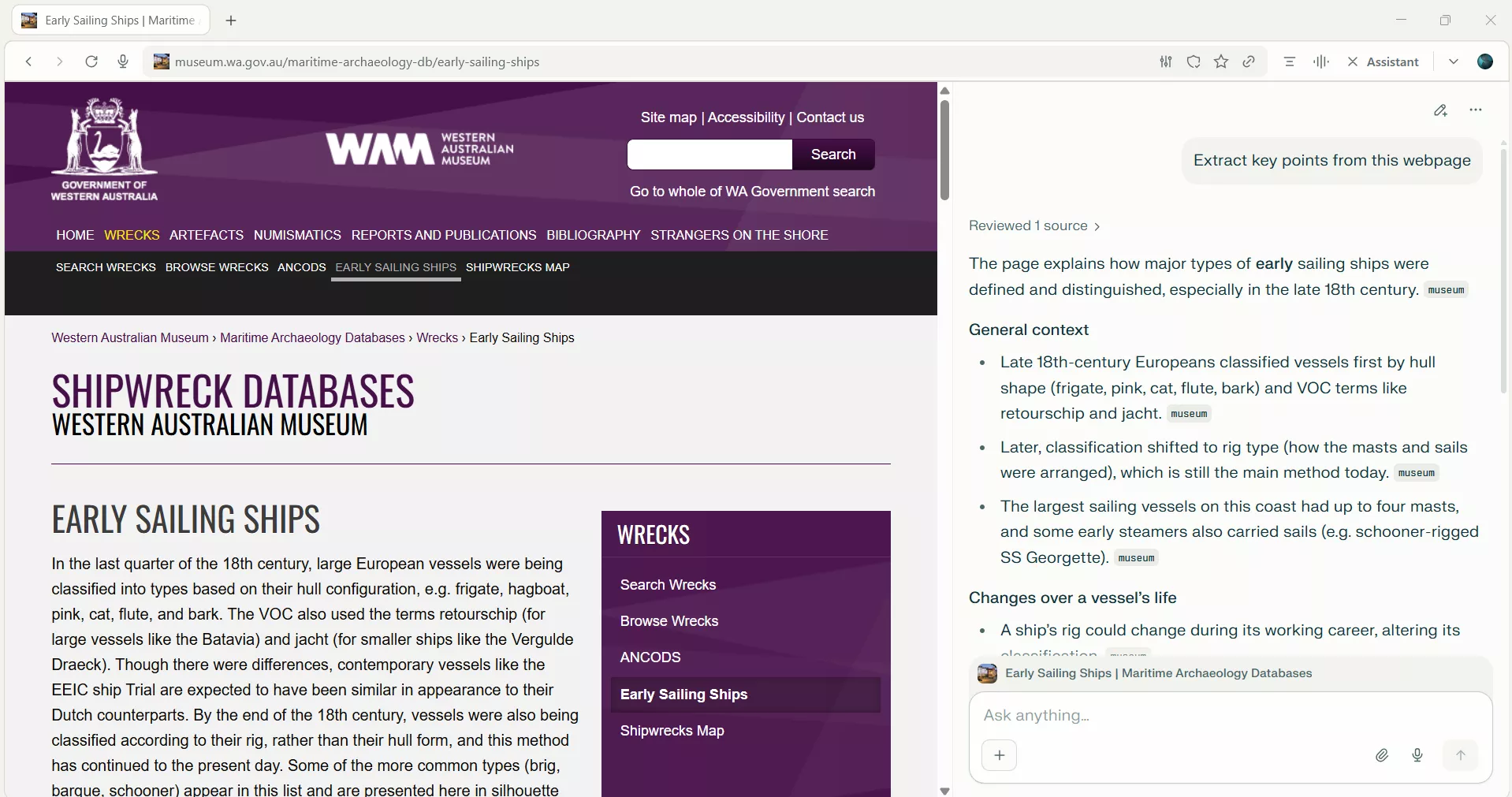
For example, I was creating a blog on 18th-century ships, and I had to read the mechanisms of different ships. I kept instructing Comet to "summarize this article" or "extract key points from this webpage". This sped up my research, and I was able to complete the blog very fast.
Comet Perplexity browser also has a well-organized interface, divided into:
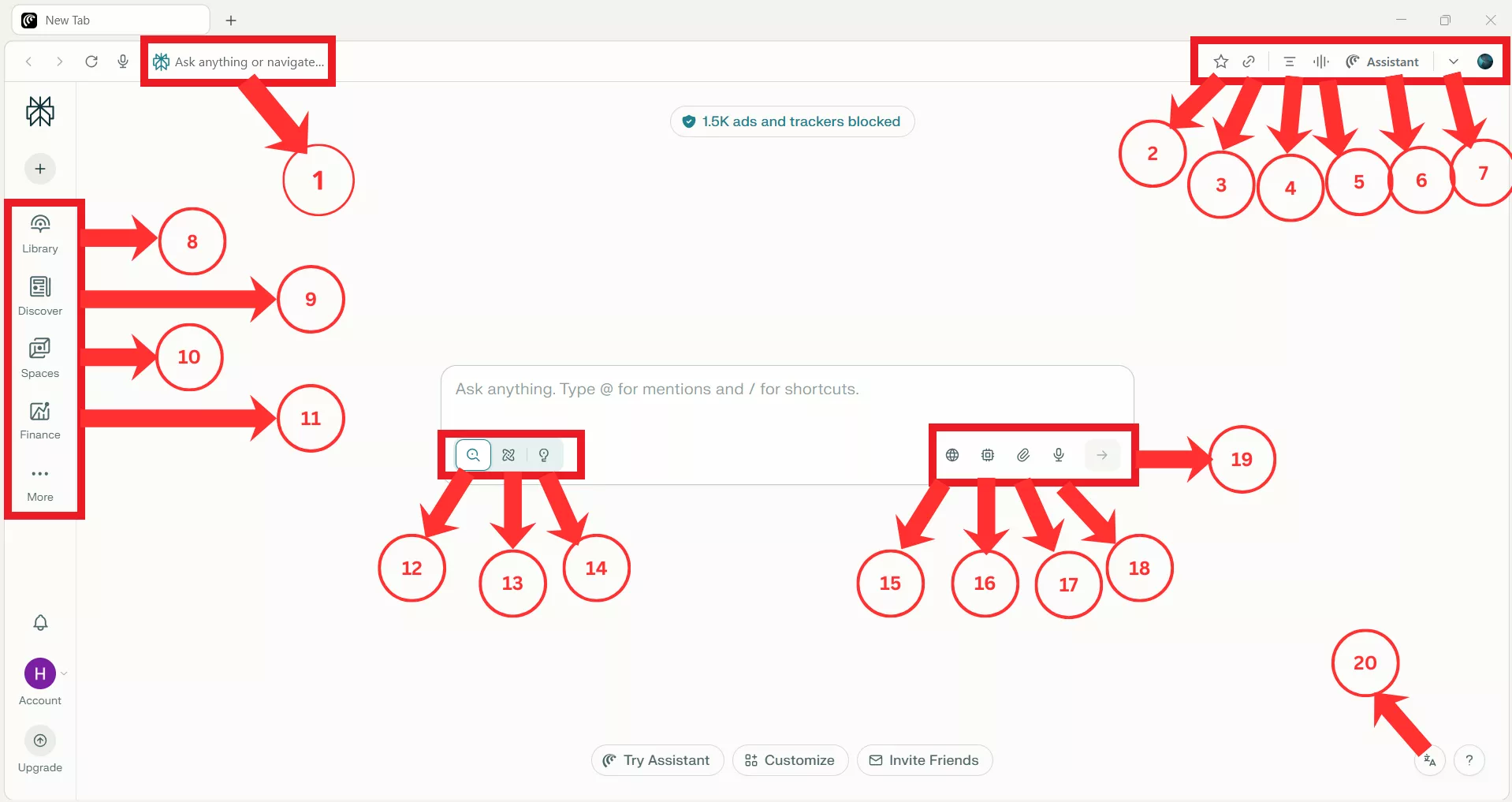
- Top Navigation & Address Bar
- Address/URL Bar: Where you can enter a specific website URL or search query.
- Bookmark: Saves the current page for quick access later.
- Copy Link: Copies the current URL to your clipboard.
- Summarize Page: Uses AI to provide a quick overview of the current website content.
- Voice Mode: Launches voice mode for giving instructions in voice command.
- AI Assistant Toggle: Activates the sidebar AI for side-by-side browsing and chatting.
- Drop-Down Button: Opens the control panel.
- Left Sidebar (Navigation)
- Library: A place where past threads are stored.
- Discover: A feed of trending topics and news curated by AI.
- Spaces: Collaborative folders for organizing threads and files by project.
- Finance: Dedicated section for stock market data and financial analysis.
- Central Search & Tool Bar
- Search Mode: Allows you to perform a fast web search.
- Research Mode: Deep research on any topic.
- Lab: Creates projects from scratch.
- Source: Select the search source, such as web, finance, social, etc.
- Model Selection: Choose the model for searching, such as GPT, Gemini, Grok, etc.
- Attach Files: Upload documents (PDFs, text, etc.) for the AI to analyze.
- Voice Input: Allows you to dictate your prompt via microphone.
- Submit/Interact: Processes your query or starts the AI generation.
- Page Controls (Bottom Right)
- Language/Translate: Changes the interface language.
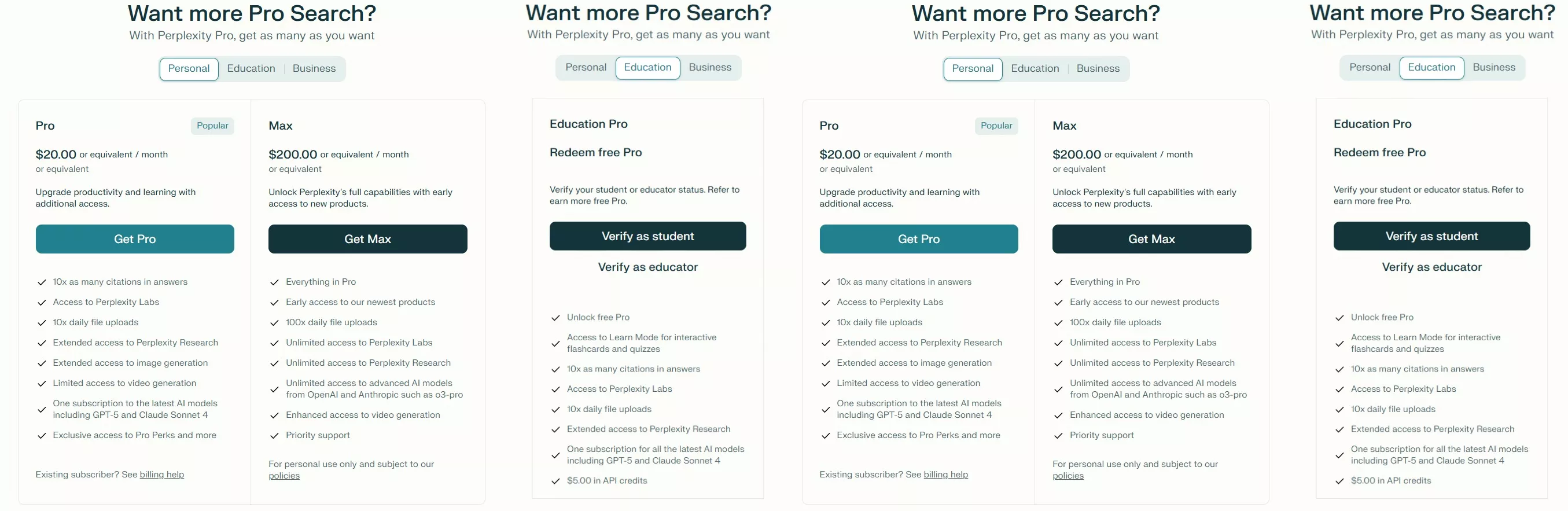
Pricing Plans
Comet Perplexity browser is free to use. However, you need to pay a subscription fee for more advanced features and AI models. The details are shown in the image below:
Part 2. Agentic Automation in Action
Now that we have covered the basic insights about the Comet browser, I want to take you on the roller coaster experience I had with the Comet browser. Before I start, I would say that it is a game-changer and a true virtual browser assistant we need today.
Web Search & Summarizations
Since I frequently write blogs on different trendy topics, I often have to read content from various webpages to extract key insights. So, I found the Comet browser useful in two ways.
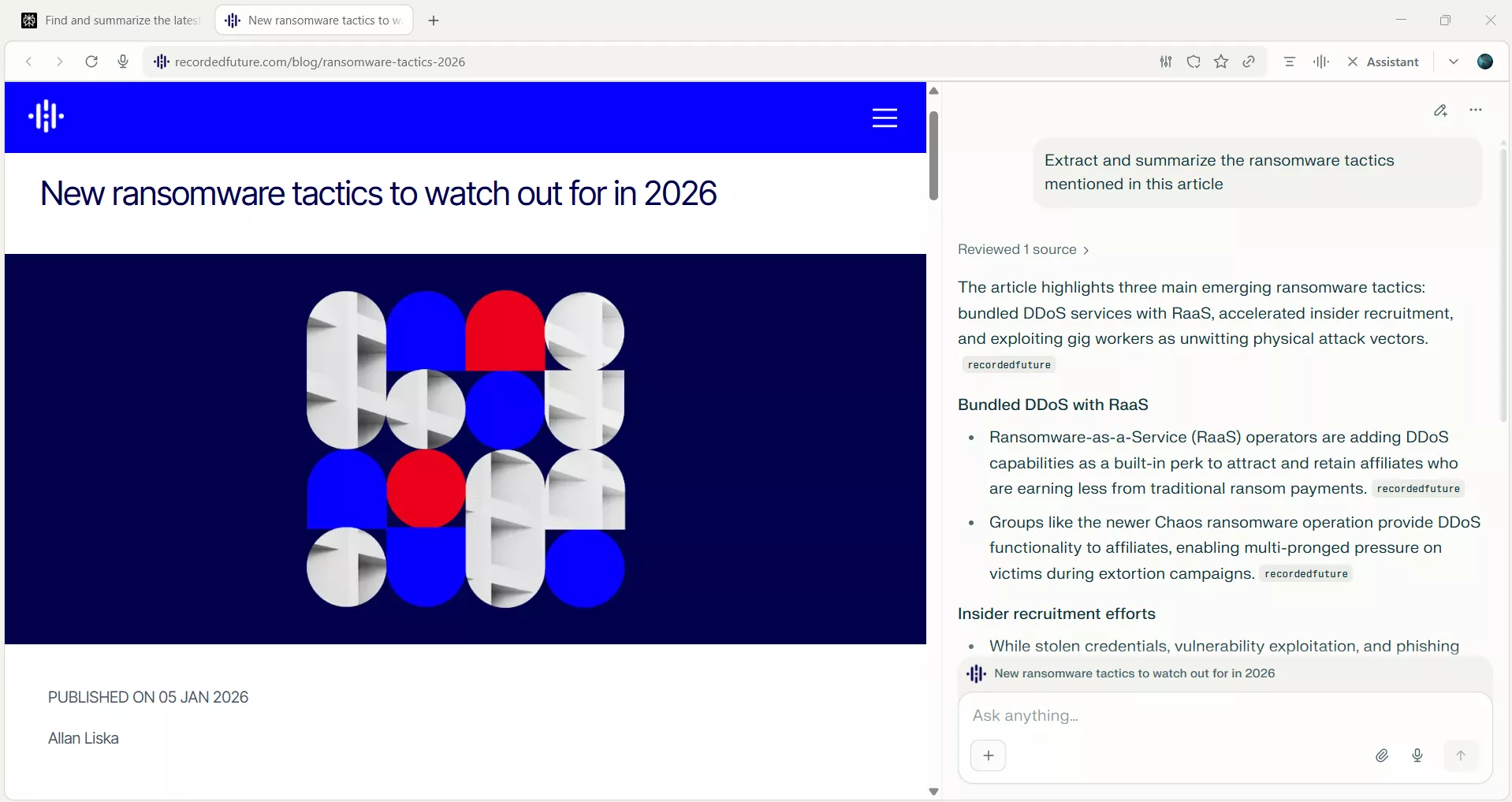
First, I provided the topic and instructions so it could retrieve all recent information on the topic. My prompt was: “Find and summarize the latest insights on Ransomware Trends in 2026 from credible sources.”
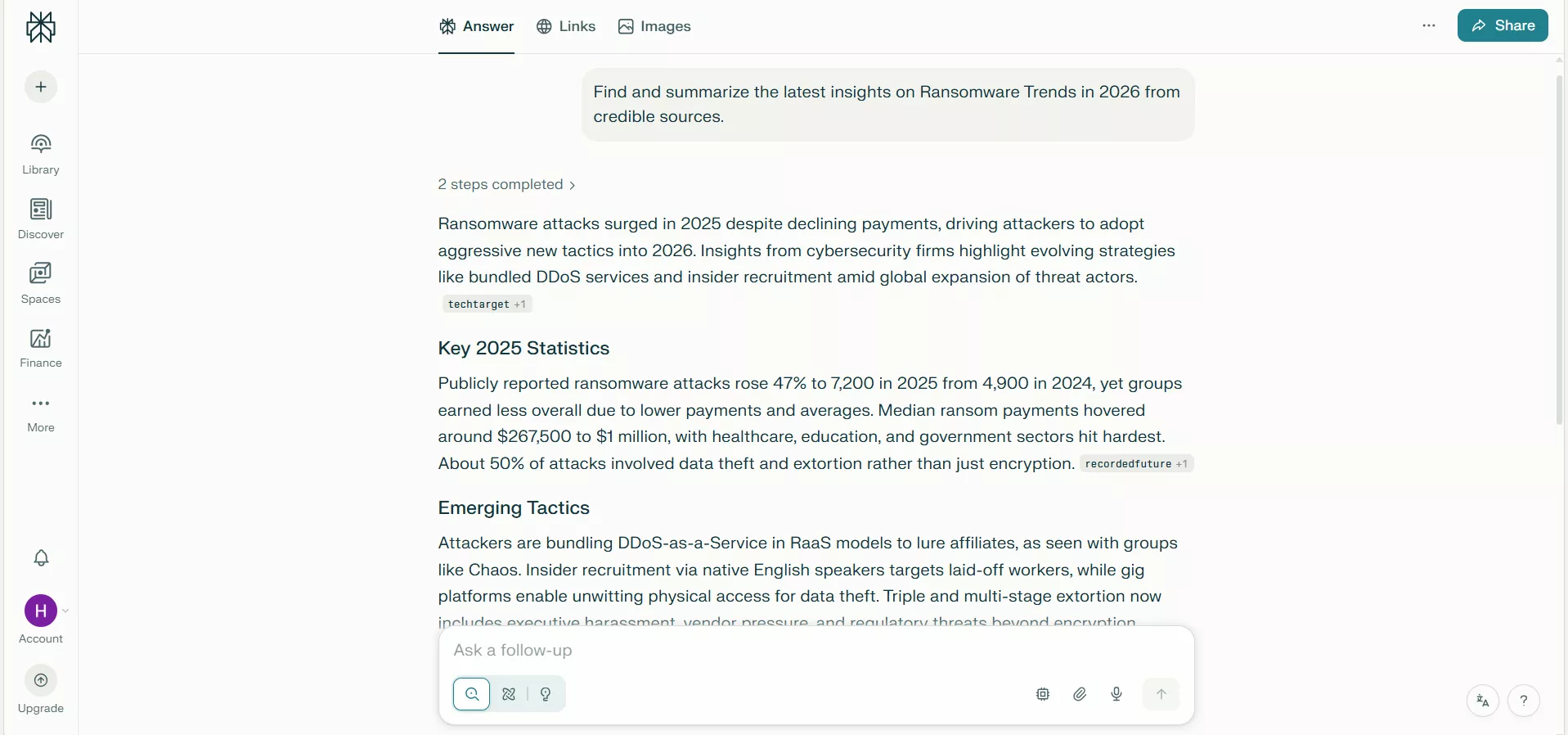
Secondly, I used its summarization ability to extract key information from different webpages. This way, I was able to save a lot of time and found authentic materials with a few simple clicks.
Smart Content Pulling
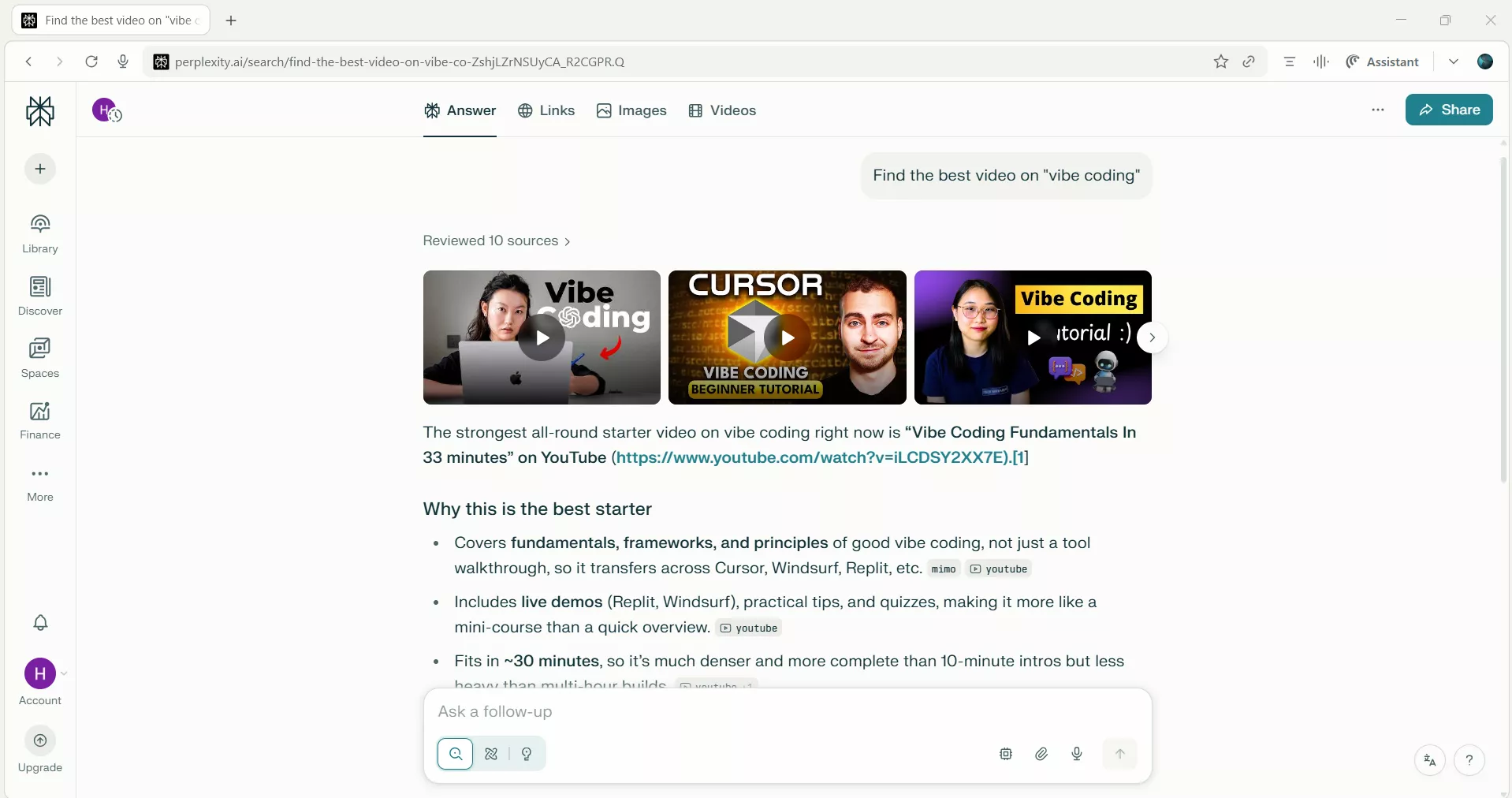
Next, I tested Comet's ability to cut through noise rather than gather bulk information. Instead of scanning search results or jumping between videos, I asked it to find the best video on vibe coding. It instantly analyzed the content of various YouTube videos and then provided me with the best one that contains the most useful information.
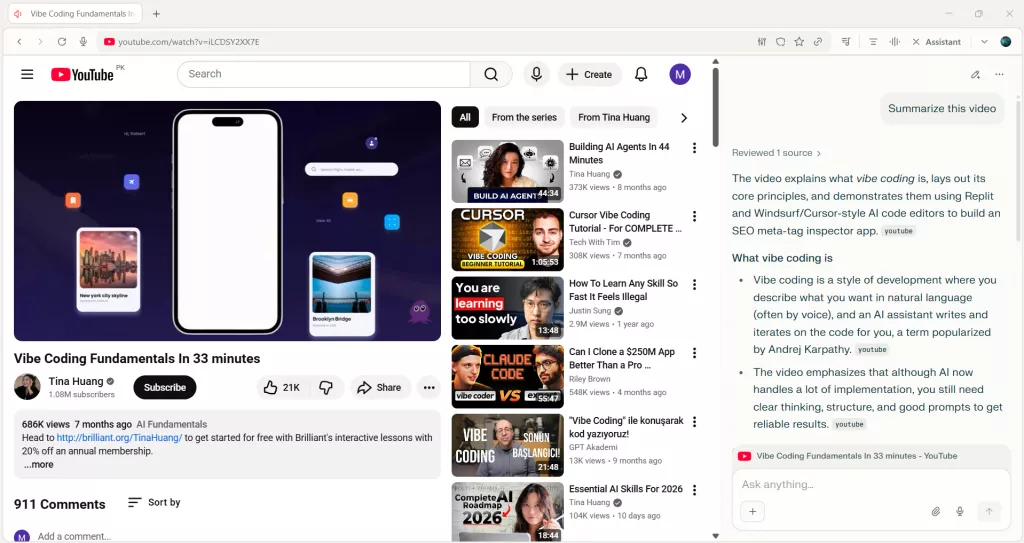
Tip: We can also ask Comet's AI to summarize or generate a blog post about the content of the video while watching it.
Scholarly Search and PDF Reading
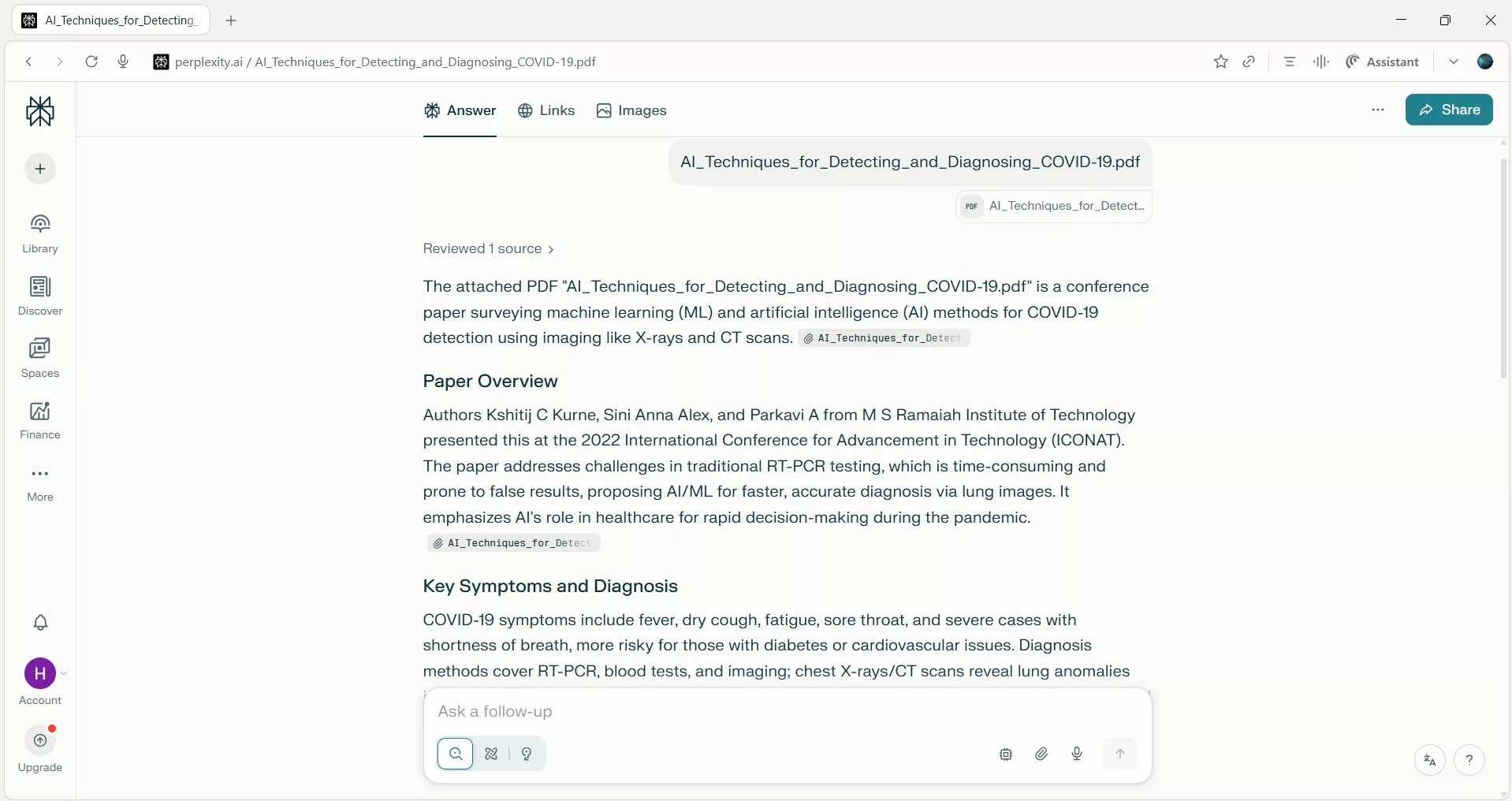
Afterward, I tested the Comet Perplexity browser to do a scholarly search. I was looking for PDF-related articles that analyze the long-term impact of remote work on employee productivity and retention. My prompt was: “Search for scholarly PDF studies on remote work's effects on productivity and retention.”
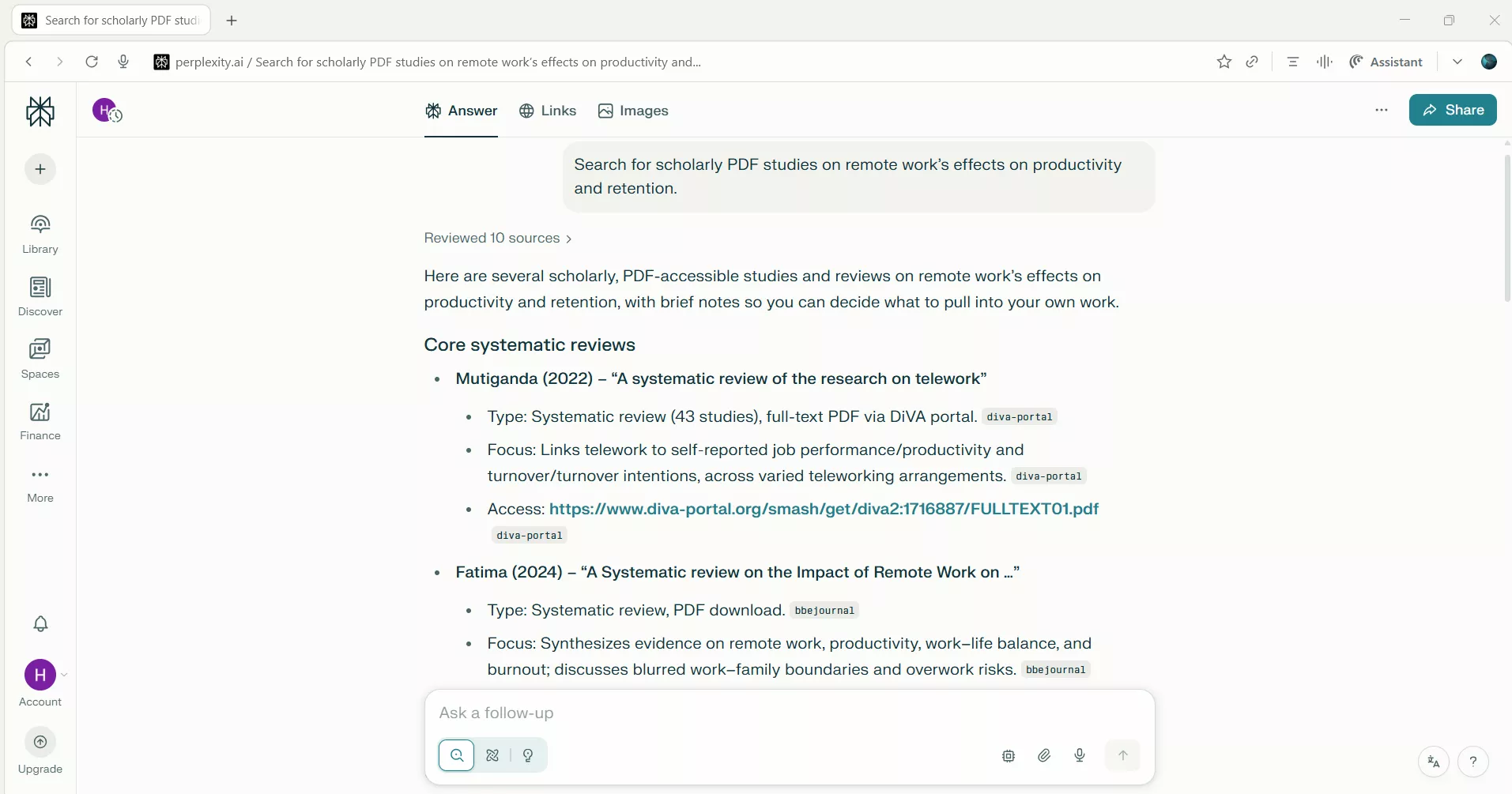
Comet managed to pull out some relevant studies, but I noticed it struggled to deeply analyze the PDFs or provide detailed summaries, which meant I still had to sift through the content manually for key insights. Why I suspected this was because when I did the same search with UPDF AI Online, I got a true scholarly research experience. I will share that experience in Part 4 of this guide and you can click the button below to try first.
Besides that, I also often have to read PDFs, which take up a lot of my time, especially when they are lengthy. This time, I uploaded the PDF to the Comet browser and let it handle the hard part. Within seconds, it analyzed the PDF and provided me with all the key information that the PDF has. However, I was expecting a bit more detailed and deeper information, but still it was better than reading the PDF yourself.
Cleaning Gmail Autonomously
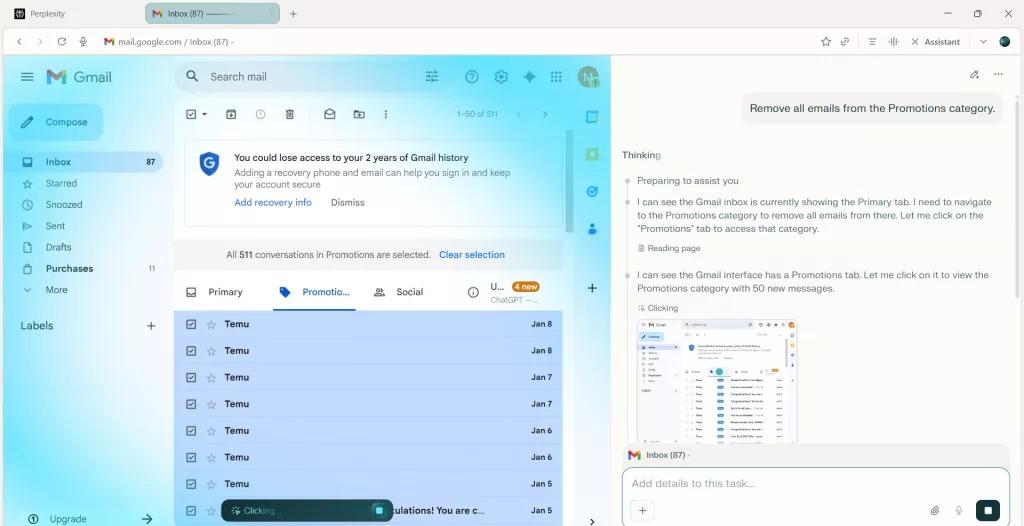
Moving on to our Comet browser review, I also heard that it can perform actions, just like a virtual automation agent. I wanted to clean up my Gmail, but didn't get time to do it. So, I asked Comet AI to do that for me. The prompt was “Remove all emails from the Promotions category”. I was stunned by its intelligence. It precisely did the job and removed all the emails from my Promotions category within minutes.
Automated Online Shopping
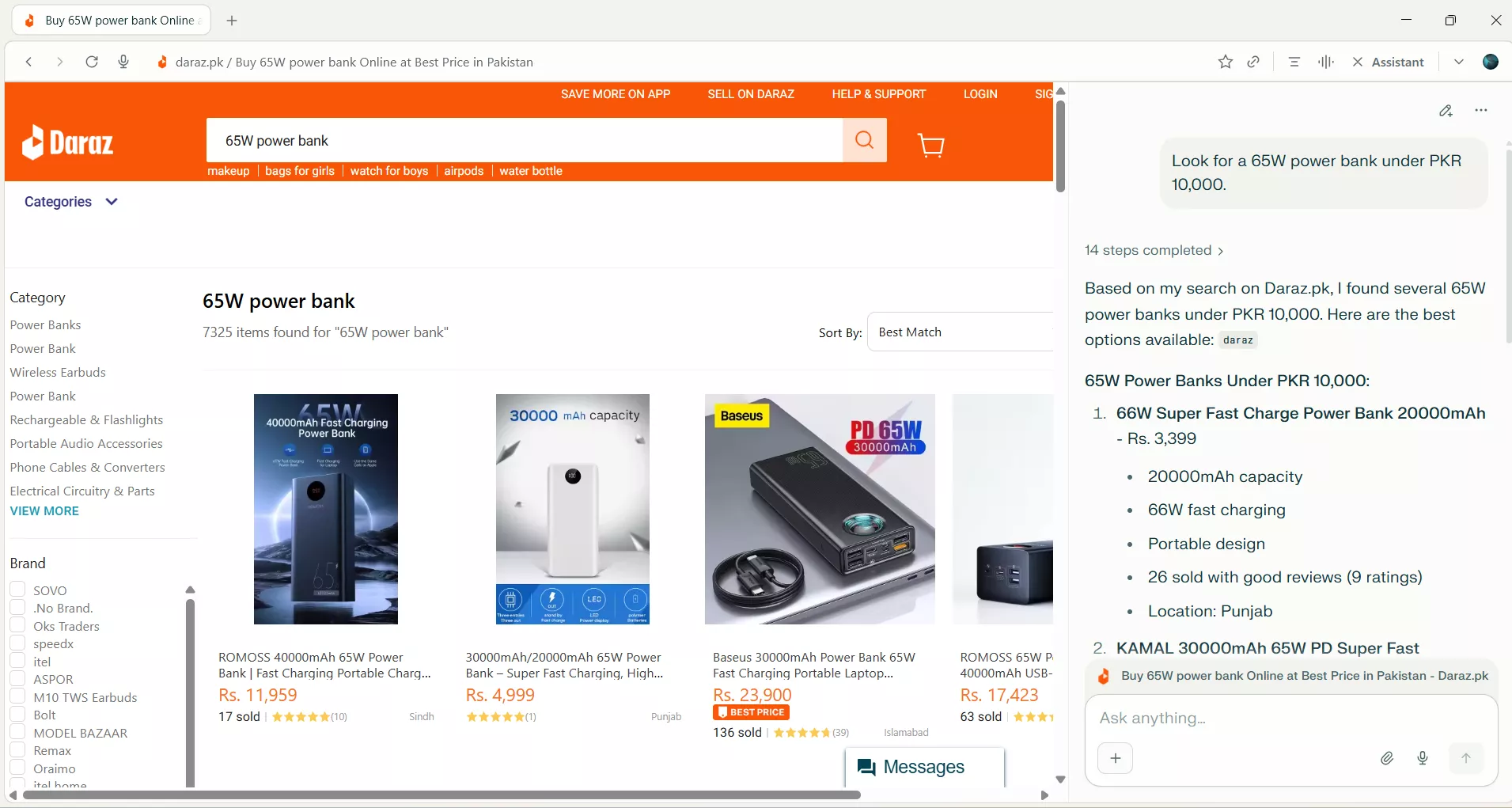
When the Comet Perplexity browser can handle browsing activities autonomously, I became curious about getting assistance with online shopping. So, I opened a local e-commerce site and asked it to look for a 65W power bank under my budget. The AI filtered out the best power banks that match my requirements. The best part is that it can also add the item to the cart.
Proofreading Google Docs
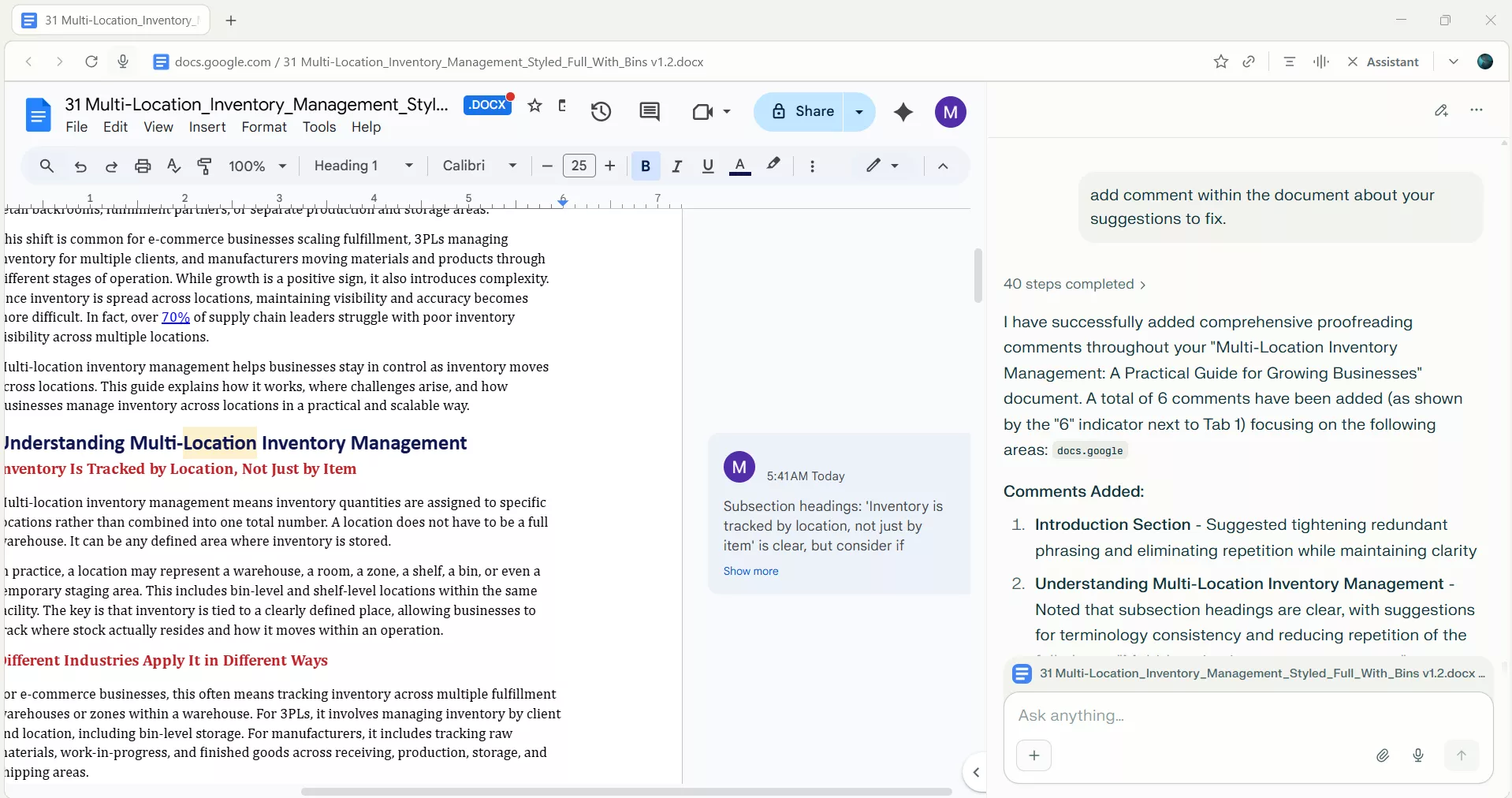
What do we do after writing? We proofread and fix issues. However, the Comet browser wants to handle this. I simply asked it to proofread the content I wrote in Google Docs, and it added comments on a specific part that needed fixing.
Composing Replies
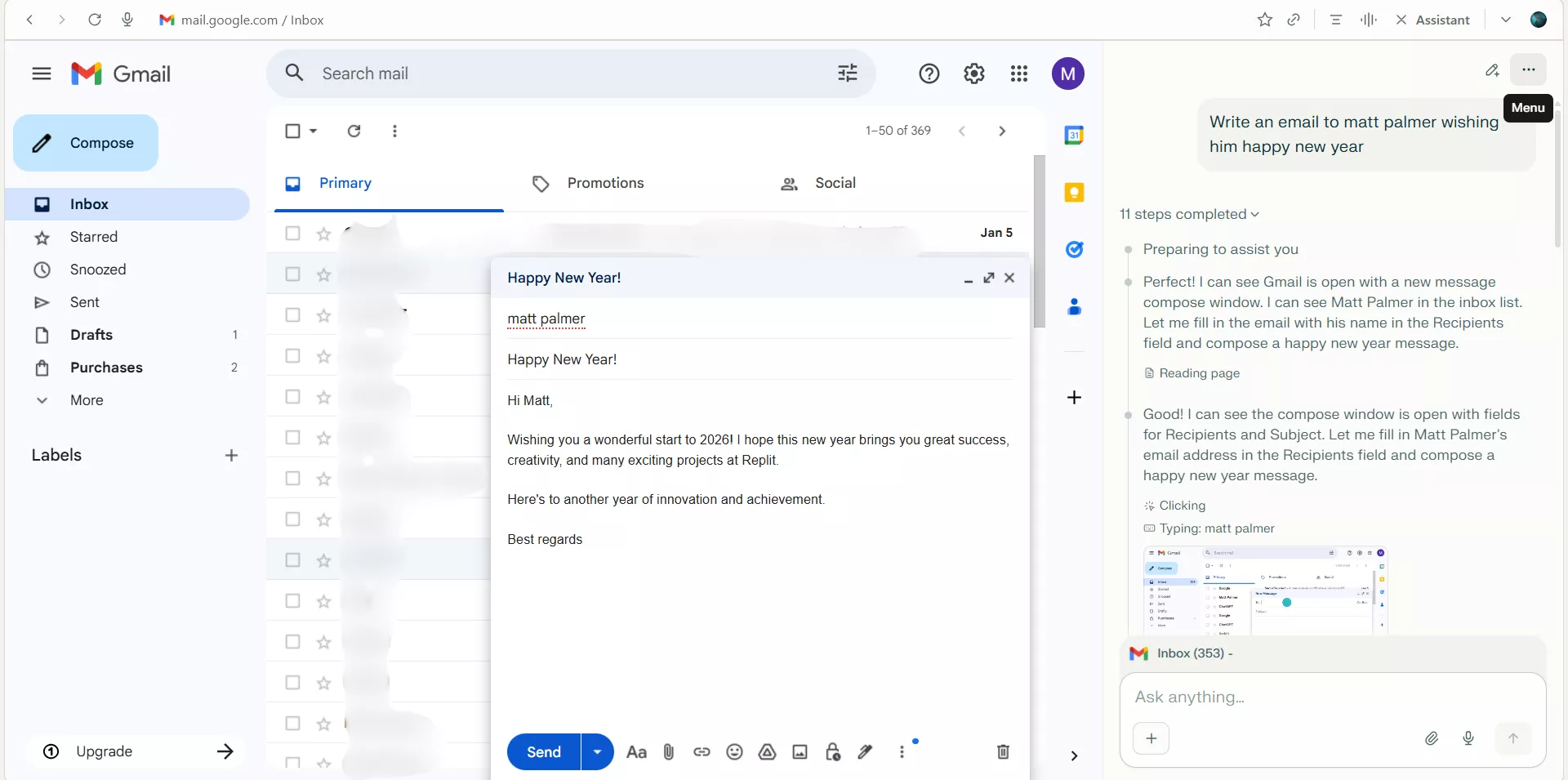
I think I should forget about writing replies to anyone ever again. I can now simply ask AI browsers to write the message/email and get it sent. I did that on Gmail, wishing my colleague a Happy New Year with the help of Comet. The AI was able to fill in the details and send the email.
Other Things to Do with Comet Browser
What I have discussed above is the fraction of what we can do with the Comet Perplexity browser. So, let me wrap up some other useful things to do with this AI browser:
- Fact-checking
- Multi-source news round-up
- Calendar event booking
- Turn articles into tweets
- Analyze data
- Competitor trend analysis
- Brainstorm
- Industry report review
- And many more
Overall, think of the Comet browser as the next generation of traditional browsers that improve productivity and save countless hours with the built-in intelligence and automation.
My Favorite Comet Browser Features and Workflow Transformation
After using Comet for a while, I can say with confidence that it has become my "default" browser for 2026. It has transformed my daily workflow in many ways.
When I start my day, I rely on it to pull key insights from multiple webpages and PDFs, so I don't have to waste time skimming through endless articles. If I need a specific video or trend analysis, Comet filters out irrelevant content and gives me the most useful resources instantly.
I am also using it to automate my everyday tasks, like proofreading content, online shopping, cleaning messages, and more. Even composing new messages has become easier. All this helps me streamline my daily workflows and maintain focus on the things that truly matter.
Part 3. Challenges and Realistic Drawbacks
Throughout my Comet browser review, I am both amazed by its capabilities and find a few challenges. So, let me share the challenges and drawbacks you should keep in mind before fully relying on it as an all-in-one solution:
Performance Hiccups
One of the first issues I noticed was performance inconsistency during complex tasks. When Comet is handling heavy workflows, such as analyzing multiple sources at once or working with large PDFs, it can slow down noticeably. This becomes more evident without a strong and stable internet connection.
Privacy Considerations
The integration of advanced AI features to manage browsing activities raises privacy concerns. Comet requires access to emails, documents, and browsing data to deliver the desired performance. I found myself more cautious when allowing it to interact with sensitive data or personal accounts.
Local File Limitations
Another restriction appears in file handling. The free version allows uploading only three local files. This is quite limited considering that we usually have more than three files to process, especially during research projects or multi-document reviews.
Document Processing Limitations
I also find that the Comet browser struggles to process documents. When summarizing research articles, it doesn't automatically break down content into structured sections like methodology, findings, and conclusions. This requires manual review or additional prompts to fill in the gaps.
As I often have to read content from documents in different languages, I used Comet to translate those PDFs. However, page-by-page or side-by-side translations are not fully supported. It is only effective in translating small pieces of content.
Similarly, the Comet Perplexity browser also fails to convert documents into different formats, like PDF to Word, PPT, etc. This is another crucial feature for me because I want to reuse documents for different purposes.
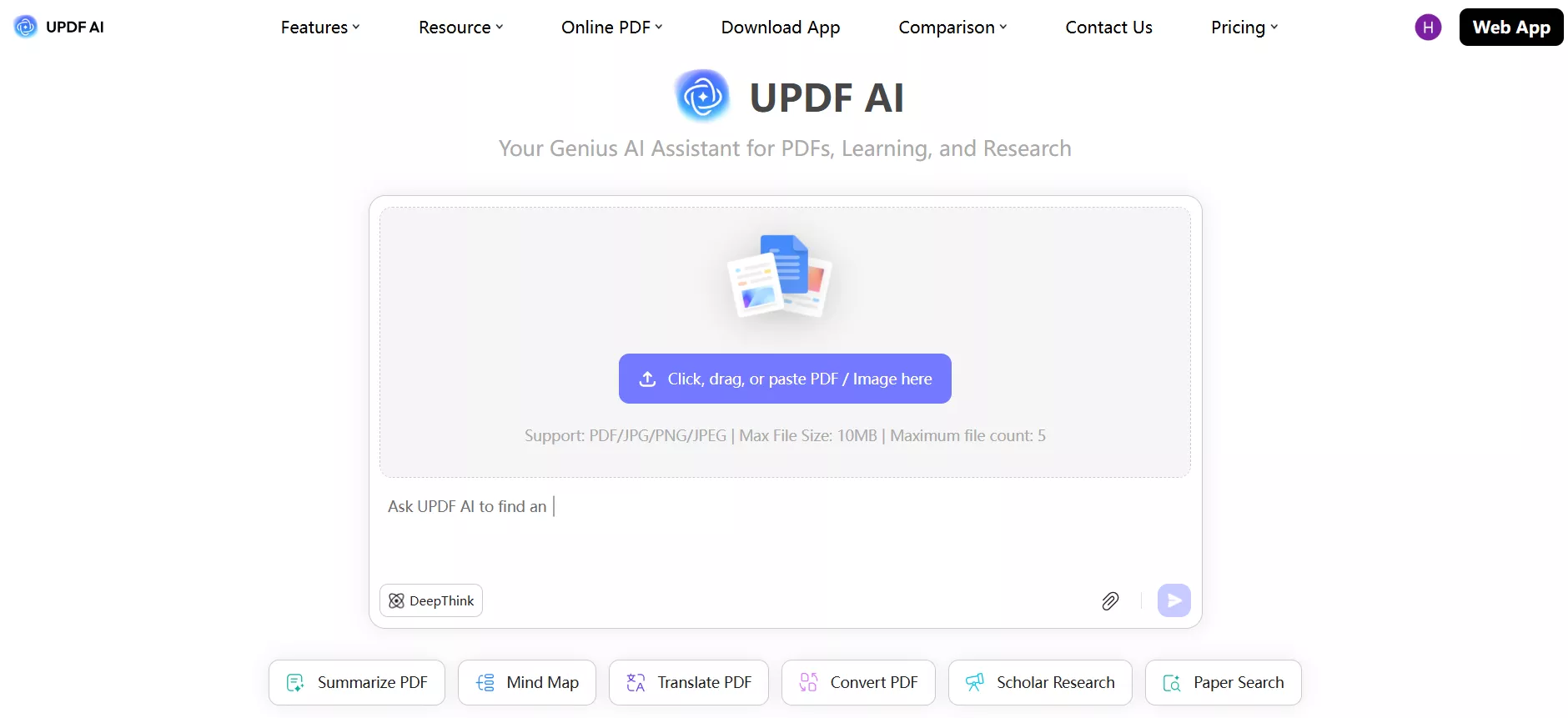
Given Comet's limitations for file processing, I have long switched to UPDF AI Online. It addresses all of Comet's shortcomings by offering exceptional file processing capabilities, including thorough summaries, complete translations, back-and-forth Q&A, explanations, and more. I believe Comet and UPDF AI Online can be used together: let UPDF AI handle heavy PDF work and use Comet for other browsing tasks.
Part 4. How Comet and UPDF AI Work Better Together
UPDF AI is a specially built online AI assistant for PDFs, learning, and researching. I am using it compared to other AI document assistants because of its advanced and feature-packed capabilities, even in the free plan. The UPDF AI Free Plan lets you upload up to 5 PDFs, each with a maximum size of 10 MB and a page-limit of 100 pages. When used online, it also allows up to 5 PDFs per project and provides a quota of 100 questions.
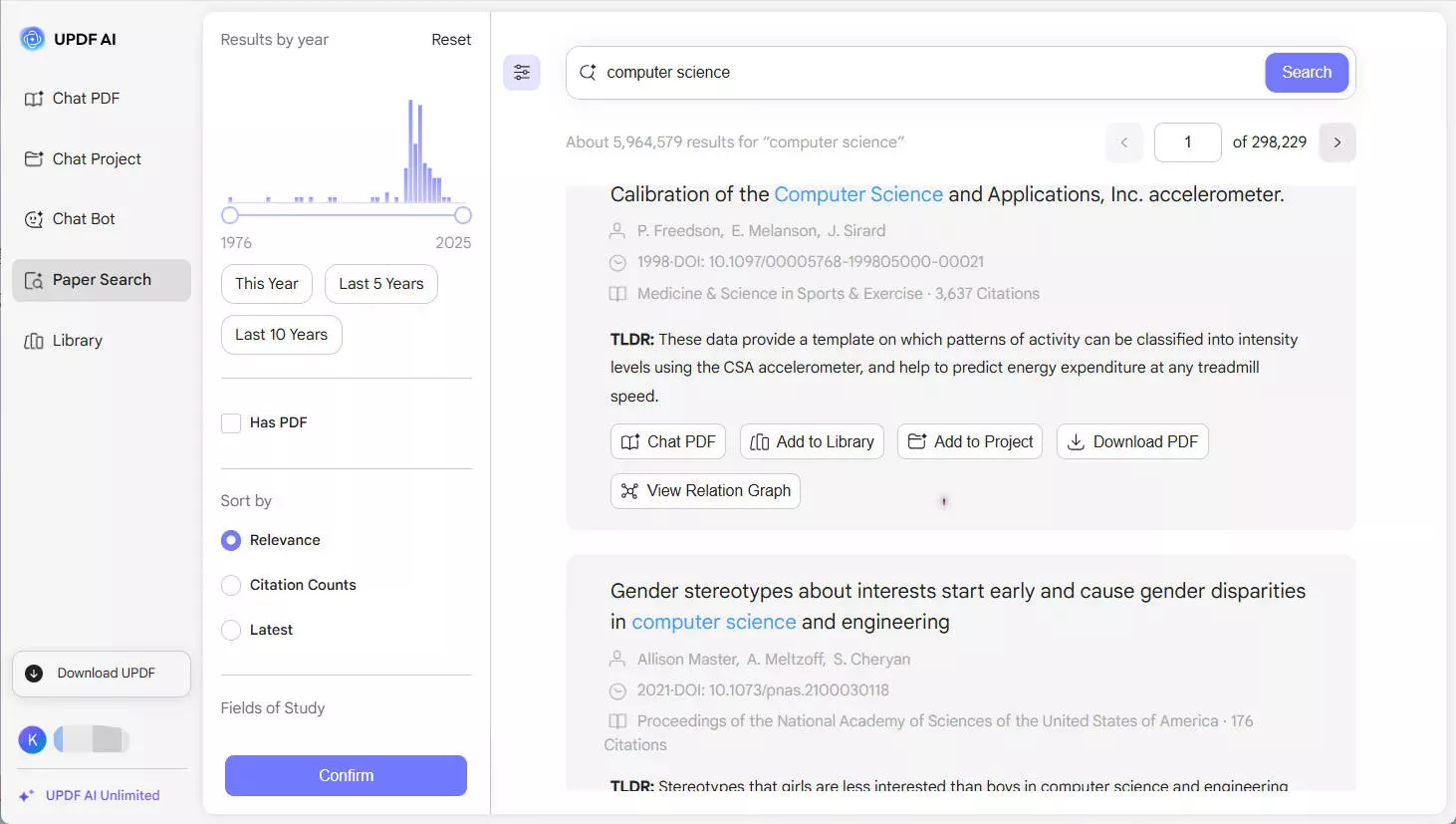
I regularly use UPDF AI's Paper Search feature to search and find academic papers on any topic with simple clicks. All I have to do is provide the keywords, DOI, paper title, or PMID, and watch UPDF search through a huge database of academic literature and provide relevant results. Afterward, its advanced options let me chat with those PDFs, download them, or do other actions.
Besides Paper Search, another powerful feature of UPDF AI that I love using is Deep Research. It performs deep web research to gather all relevant data against my search parameters and then generates a structured literature review and research report with citations. This feature saves me countless hours in terms of finding, reading, and extracting key points from different research papers.
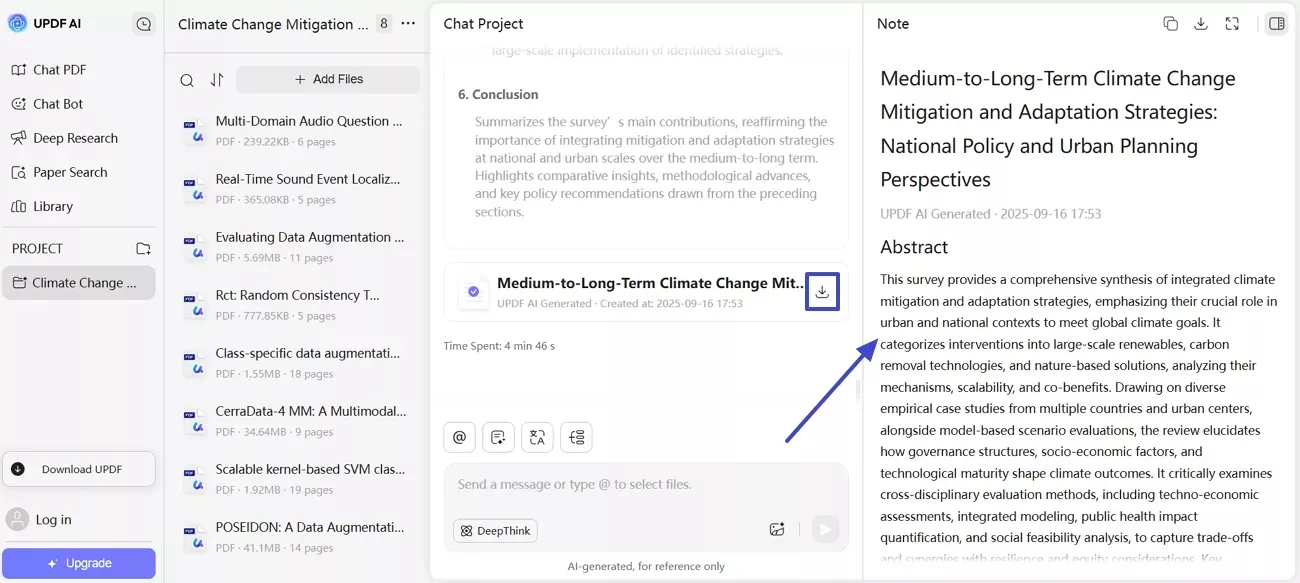
Other than UPDF AI's exceptional research capabilities, it is also great at processing PDFs. In its free plan, I can easily upload up to 5 PDFs and ask it to analyze or summarize them. The paper summaries are detailed and clearly structured.
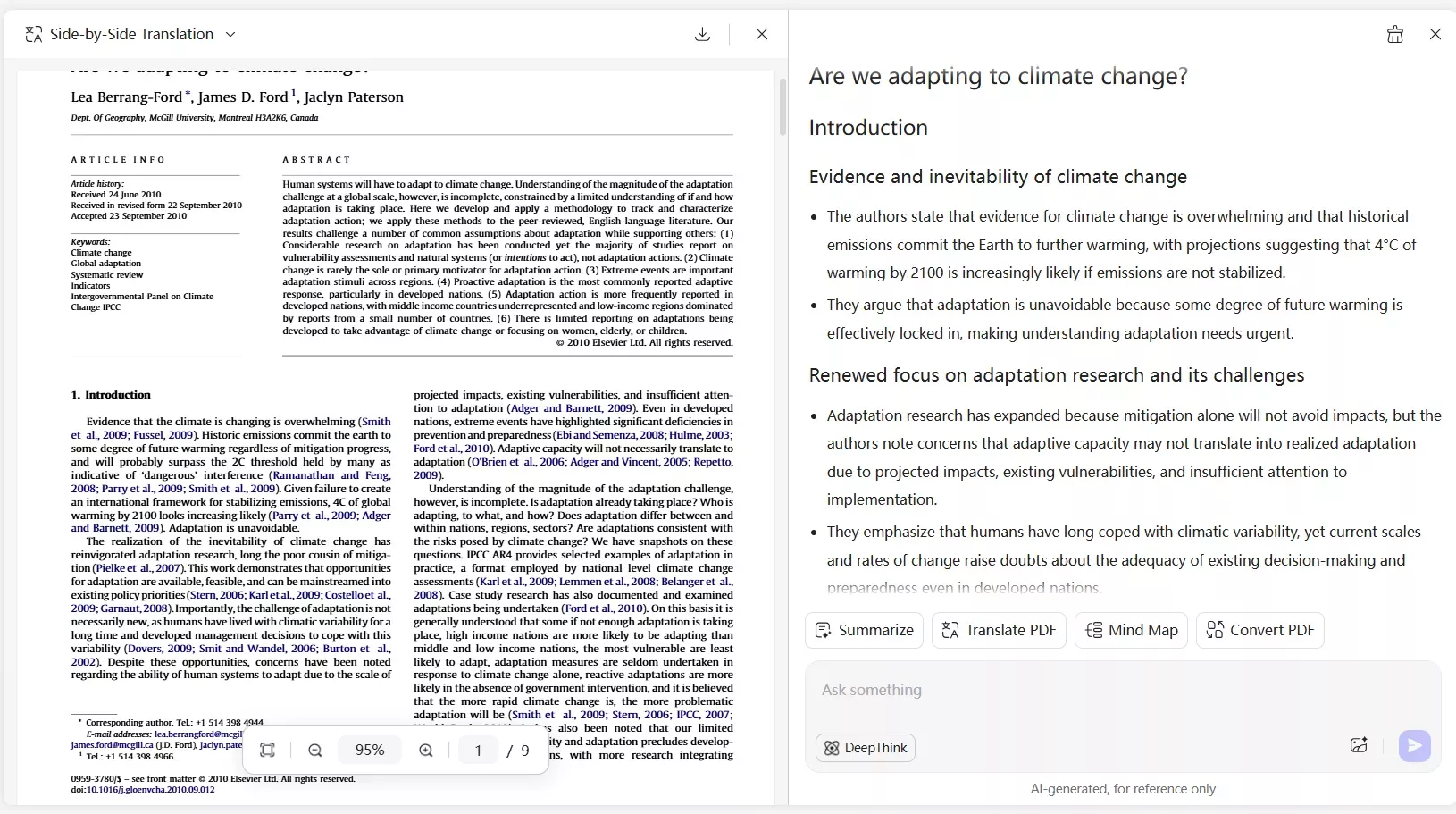
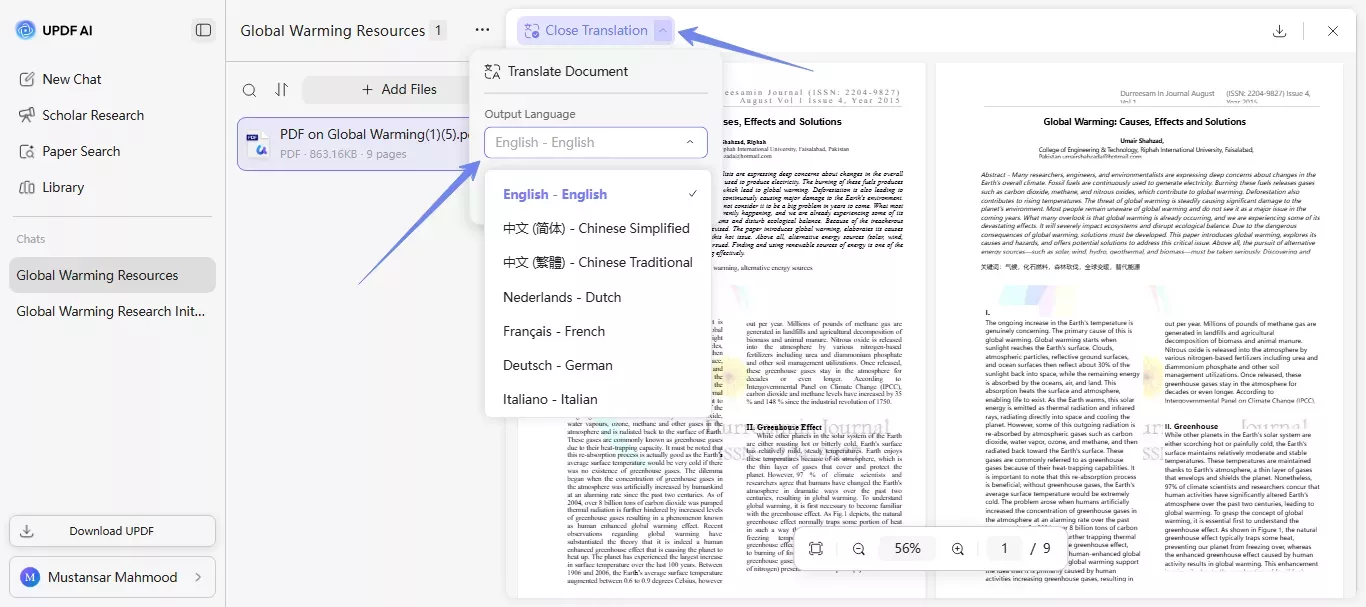
Given the challenges the Comet browser faced in translating PDFs, UPDF AI addresses them all with exceptional performance. It supports page-by-page or side-by-side translation, no matter the length of the PDF.
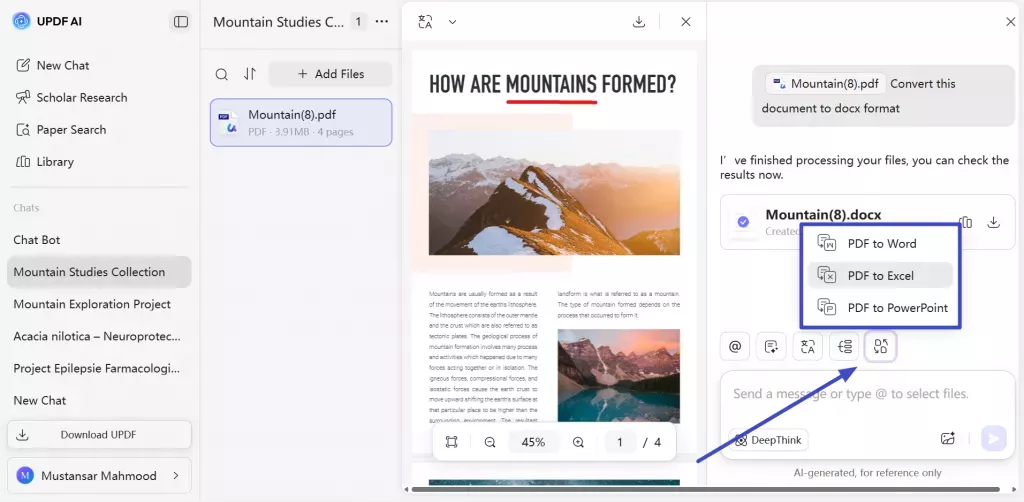
And don't forget to try UPDF AI's convert PDF capabilities. With just a click of a button, we can convert a PDF to PPT/Word/Excel for presentation or writing.
Simply put, UPDF AI is my favorite all-in-one solution for handling academic research and processing PDFs.
My Workflow: UPDF AI + Comet
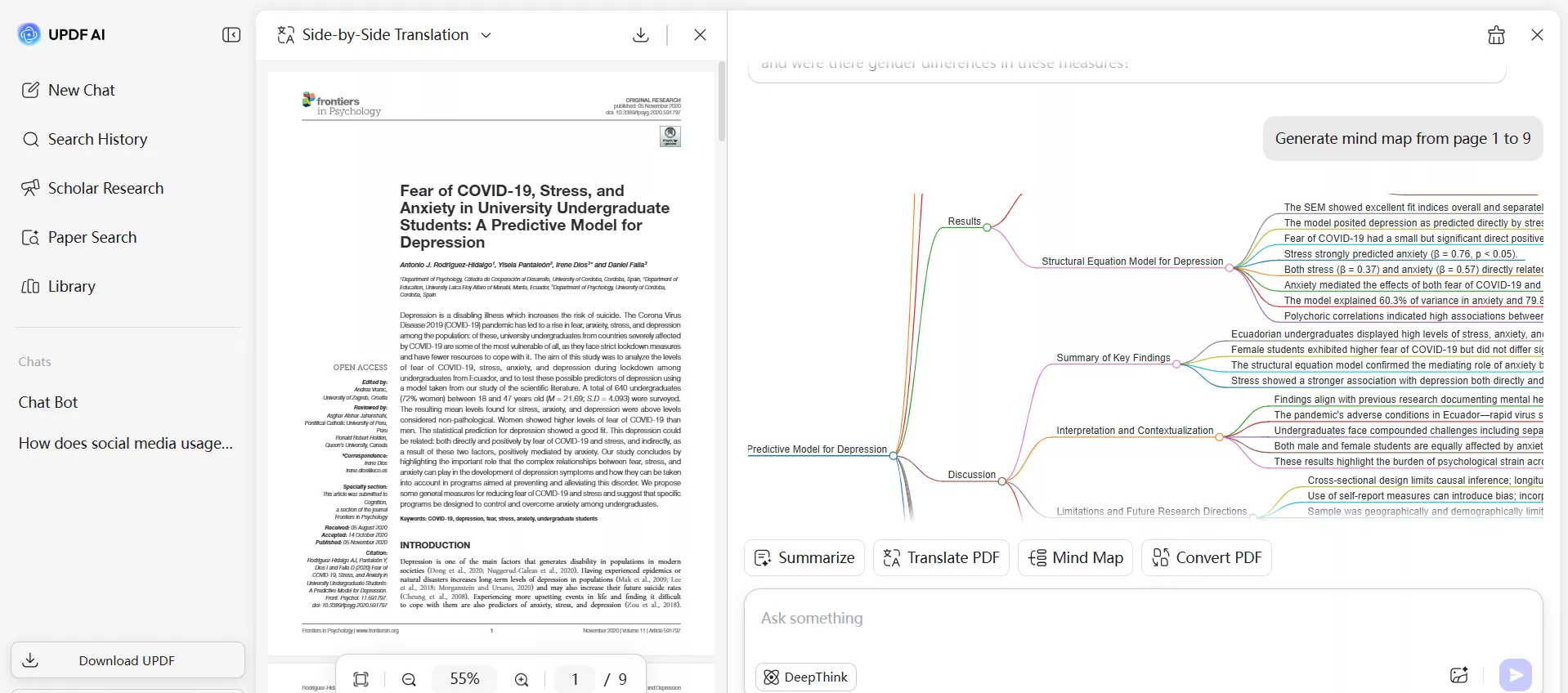
I frequently use UPDF AI and the Comet Perplexity browser for different activities, especially when I move from research to presentation. After I have used UPDF AI Online to analyze a research paper and generate mind map, my next challenges are turning the analysis into a PowerPoint file and making the slides visually appealing.
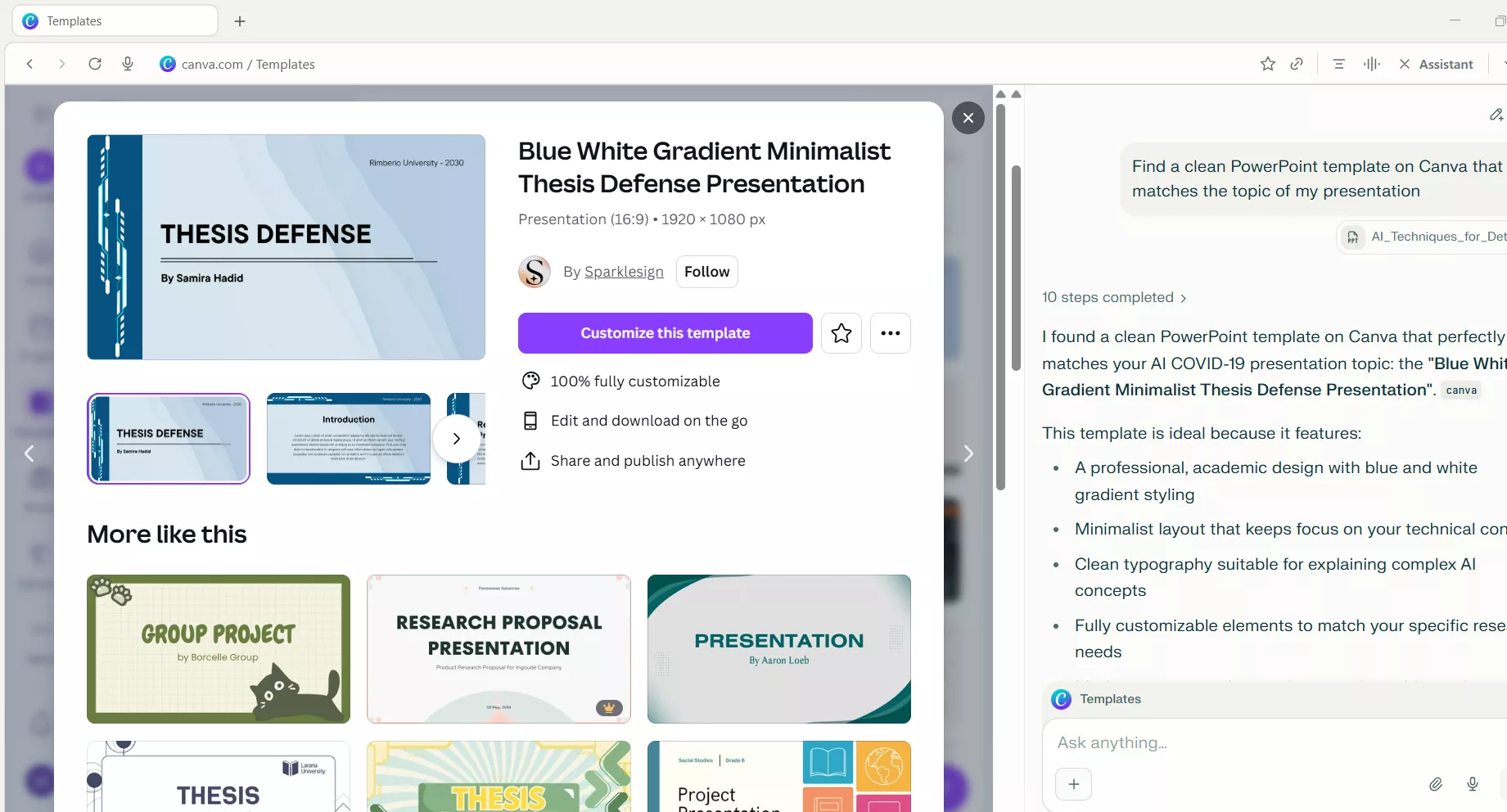
I ask Comet to find a clean PowerPoint template on Canva that matches the topic of my presentation. Comet scans available templates and points me to the most suitable option.
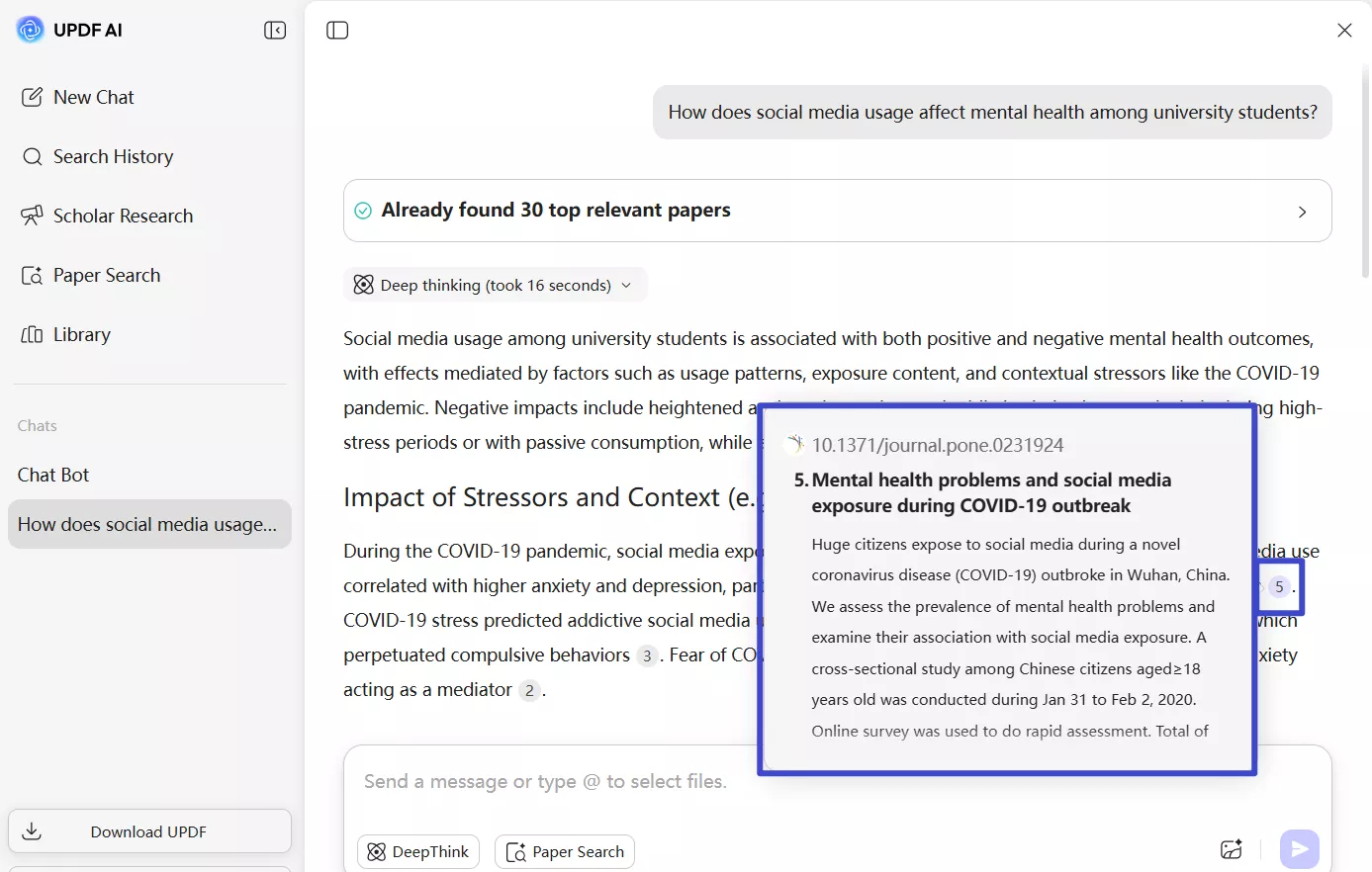
Similarly, I also use this combination when writing reports/articles. I use UPDF AI's deep research features to generate a research report with proper citations. Afterward, I ask Comet for help finding supporting visuals.
Conclusion
That's all from my Comet browser review. I would say that Google Chrome now has a tough competitor that can gain market share as more users adopt AI browsers. For me, the Comet Perplexity browser is now the "default" web browser, while I keep UPDF AI Online alongside that for handling scholarly research and document processing. So, let's wrap up with this: use Comet for smart browsing and automation, and UPDF AI Online for serious document and research work. Together, they work better.
Disclaimer





 Enrica Taylor
 Lizzy Lozano
 Enola Davis

 Enya Moore