UPDF
UPDF
 UPDF for Windows
 UPDF for Mac
 UPDF for iPhone/iPad
 UPDF for Android
 UPDF AI Online
 UPDF Sign
 Edit PDF
 Annotate PDF
 Create PDF
 PDF Form
 Edit links
 Convert PDF
 OCR
OCR PDF to Word
 PDF to Image
 PDF to Excel
 Organize PDF
 Merge PDF
 Split PDF
 Crop PDF
 Rotate PDF
 Protect PDF
 Sign PDF
 Redact PDF
 Sanitize PDF
 Remove Security
 Read PDF
 UPDF Cloud
 Compress PDF
 Print PDF
 Batch Process
 About UPDF AI
 UPDF AI Solutions
 AI User Guide
 FAQ about UPDF AI
 Summarize PDF
 Translate PDF
 Chat with PDF
 Chat with AI
 Chat with image
 PDF to Mind Map
 Explain PDF
 Scholar Research
 Paper Search
 AI Proofreader
 AI Writer
 AI Homework Helper
 AI Quiz Generator
 AI Math Solver
 PDF to Word
 PDF to Excel
 PDF to PowerPoint
 Enterprise Solution
 Enterprise Sign
 Enterprise AI
 Enterprise Plan
 Enterprise User Guide
 Enterprise Webinar
 Banking
 Healthcare
 Insurance
 Legal
Legal Manufacturing
 Government
 Education Solution
 Customer Stories
 User Guide
 UPDF Tricks
 FAQs
FAQs UPDF Reviews
 Download Center
 Blog
Blog Newsroom
 Tech Spec
 Updates
 UPDF vs. Adobe Acrobat
 UPDF vs. Foxit
 UPDF vs. PDF Expert


Imagine reviewing a contract mailed by your colleague that is filled with unnecessary text boxes and white space. You're on the go, relying solely on your phone, and need to share the polished version with a client in minutes. This evokes the need for cropping PDFs precisely without transferring the file to your laptop or wasting time on complex software.
To ensure only the most relevant sections are included, you should opt for tools that provide the ability to crop PDF on iPhone. Whether it's trimming unnecessary white space, isolating a key page, or refining the layout, this tool turns your iPhone into a powerful editor. Thus, the following guide comprises 3 effective methods to trim PDFs with a detailed tutorial. Keep reading the article to know which platform overcomes Adobe Acrobat's limitations.
Part 1. 2 Methods to Crop PDF on iPhone
Method 1. Crop PDF on iPhone Using UPDF for iOS
With the latest UPDF for iOS, cropping PDF pages on your iPhone or iPad has become fast and simple. You no longer need a computer or third-party tools—everything can be done directly on your mobile device.
How to Crop PDF Pages on iPhone
Step 1. Download and install UPDF for iPhone/iPad on your device.
Windows • macOS • iOS • Android 100% secure
Step 2. Open UPDF on your iPhone or iPad and import the PDF you want to edit.
Step 3. Choose the "Crop" option from the provided tools
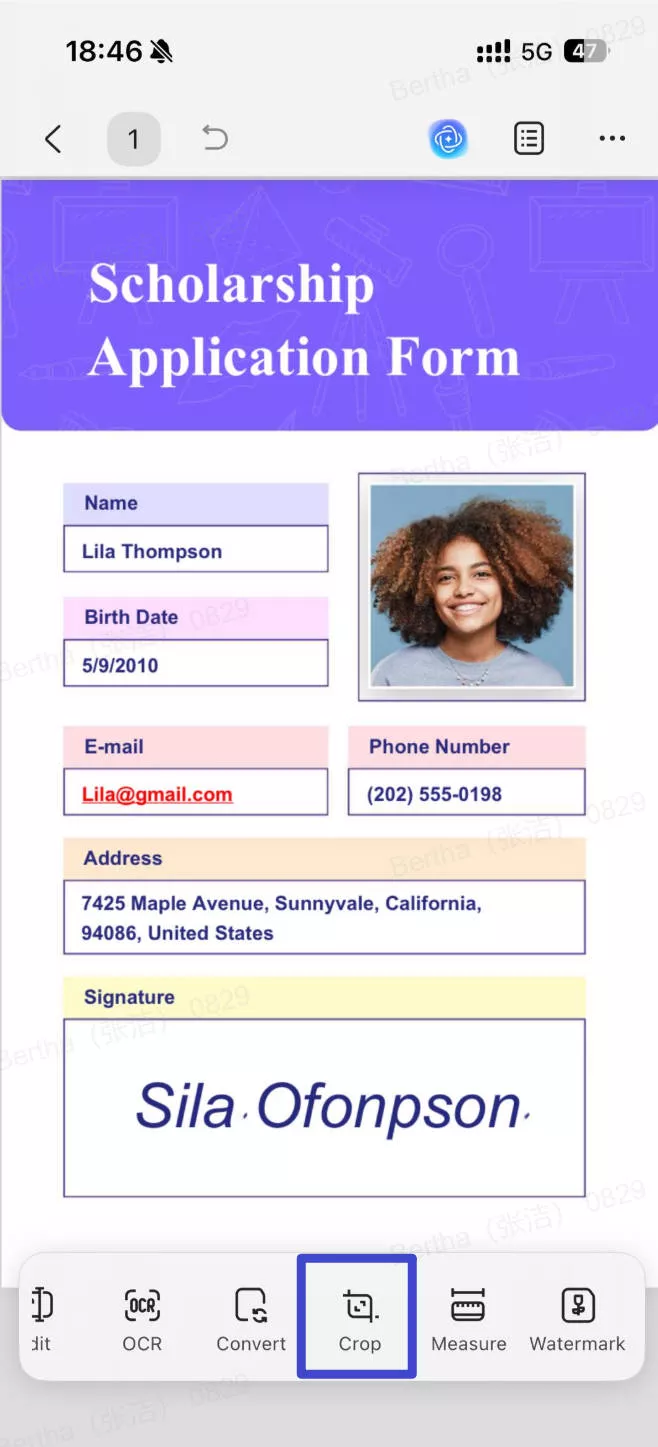
Step 4. On the next screen, drag and adjust the crop box to select the area you want to keep. You can also use the "Smart Crop" option. Moreover, you can also apply the same changes to a specific page range.
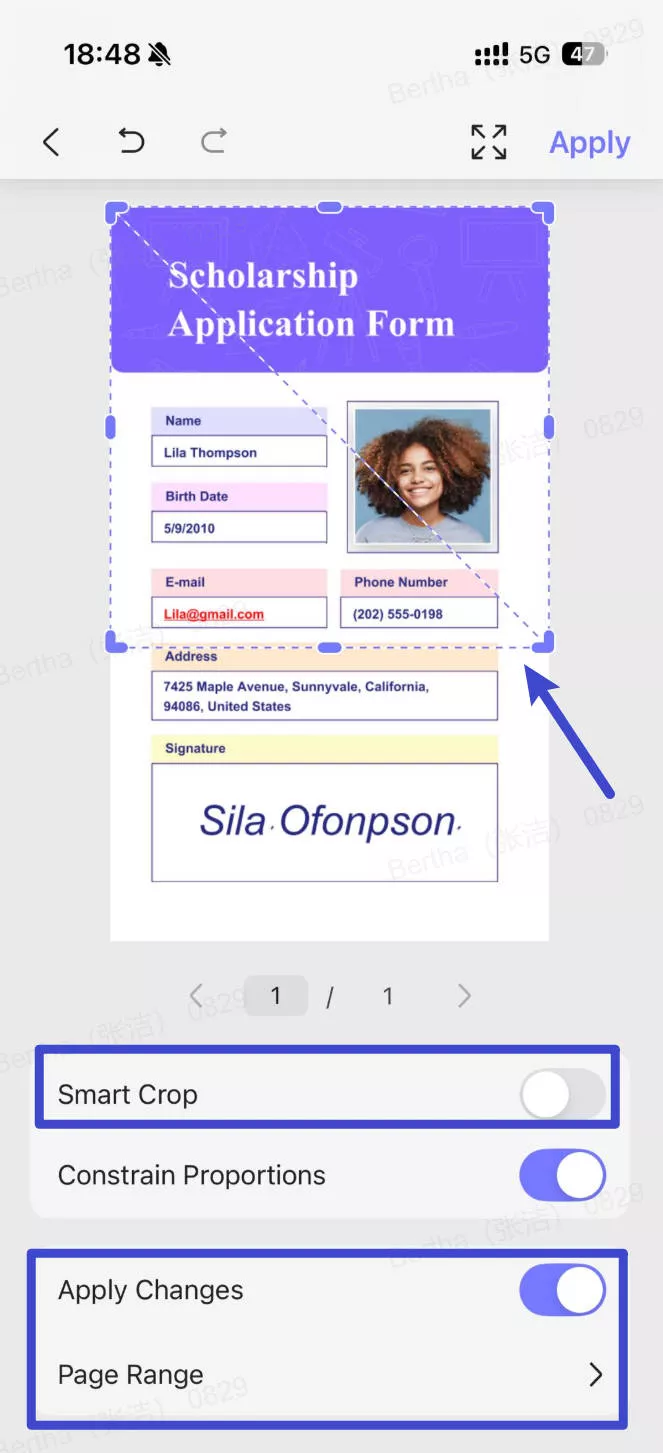
Step 5. After that, tap on the "Apply" button on the top-right corner to save the changes.
Method 2. Crop PDF on iPhone Using Adobe Acrobat
Another methods to crop PDF on iPhone is using Adobe Acrobat.
While Adobe Acrobat is known for PDF management tasks, it's not always the most convenient option for users seeking quick edits on mobile. When it comes to cropping PDFs on iPhone, explore the list of limitations it offers, impacting overall usability:
- All advanced features, including cropping capabilities, are locked behind a pricy subscription.
- On older iPhone versions, this process might slow down loading or lag when handling large files.
- It displays a complex interface for beginners while making quick edits time-consuming.
- While working on large files, some features may not function smoothly, leading to compressing them first.
Tutorial to Crop PDFs on iPhone Using Adobe Acrobat
Despite its limitations, if you still prefer using Adobe Acrobat, then follow the provided stepwise guide to crop PDFs:
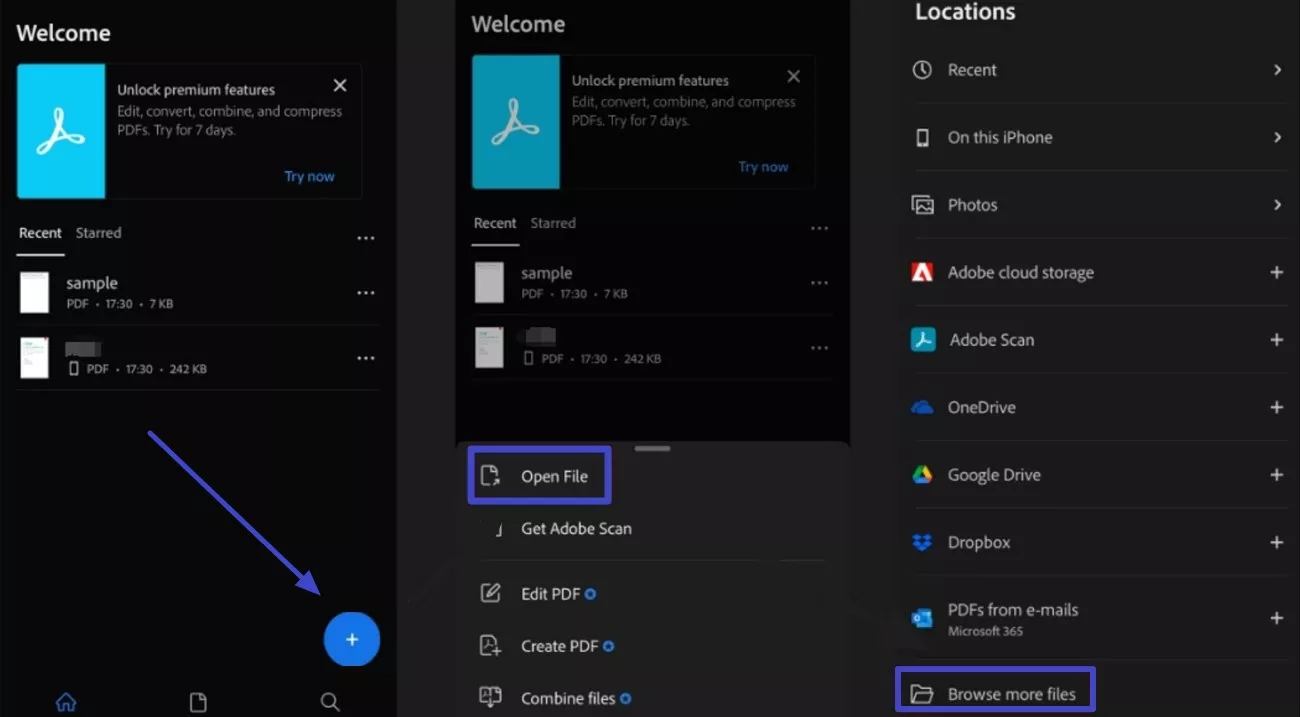
Step 1. First, install the app and press the "+" icon at the bottom of the main interface after launching. Now, tap the "Open File" button to add your PDF by choosing the "Browse More Files" option from the "Locations" screen.
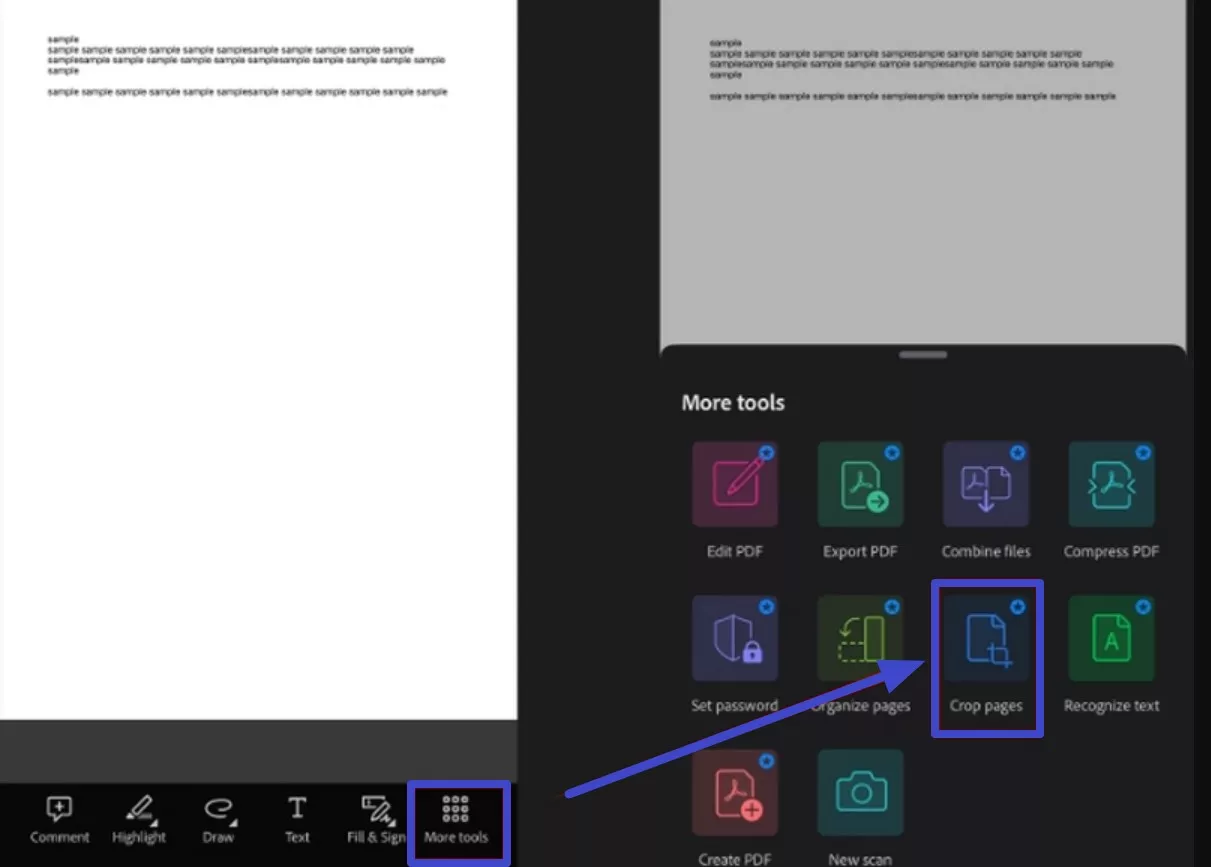
Step 2. Once done, navigate to the "More Tools" option from the toolkit at the bottom. From the options, select the "Crop Pages" option to trim and organize the added document.
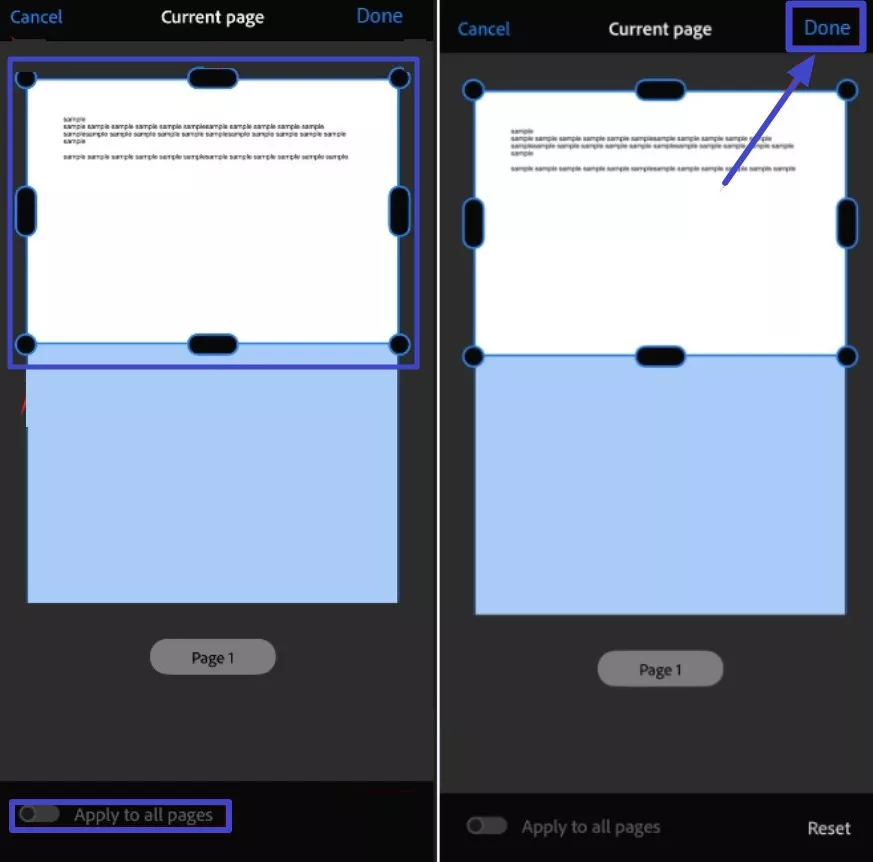
Step 3. Now, draw the crop area by adjusting the crop box with your fingers. After this, press "Apply to All Pages" to apply the change to all the pages of PDF. In the end, head to the "Done" button at the top to confirm the changes.
Part 2. Crop PDF on iPhone with UPDF (Desktop Alternative)
If you need more advanced cropping options than what mobile editing allows, UPDF desktop software can serve as a complementary solution. It is useful when you want more precise control over page margins or need to crop multiple PDF pages at once.
With UPDF on Windows or macOS, you can crop PDF pages accurately by adjusting page boundaries or applying the same crop settings to multiple pages. After cropping, the edited PDF can be synced or transferred back to your iPhone for viewing or sharing.
This option is best suited for users who occasionally switch between mobile and desktop workflows, while UPDF for iOS remains the most convenient way to crop PDFs directly on an iPhone.
Method 1. Using the Crop Page Feature
The Crop Page feature allows users to trim a PDF page both horizontally and vertically with complete control over cropping. Plus, you can specify the width and height for any page in the PDF to crop it accordingly. Hence, a detailed tutorial is given below that explains how effectively you can use UPDF's crop tool:
Step 1. Commence UPDF on Desktop and Import your PDF
Launch the platform on your device and press the "Open File" button from the main interface to add your document to the tool.
Windows • macOS • iOS • Android 100% secure
Step 2. Access Crop PDF Feature and Adjust the Margin Controls
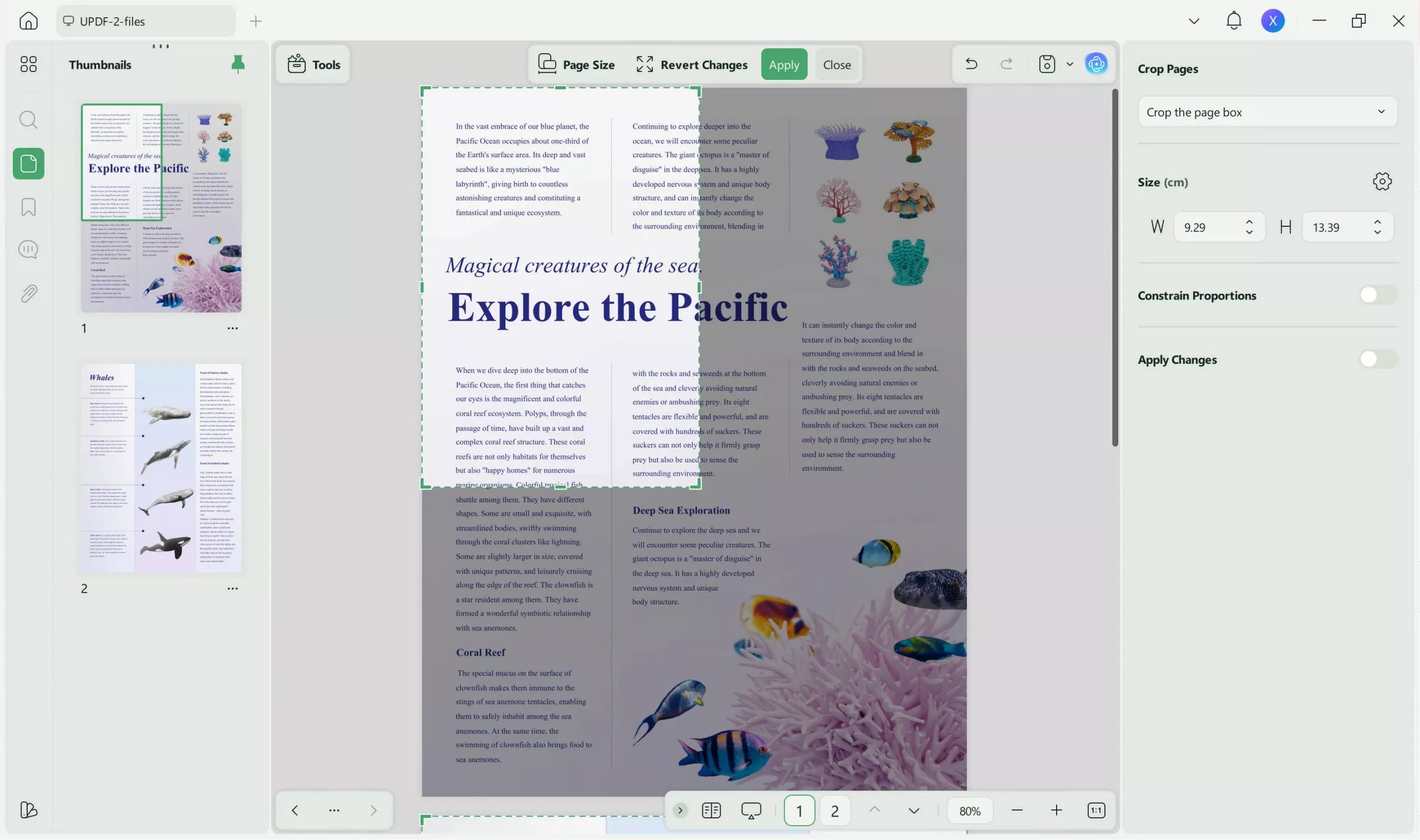
Once your PDF is added, navigate to the "Crop" feature in Tools from the toolkit at left. Now, set the adjustments for "Margin Controls" and mention width/height for the "Size." Next, toggle the option for "Apply Changes" when done with modifications.
Step 3. Choose Page Range to Crop Pages Accordingly
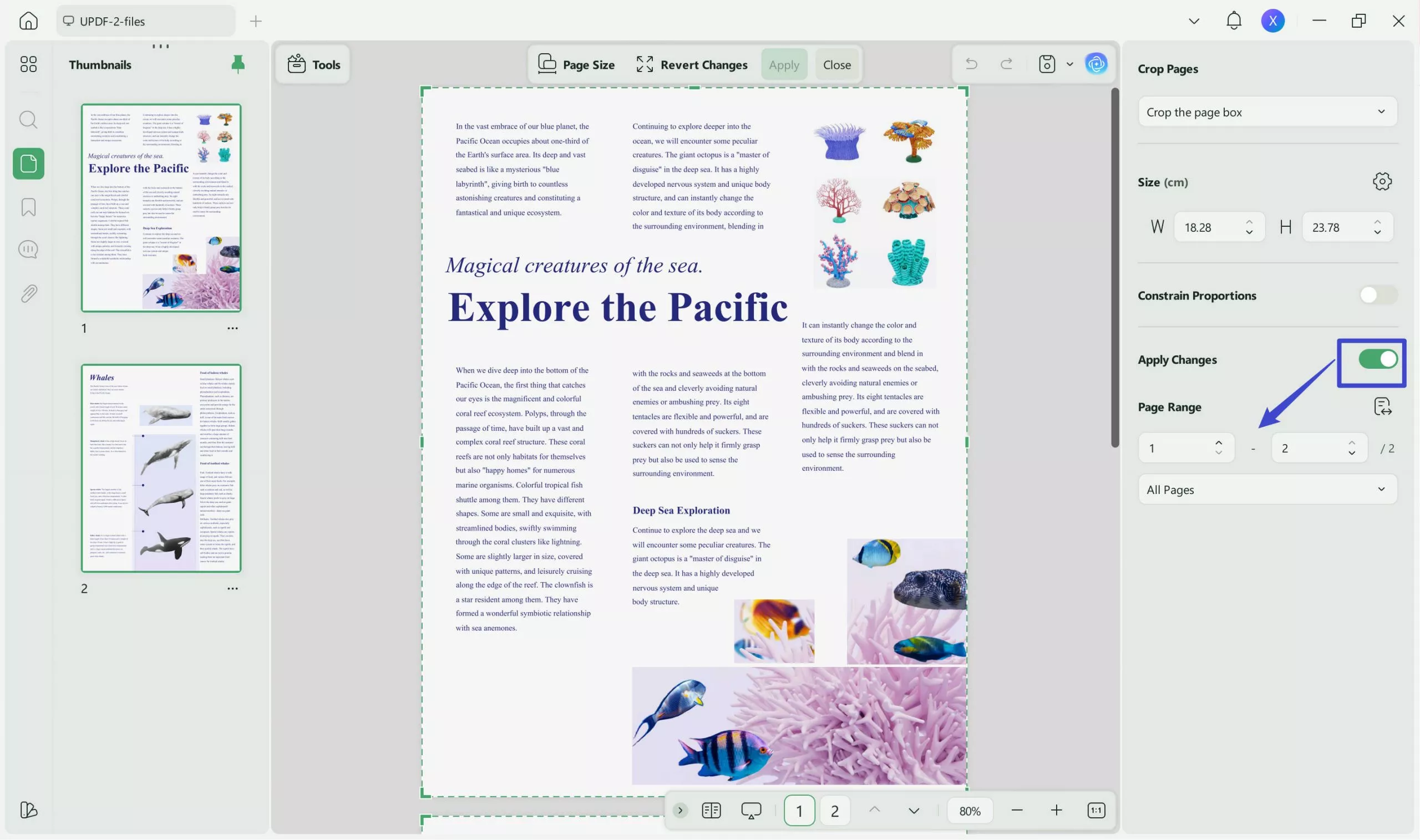
After this, extend the menu for "Page Range" and choose the "All Pages" option from the list. Finally, head to the "Apply" button and apply changes to all pages.
Method 2. Accessing Split Pages Options
Another alternate method for crop PDF on iPhone is splitting it through UPDF's desktop version. Within the Crop Page tool, you can divide a PDF page by adding a split line with equal division and spacing. Follow the provided guide and apply changes by selecting the page range as per requirement:
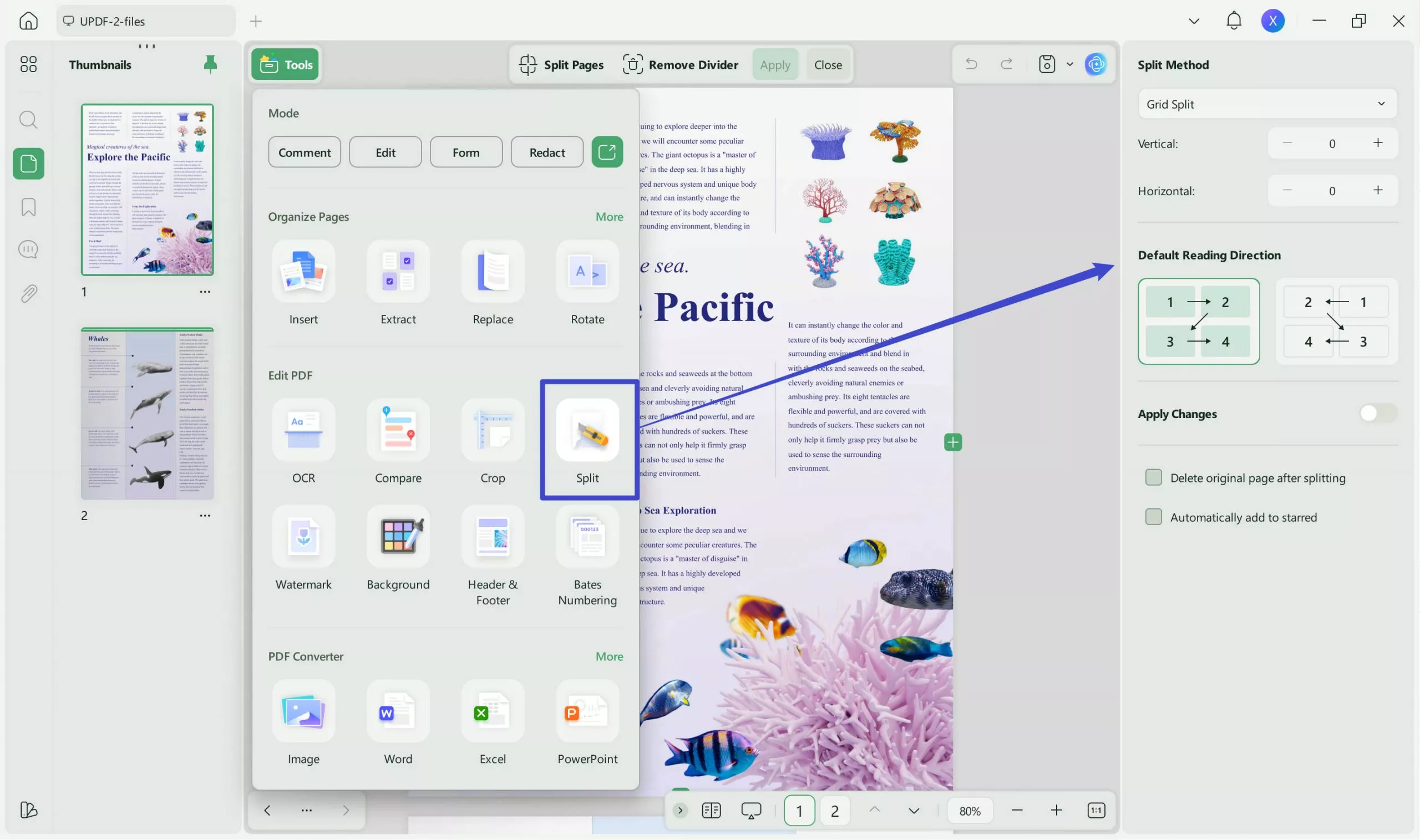
Step 1. Split the Added PDF with the Specifications
While accessing the crop feature, press the "Split" option in Tools. Under the "Split Method" section, specify splitting with "Equal Division" and toggle the option for "Apply Changes." Next, access the menu for "Page Range" and choose the "Custom" option with the page number to split. In the end, hit the "Apply" button to divide the page mentioned.
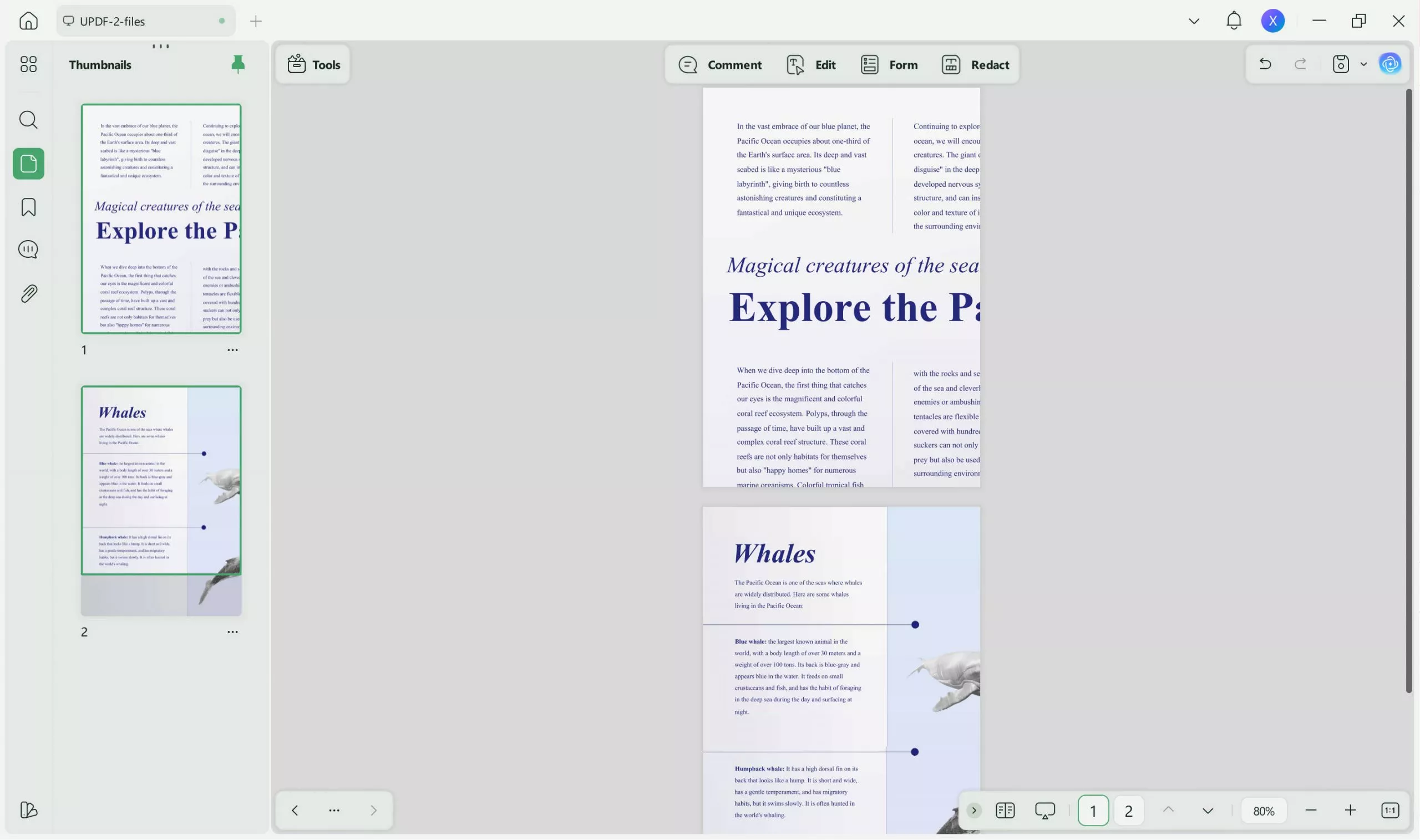
Step 2. Review the Results Before Exporting
Now, review the changes made to your PDF and edit it further if required before you proceed to the export option.
Frequently Asked Questions
1. Where is the PDF crop tool on iPhone?
Knowing how to crop PDFs on an iPhone can be challenging because the ability to trim is quite limited. However, apps like Adobe Acrobat offer a basic cropping feature despite paying a high amount for its subscription. For precise cropping, it is recommended to use desktop tools like UPDF, which offers multiple cropping methods.
2. How do I reduce the size of a PDF file on my iPhone?
When reducing size is concerned, you can use apps like Adobe that offer compression features. This tool facilitates users to select compression levels to shrink files while maintaining readability. To do this, simply open the PDF in the app, look for the "Compress PDF" feature, and generate a smaller version of the file.
Conclusion
To conclude, the limitations that come with mobile apps like Adobe Acrobat when performing crop PDF on iPhone increase the hunt for alternatives. Plus, these constraints make the process more time-consuming and less effective, particularly for users who need professionalism. Therefore, we recommend using UPDF desktop version, which provides full control over margins and layout. Though mobile can be handier, accuracy requires viewing documents on the big screen to get the job done right.
Windows • macOS • iOS • Android 100% secure




 Enrica Taylor

 Nls Jansen
 Enid Brown