 UPDF
UPDF
 UPDF para Windows
 UPDF para Mac
 UPDF para iPhone/iPad
 UPDF para Android
 UPDF AI Online
 UPDF Sign
 Editar PDF
 Anotar PDF
 Criar PDF
 Formulário PDF
 Editar links
 Converter PDF
 OCR
OCR PDF para Word
 PDF para Imagem
 PDF para Excel
 Organizar PDF
 Mesclar PDF
 Dividir PDF
 Cortar PDF
 Girar PDF
 Proteger PDF
 Assinar PDF
 Redigir PDF
 Sanitizar PDF
 Remover Segurança
 Ler PDF
 Nuvem UPDF
 Comprimir PDF
 Imprimir PDF
 Processamento em Lote
 Sobre o UPDF AI
 Soluções UPDF AI
 Guia do Usuário de IA
 Perguntas Frequentes
 Resumir PDF
 Traduzir PDF
 Converse com o PDF
 Converse com IA
 Converse com a imagem
 PDF para Mapa Mental
 Explicar PDF
 Pesquisa Acadêmica
 Pesquisa de Artigos
 Revisor de IA
 Escritor de IA
  Assistente de Tarefas com IA
 Gerador de Questionários com IA
 Resolutor de Matemática com IA
 PDF para Word
 PDF para Excel
 PDF para PowerPoint
 Solução Empresarial
 Sinal de empresa
 IA empresarial
 Plano Empresarial
 Guia do Usuário Corporativo
 Webinar Empresarial
 Bancário
 Saúde
Saúde Seguro
 Jurídico
 Manufatura
 Governo
 Solução Educacional
 Histórico de Clientes
 Guia do Usuário
 Truques do UPDF
 Perguntas Frequentes
 Avaliações do UPDF
 Centro de Download
 Blog
Blog Sala de Imprensa
 Especificações Técnicas
 Atualizações
 UPDF vs. Adobe Acrobat
 UPDF vs. Foxit
 UPDF vs. PDF Expert


Convert PDF with UPDF 1.0 on Windows
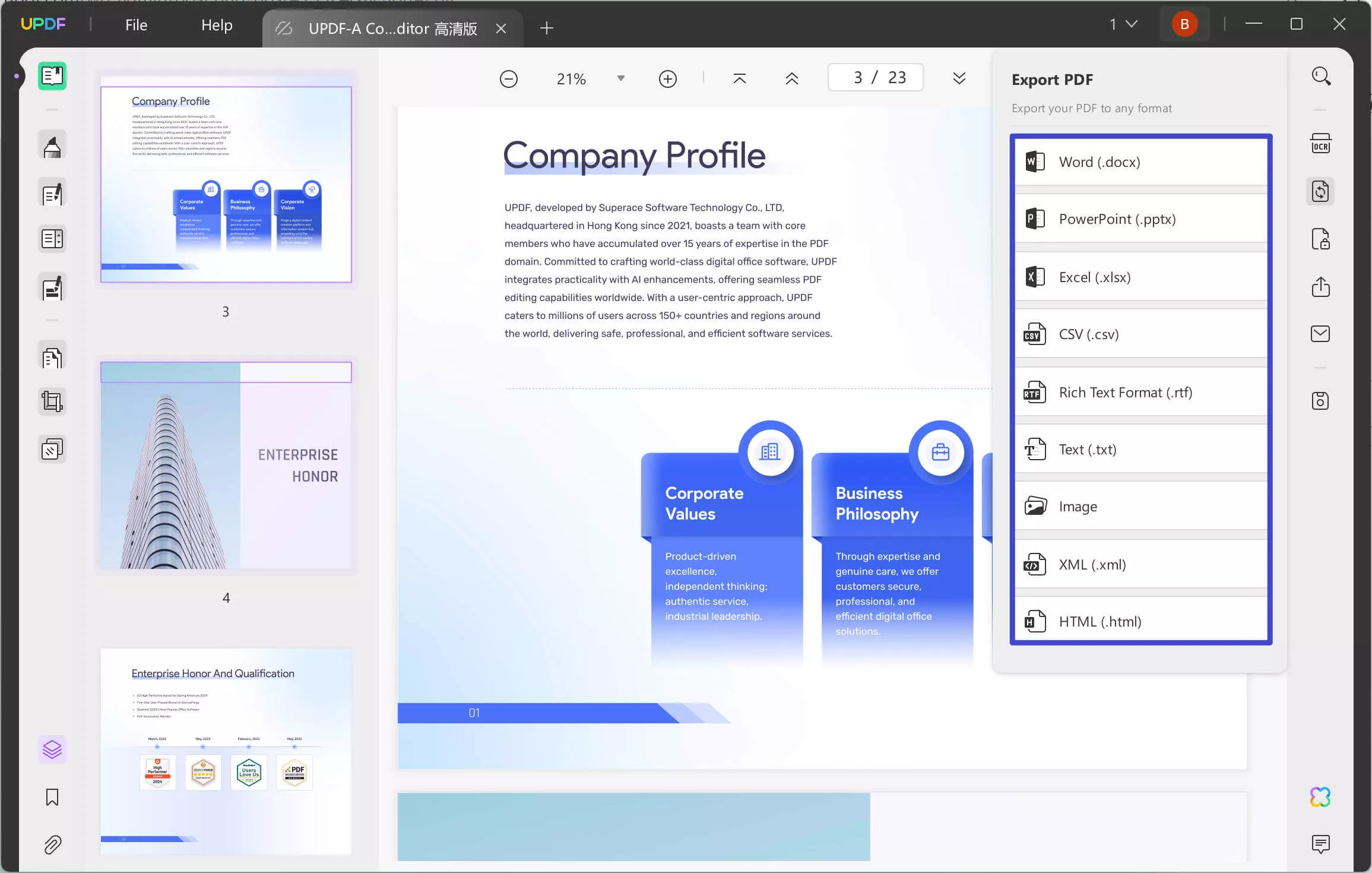
UPDF allows you to convert your PDF files to multiple formats on Windows. The following are the conversion formats that UPDF currently supports:
- PDF to Word (.docx)
- PDF to PowerPoint (.pptx)
- PDF to Excel (.xlsx)
- PDF to CSV (.csv)
- PDF to Rich Text Format (.rtf)
- PDF to Text (.txt)
- PDF to Image (.png, .jpg, .bmp, .gif, .tiff)
- PDF to XML (.xml)
- PDF to HTML (.html)
- PDF to PDF/A
Instead of reading the text guide below, you can also watch this video guide to gain a better understanding of UPDF's conversion features:
1. How to Convert a PDF
Converting PDF files to Word, Excel, CVS, and other formats is a really simple process if you use UPDF. Make sure you have downloaded and installed the latest version of UPDF on your Windows. If not, you can click the below button.
Windows • macOS • iOS • Android Seguro 100%
- Open your PDF files in UPDF
- On the right side of the panel, you will see an Export PDF icon. Click on it.
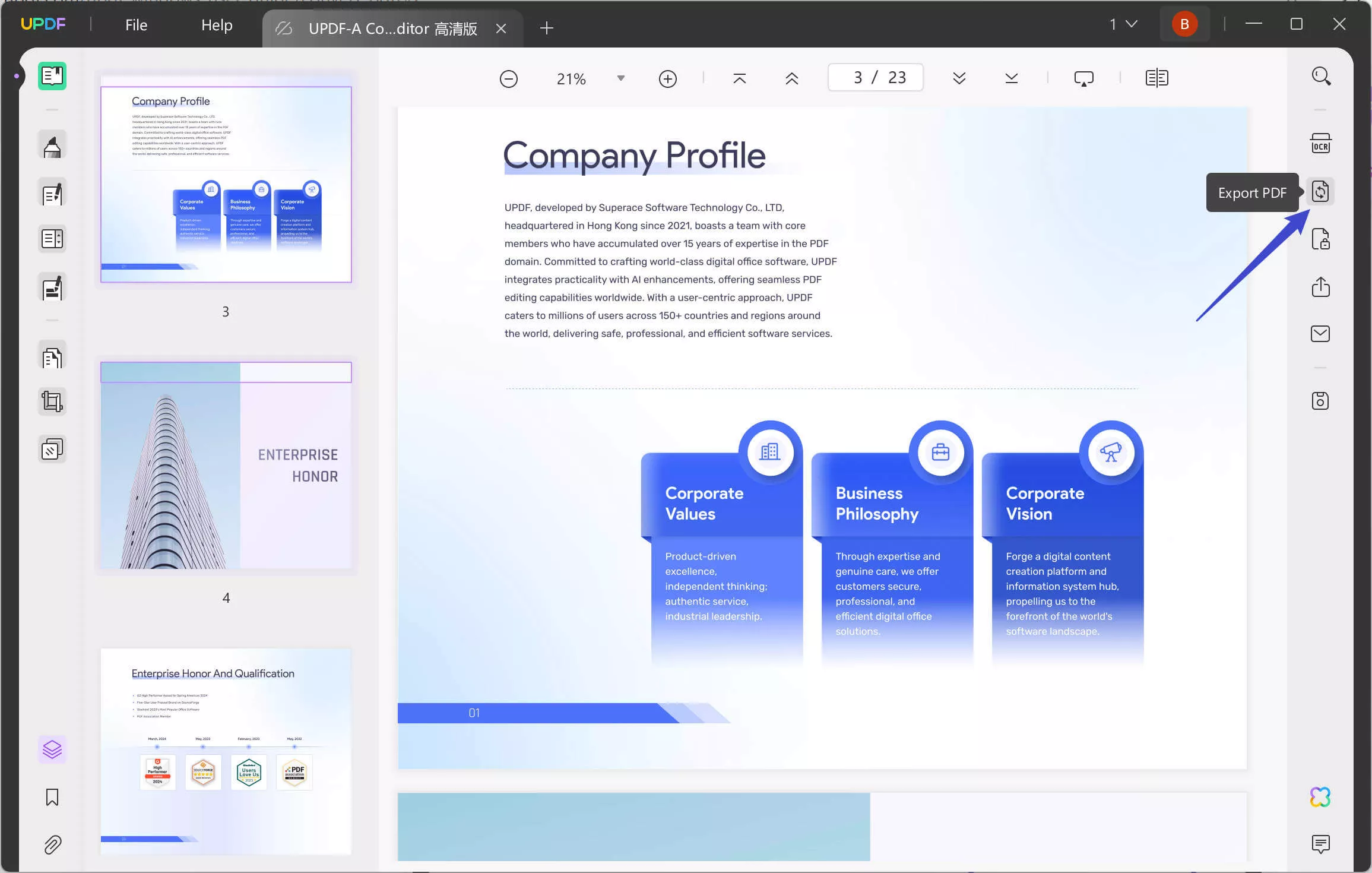
- Now, select the format you want to convert your PDF file to.
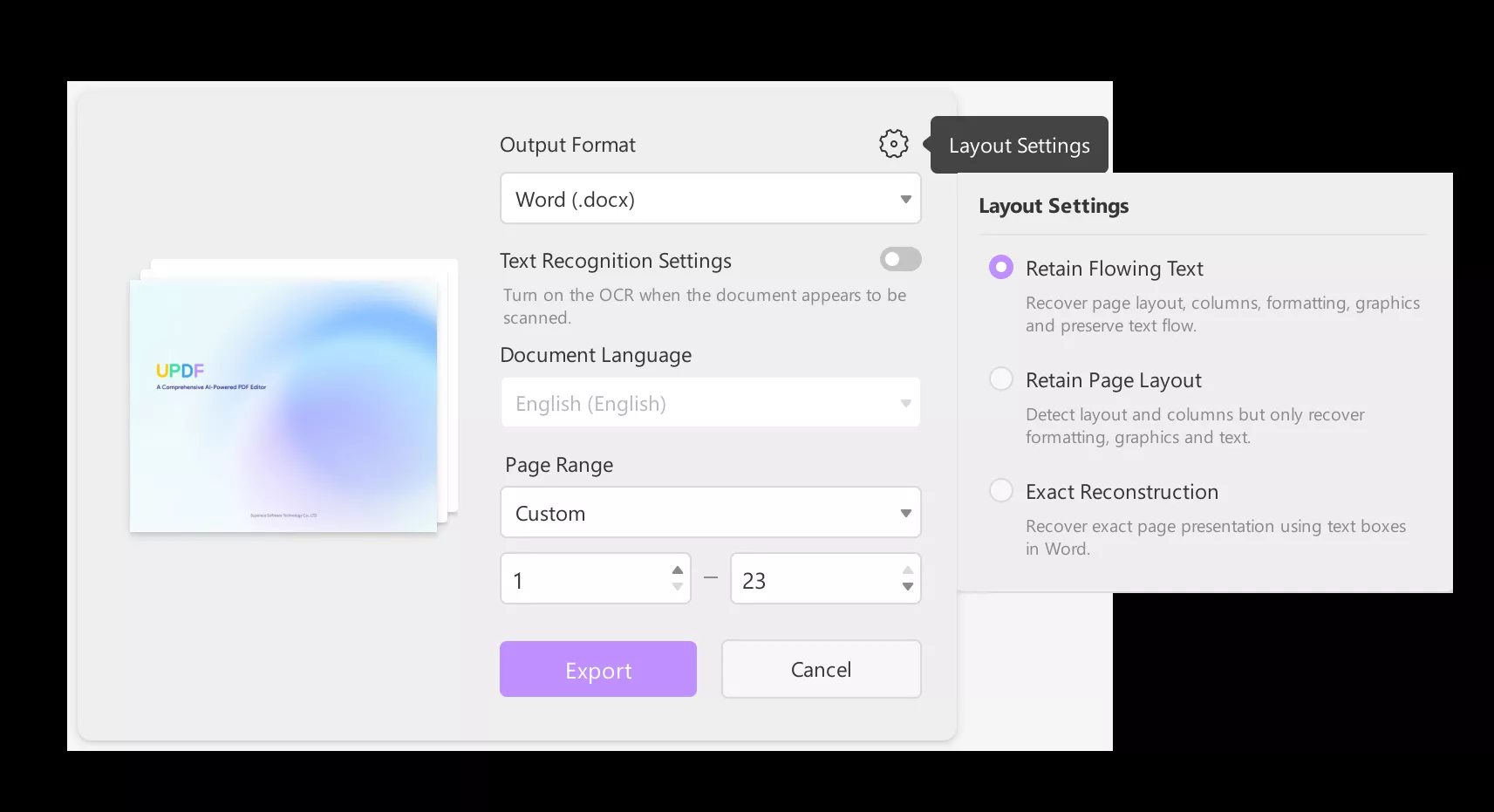
- If you choose Word, Excel, or other document type as the output format, a pop-up window will appear where you can enable text recognition and select the document language if it's a scanned document. You can also choose a custom page range to convert to another file format. In the layout settings, you can select options such as flowing text, retaining the page layout, or extracting reconstruction.
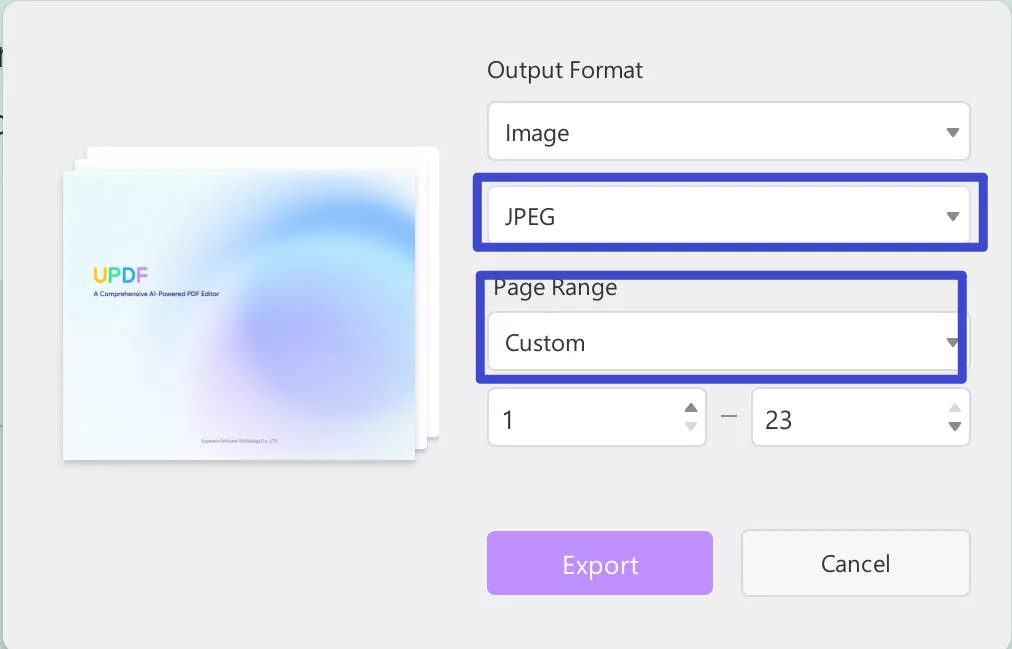
- If you choose to convert to an image, a pop-up window will appear where you can choose the image format as BMP/JPEG/PNG/TIFF/GIF and set the page range to convert.
- After completing these settings, click the Export button and select the destination folder. Your conversion will be completed shortly.
2. Export PDF as PDF/A
PDF/A is an archival PDF format that includes all fonts used in the document as embedded fonts within the PDF file itself. This implies that the recipient of your file won't need to have the same fonts installed on their computer that you did in order to see it.
UPDF also allows you to export your PDF files in PDF/A format. Here is how to do it:
- Click on the "Save as Other" icon on the right panel. Choose the "Save as PDF/A" option.
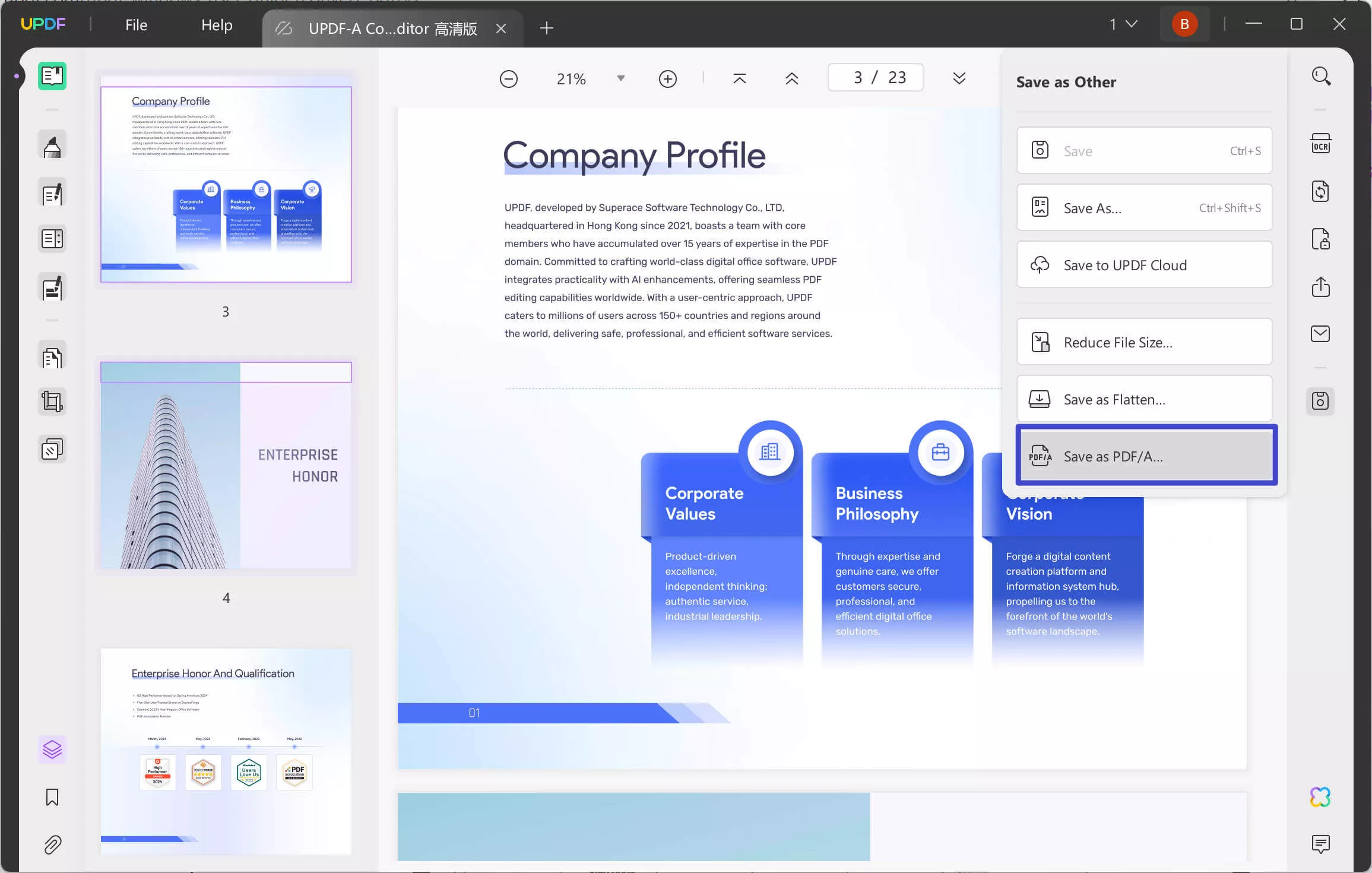
- Select the destination folder where you want to save the PDF/A file. Click Save and UPDF will convert your PDF file to PDF/A format.
In the free version, you can only convert 2 files per day, if you have a lot of PDF converting tasks, we recommend you upgrade to the pro version with low price.