UPDF
UPDF
 UPDF لـWindows
 UPDF لـMac
 UPDF لـiPhone/iPad
 UPDF لـAndroid
  UPDF AI عبر الإنترنت
 UPDF Sign
 تحرير PDF
 تعليق على PDF
 إنشاء PDF
 نموذج PDF
 تحرير الروابط
 تحويل PDF
 OCR
OCR PDF إلى Word
 PDF إلى صورة
 PDF إلى Excel
 تنظيم PDF
 دمج PDF
 تقسيم PDF
 قص PDF
 تدوير PDF
 حماية PDF
 توقيع PDF
 تنقيح PDF
 تطهير PDF
 إزالة الأمان
 قراءة PDF
 UPDF Cloud
 ضغط PDF
 طباعة PDF
 معالجة الدُفعات
 حول UPDF AI
 حلول UPDF AI
 دليل مستخدم AI
 الأسئلة الشائعة حول UPDF AI
 تلخيص PDF
 ترجمة PDF
 الدردشة مع PDF
 الدردشة مع الصورة
 تحويل PDF إلى خريطة ذهنية
 الدردشة مع AI
 شرح PDF
 البحوث العلمية
 البحث عن ورقة
 AI المدقق اللغوي
 كاتب AI
 مساعد الواجبات AI
 مولد اختبارات AI
 حلول الرياضيات AI
 PDF إلى Word
 PDF إلى Excel
 PDF إلى PowerPoint
 الحلول المؤسسية
 علامة المؤسسة
 الذكاء الاصطناعي للمؤسسات
 خطة المؤسسة
 دليل مستخدم المؤسسة
 ويبينار للشركات
 البنوك
 الرعاية الصحية
 التأمين
 قانوني
 التصنيع
 الحكومة
 حلول التعليم
 قصص العملاء
 دليل المستخدم
 حيل UPDF
 الأسئلة الشائعة
 مراجعات UPDF
 مركز التنزيل
 مدونة
مدونة غرفة الأخبار
 المواصفات التقنية
 التحديثات
 UPDF مقابل Adobe Acrobat
 UPDF مقابل Foxit
 UPDF مقابل PDF Expert


Batch Combine Files on Windows
If you want to merge multiple PDF documents or images into a single file, UPDF's Batch Combine feature makes it simple and efficient.
Note: UPDF also allows you to split a multi-page PDF into separate files or divide a single PDF page into multiple sections as individual pages. If you need step-by-step guidance for these tasks, click the links below:
1. Select the Batch Combine Option
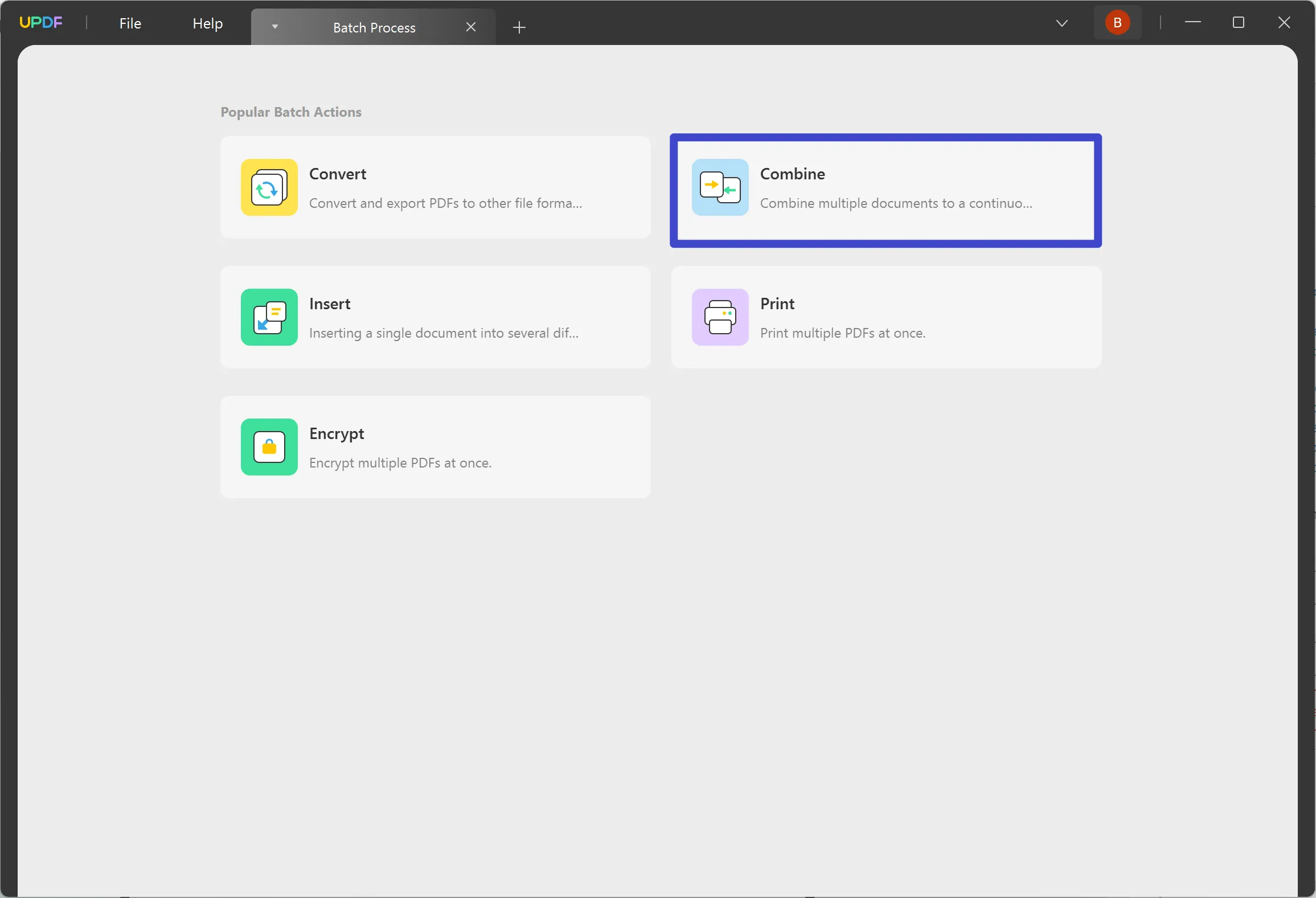
As you launch UPDF on your Windows computer, continue to the "Batch PDFs" feature on the home screen to lead to a new window.

In the new window, select the "Combine" option.
This feature provides the ability to combine PDF documents along with a variety of image formats such as JPG, JPEG, PNG, TIFF, BMP, and GIF into a single PDF.
2. Add Files
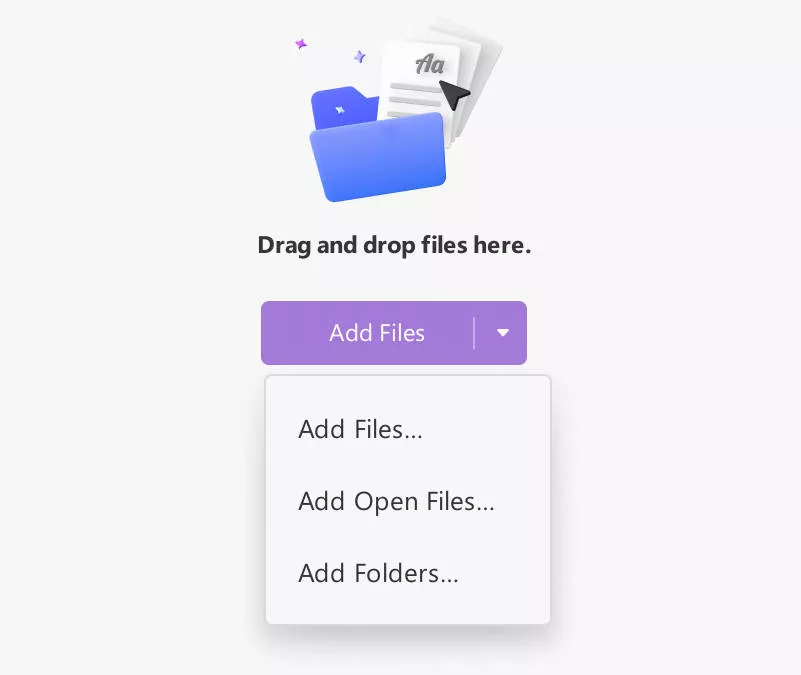
On leading to a new window, you will have to add files to combine, which can be done in a variety of ways:
- Dragging and Dropping
For starters, you can simply drag and drop your potential files into the opened window of UPDF.
- Navigate Files From Folders
As you select the "Add Files" button, you will be led to a drop-down option where you must select the "Add Files…" option. Continue to browse the file from the file explorer and add it into UPDF successfully.
- Adding Pre-Opened Files
You can also find the option of "Add Open Files…" in the drop-down that opens after selecting the "Add Files" button. This will add all files automatically into the section that is currently open on UPDF.
- Add Complete Folders
For adding a collection of PDF documents, you can add a complete folder with the help of the "Add Folders…" option in the drop-down menu.
3. Rearranging Added Documents
After adding documents to the Batch Combine panel, you can easily rearrange them by dragging them into the desired order.
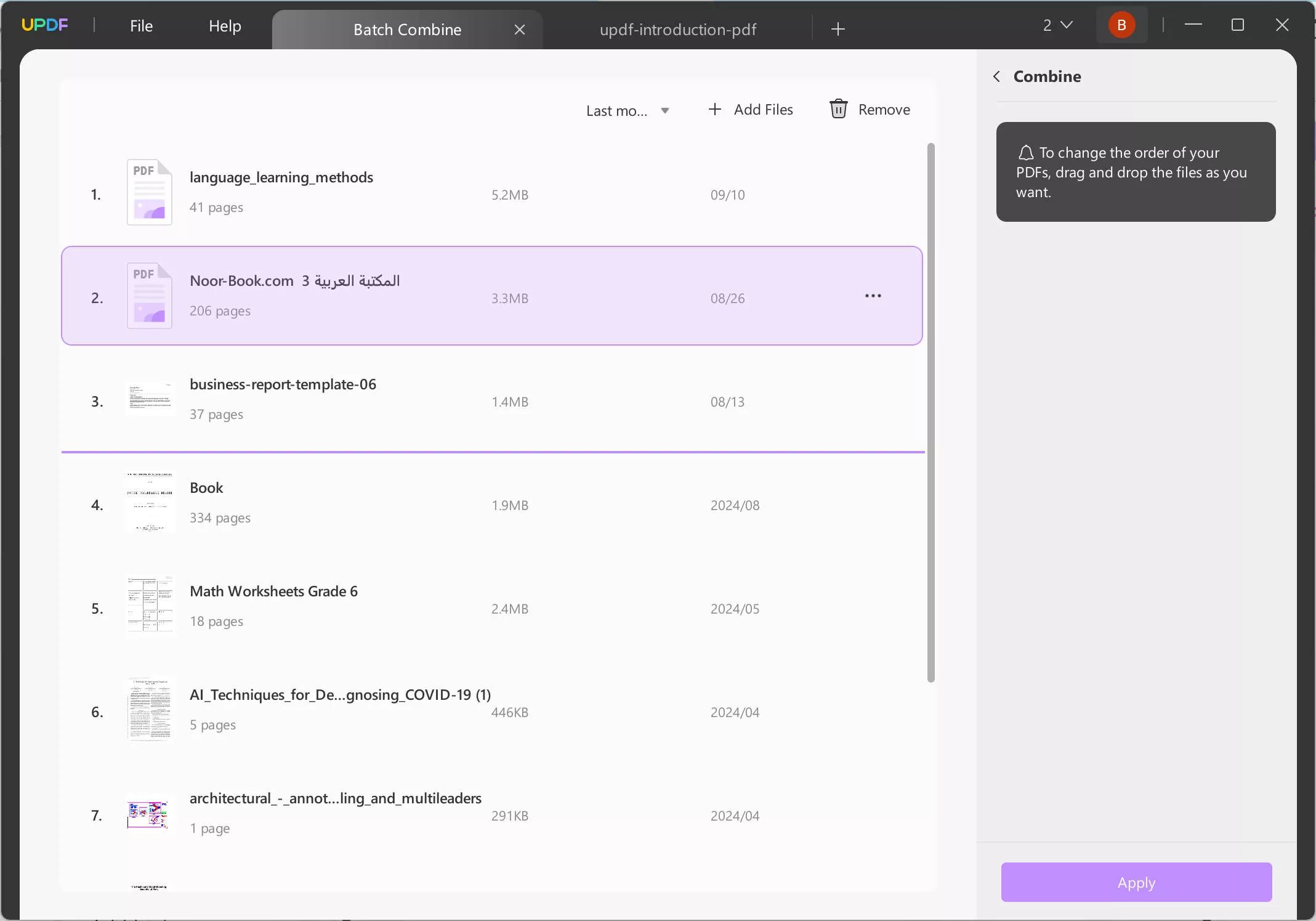
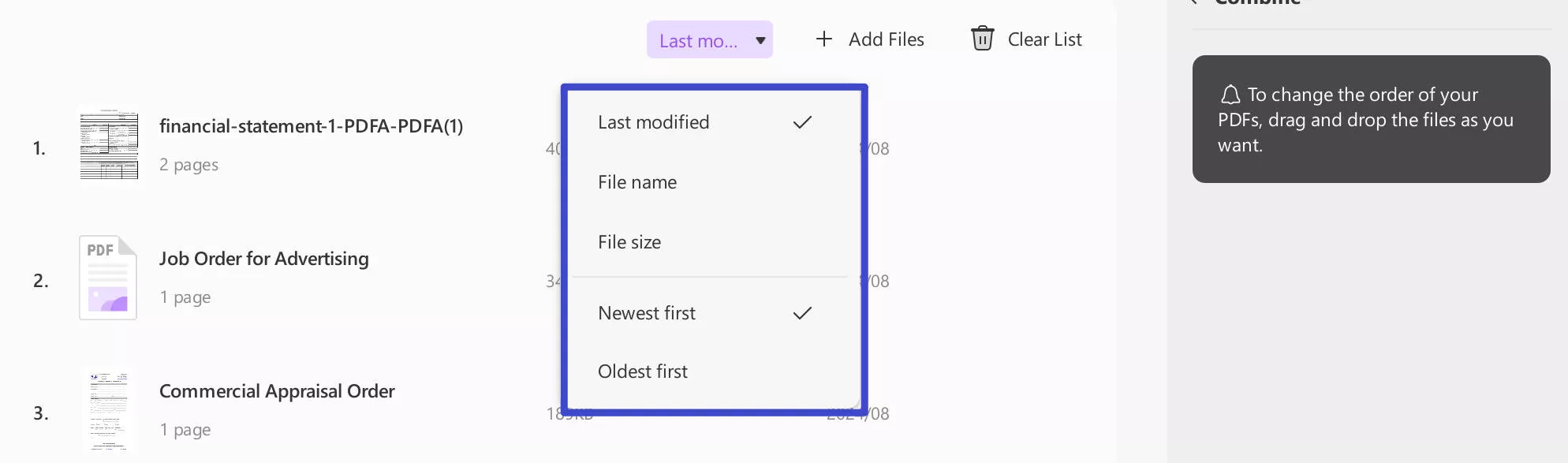
Additionally, UPDF allows you to sort the added files by last modified time, file name, file size, newest first, or oldest first.
4. Combine Files
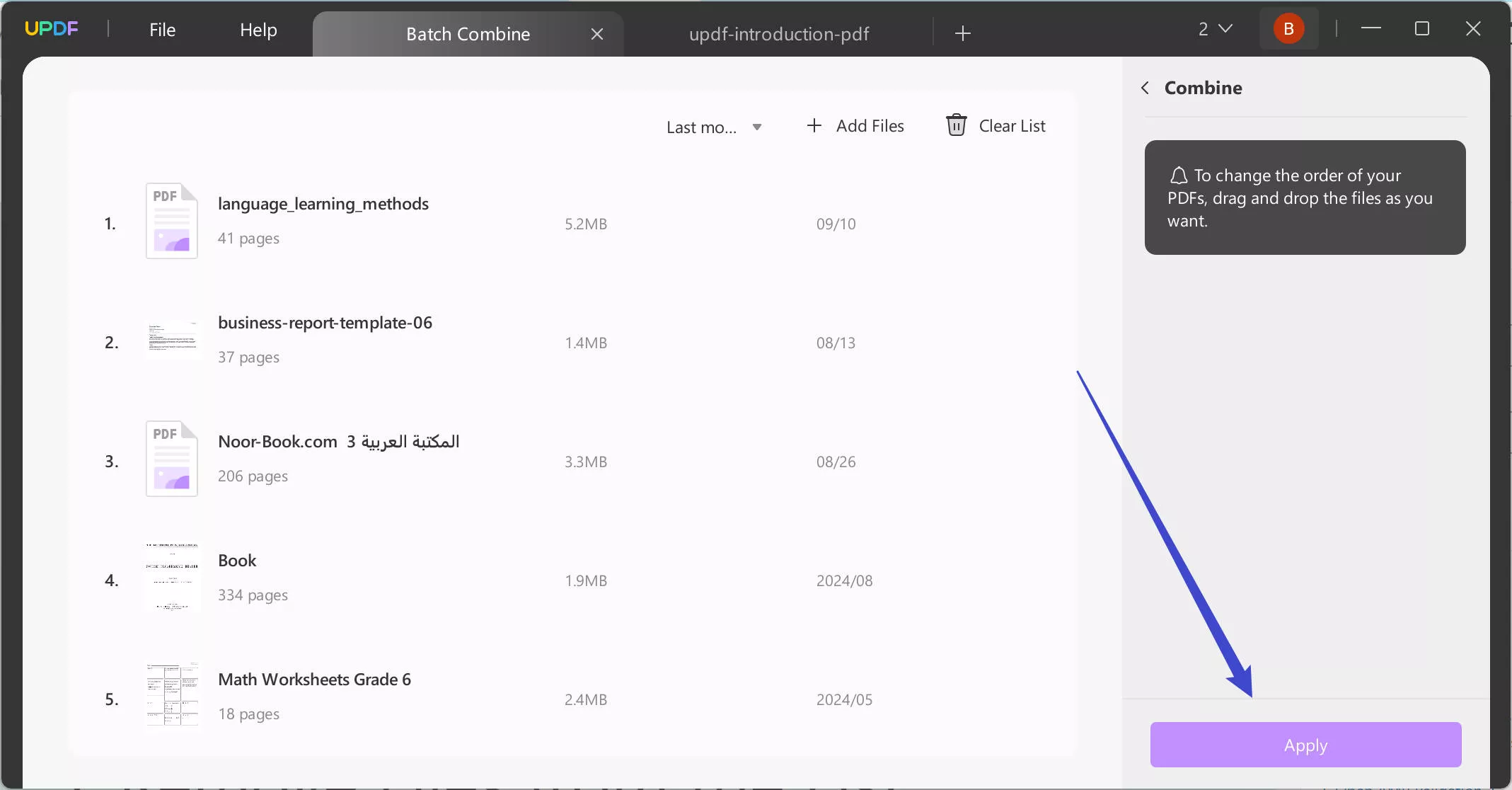
As you are done with adding all the files and rearranging them, continue to the "Apply" button to save the new document in any particular position you want to.
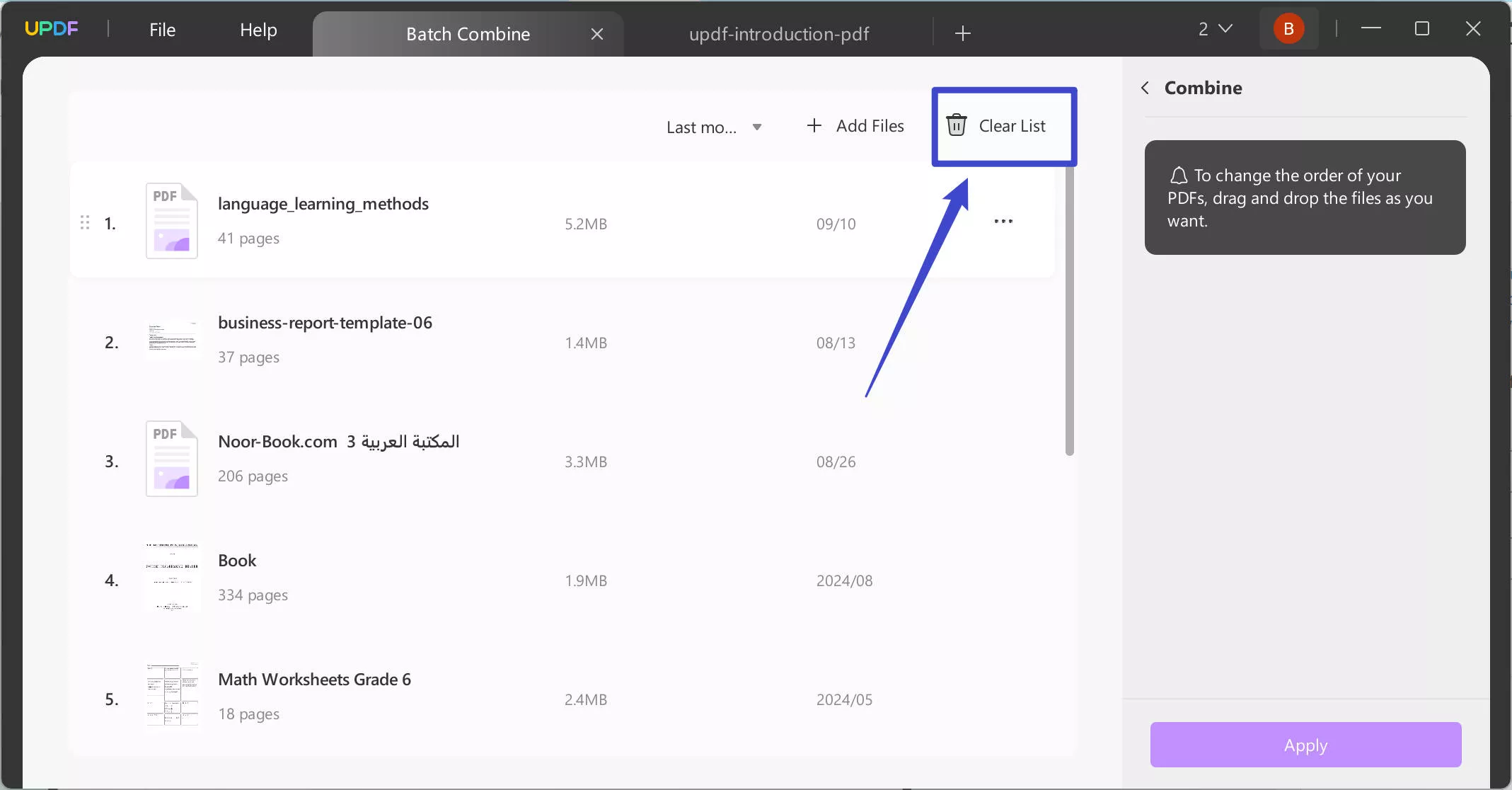
5. Remove Files from the List
If you intend to remove a specific file, find the "three-dots" icon adjacent to the added document and select the option of "Remove File."
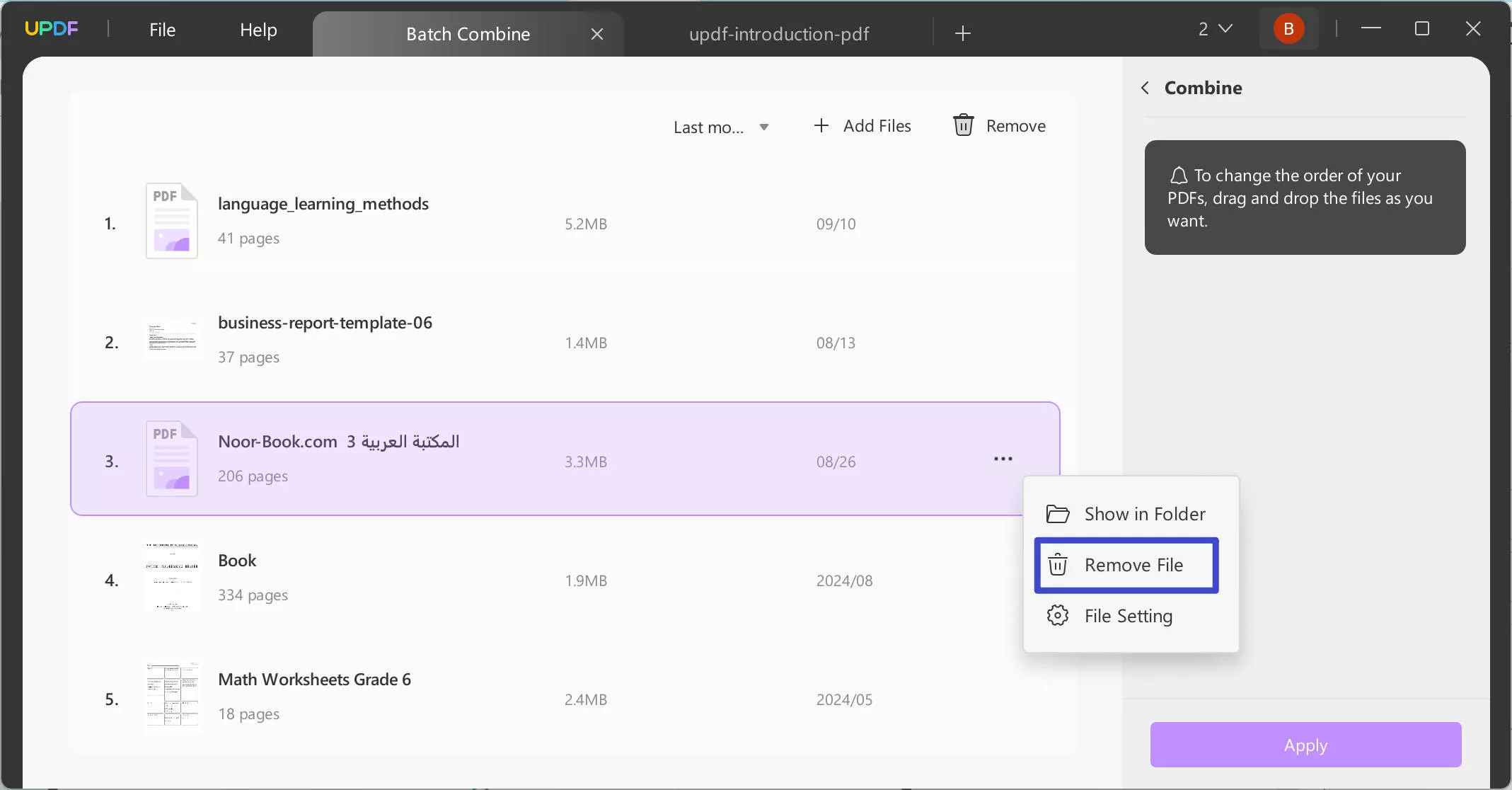
Under the same drop-down, you can also select the option of "Show in Folder" to access the location of the document. To view its properties, use the option of "File Setting."
If you intend to clear the complete list of added documents, use the "Clear List" button.